Make a QR code from Safari
A QR code for any web page, from the Share button
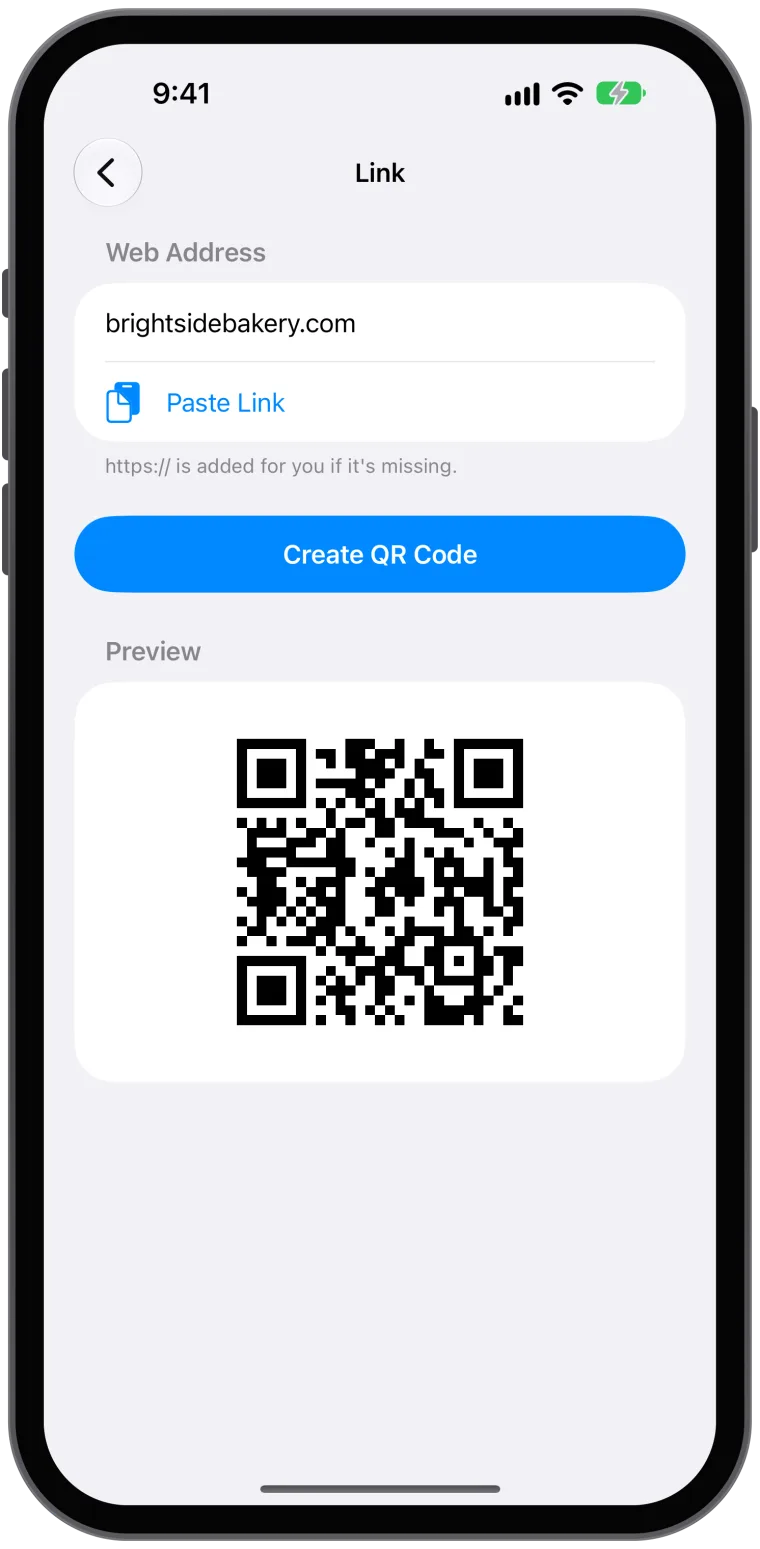
You’re already on the page. Instead of copying the address, opening an app, and pasting, tap Share, then Setrik QR. The page’s QR code appears, ready to copy or share.
Free.
Also a “Make QR Code” action in Shortcuts, and Siri.

Free to download · For iPhone · Requires iOS 26 or later
How it works
Make a QR code from the Share menu
1
Open the page
In Safari, or any app that shares a web link (or text with a link in it).
2
Tap Share, then Setrik QR
The QR code for that link appears at once, standard size, black on white.
3
Copy or share it
Tap Copy Image or Share Image. It’s added to your History the next time you open the app.
Shortcuts and Siri
Make QR codes without opening the app
The Make QR Code action
In the Shortcuts app: “Make a QR code for [Link].” It hands the QR code picture to the next step, like saving it to Photos or adding it to a note.
Siri and Spotlight
Say “Make a QR code with Setrik QR” or “Create a QR code with Setrik QR.”
Real-life uses
When the link is already on your screen
Three steps become one.
A teacher’s sign-up form
On the Google Form, tap Share, then paste the code into the worksheet.
An article to pass around
Make a code for a handout or a slide in seconds.
An event page
Copy the code straight into the flyer you’re making.
A shortcut you build
Make a code for the current page and save it to Photos in one tap.
Good to know
A few details
The Share menu and Shortcuts make link QR codes. Other kinds (Wi-Fi, contact cards, and so on) are made in the app.
Codes from the Share menu are standard size, black on white. Add colors, a caption, or print them in the app, where they’re in History.
Very long links (more than about 2,300 characters, like some search and shopping links) are too much for one QR code: the app says “Link Too Long” and suggests a shorter link.
No link in what you shared? It says “No Link Found” and points you to the app.
Keep exploring
More of what Setrik QR does
Or see every Setrik QR feature on one page.
Website QR codes
A link to your site, menu, or review page, for flyers and signs.
See website QR codesQuick Scan and Siri
Open the scanner from the Home Screen, Lock Screen, Control Center, or Siri.
See Quick ScanCaptions and frames
“Scan for our menu” under any code, or a “Scan Me” frame with Pro.
See captions and framesPrint and export
Share or save any code, or print-ready PDF, SVG and large images with Pro.
See printing and exportQuestions about the Share menu
Can I make a QR code straight from Safari?
Yes. On any web page, tap Share, then Setrik QR. The page’s QR code appears, ready to copy or share, and it’s added to your History.
I don’t see Setrik QR in the Share menu.
Scroll the row of apps to the end and tap More, then turn on Setrik QR.
Does it work with Shortcuts?
Yes. Use the “Make QR Code” action, or say “Make a QR code with Setrik QR” to Siri.
Is it free?
Yes. The Share menu, the Shortcuts action, and Siri are free.
A QR code for the page you’re on
Tap Share, then Setrik QR. Free to download.