Quick Scan, Control Center and Siri
Open the scanner without opening the app
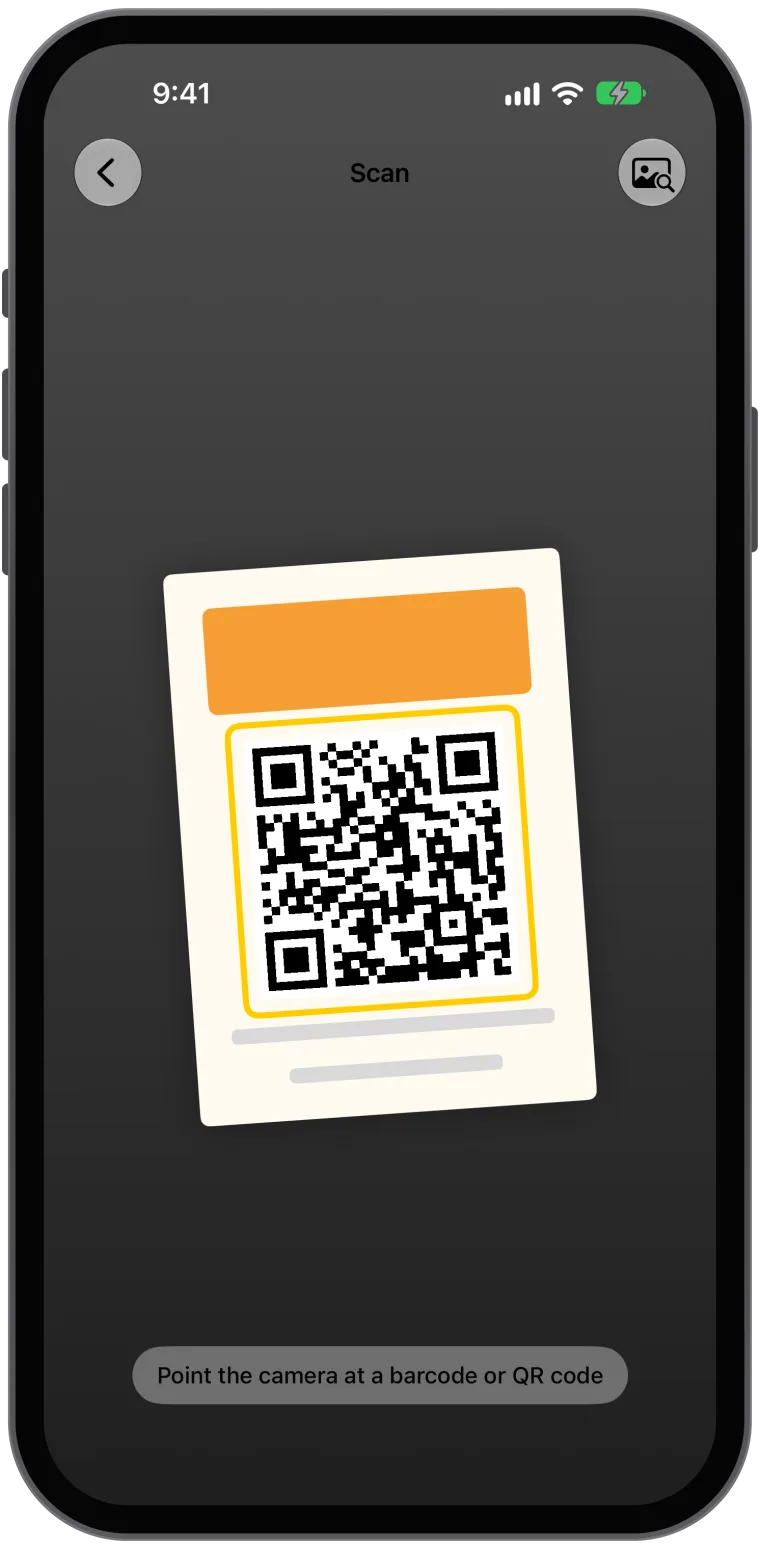
When a code is in front of you, every second counts. Setrik QR adds a Quick Scan widget, a Control Center button, an Action Button option, and Siri phrases that open the scanner straight away.
All free.
Set them up once, use them every day.

Free to download · For iPhone · Requires iOS 26 or later
The ways in
Four shortcuts to the scanner
Quick Scan widget
A small blue “Scan” square on your Home Screen, or a round icon on your Lock Screen. One tap opens the scanner.
Control Center
Add the Scan a Code control to Control Center or to the Lock Screen’s buttons.
Action Button
On an iPhone with an Action Button, set it to Scan a Code.
Siri, Spotlight, and Shortcuts
Say “Scan with Setrik QR,” “Scan a QR code with Setrik QR,” or “Scan a barcode with Setrik QR.” The Scan a Code action works in Shortcuts too.
Set them up
How to add them
Home Screen widget: touch and hold an empty spot on the Home Screen, tap Edit, then Add Widget, and choose Setrik QR, then Quick Scan.
Lock Screen widget: touch and hold the Lock Screen, tap Customize, choose the Lock Screen, tap the widget area, and add Setrik QR’s Quick Scan.
Control Center: open Control Center, touch and hold an empty spot, tap Add a Control, and choose Scan a Code.
Action Button: in the iPhone’s Settings, tap Action Button, choose Controls, and pick Scan a Code.
Siri: nothing to set up. Just ask.
Real-life uses
When speed matters
The moments a shortcut beats finding the app.
At the parking meter
Scan from the Lock Screen without unlocking and searching.
Checking labels
Scan one label after another from Control Center.
At the restaurant table
Ask Siri to scan the menu code while you hold your drink.
Keep exploring
More of what Setrik QR does
Or see every Setrik QR feature on one page.
Show Full Screen
Big and bright, with the screen kept awake, for the checkout counter.
See Show Full ScreenSaved Code widget
One of your codes right on the Home Screen, ready to scan.
See the Saved Code widgetQuestions about Quick Scan
Are the widgets free?
The Quick Scan widget, the Control Center button, the Action Button option, and Siri are free. The Saved Code widget is part of Pro.
What do I say to Siri?
“Scan with Setrik QR,” “Scan a code with Setrik QR,” “Scan a QR code with Setrik QR,” or “Scan a barcode with Setrik QR.”
Can I scan from the Lock Screen?
Yes. Add the Quick Scan widget or the Scan a Code control to your Lock Screen.
Scan in one tap
From the Home Screen, the Lock Screen, Control Center, or Siri. Free to download.