Saved Code widget (Pro)
Your code, right on your Home Screen
The Saved Code widget shows one of your saved codes on your Home Screen, in its own colors, ready to scan. Tap it and the code opens full screen at full brightness.
Small and large sizes.
Updates when your Saved Codes change.

Free to download · Pro is a one-time purchase · For iPhone, iOS 26 or later
How it works
Add the Saved Code widget
1
Save a code
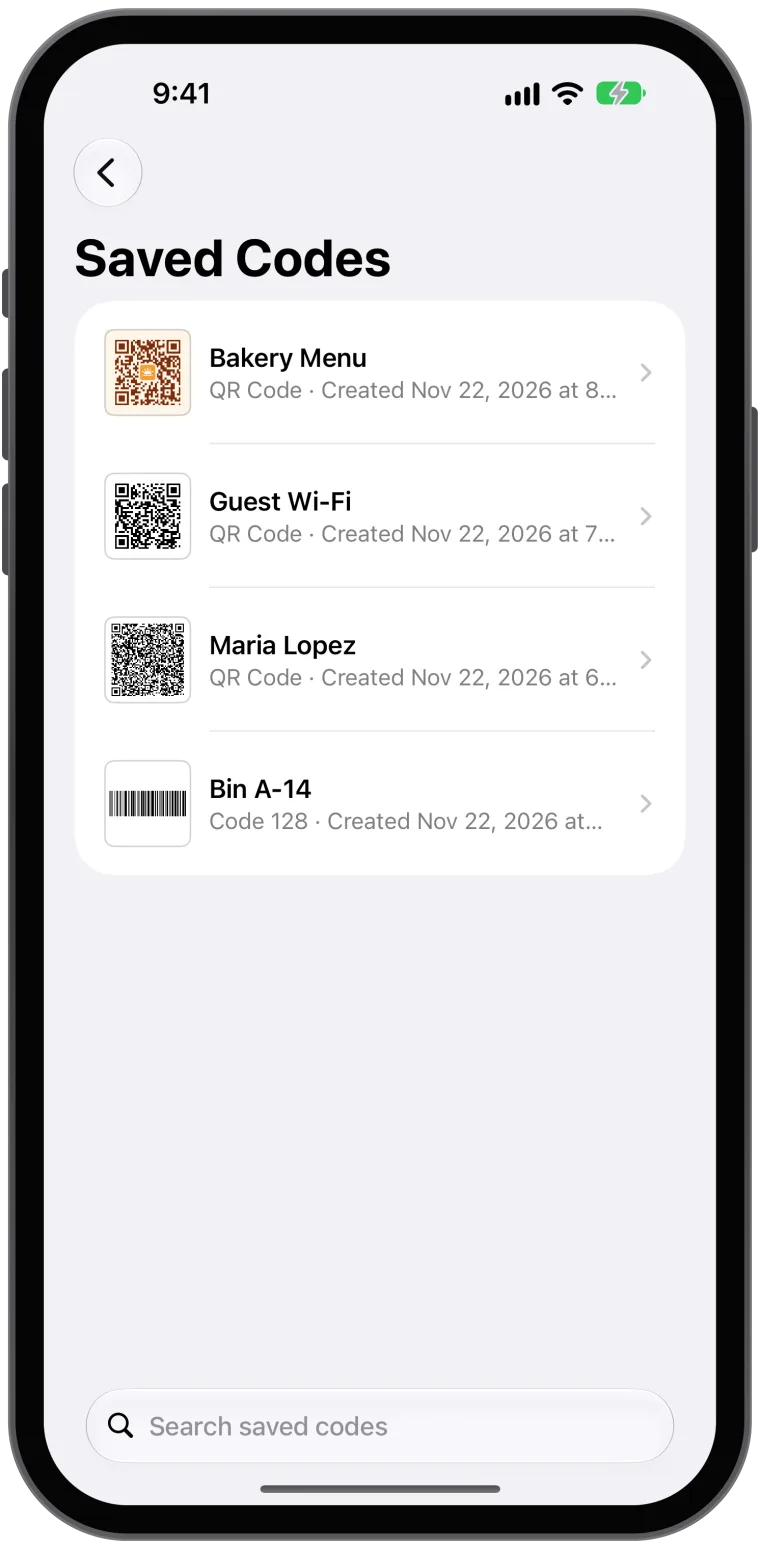
Tap the star on any code to keep it in Saved Codes.
2
Add the widget
Touch and hold an empty spot on the Home Screen, tap Edit, then Add Widget, and choose Setrik QR, then Saved Code.
3
Pick the code
It shows your newest saved code. To choose another, touch and hold the widget, tap Edit Widget, then Code.
Real-life uses
What people put on their Home Screen
The one code you show most often.
Your store loyalty card
At the checkout, tap the widget and hold up the code.
Guest Wi-Fi at home
Visitors scan it straight from your Home Screen.
Your contact card at events
One tap, and they’re scanning your details.
Your gym tag
Scan in at the desk in a second.
Your library card
Ready when you check out books.
Your business’s menu or website
For when a customer asks for the link.
Good to know
The details
Two sizes: small and large. The large size shows the code’s name under it (the small size does too for barcodes).
It shows the code in its own colors, with its logo.
No saved codes yet? It says “Tap the star on a code in Setrik QR to save it.”
Without Pro, it shows “Unlock Pro in the app to show a saved code here.”
Part of Setrik QR Pro
The Saved Code widget is part of Pro. The Quick Scan widget is free. Pro is a one-time purchase in the app, through Apple: no subscription, nothing renews. See everything Pro includes.
Keep exploring
More of what Setrik QR does
Or see every Setrik QR feature on one page.
Show Full Screen
Big and bright, with the screen kept awake, for the checkout counter.
See Show Full ScreenQuick Scan and Siri
Open the scanner from the Home Screen, Lock Screen, Control Center, or Siri.
See Quick ScanQuestions about the Saved Code widget
How do I choose which code the widget shows?
Touch and hold the widget, tap Edit Widget, then Code, and pick from your Saved Codes. Otherwise it shows your newest saved code.
Can I have more than one?
Yes. Add the widget again and pick a different code for each one.
What happens when I tap it?
The code opens full screen at full brightness, ready to scan.
Is it free?
The Saved Code widget is part of Setrik QR Pro, a one-time purchase. The Quick Scan widget is free.
Your most-used code, one tap away
Right on your Home Screen, ready to scan. Free to download; the Saved Code widget comes with Pro.