Scan a QR code from a picture (Pro)
Scan a QR code from a picture or a screenshot
Someone texted you a QR code. Your boarding pass is a screenshot. The code is on the same phone you’d scan it with. Setrik QR Pro reads codes in photos, screenshots, and image files.
Photo Library or Files: JPEG, PNG, HEIC and more.
Only the picture you choose is shared with the app, and it isn’t kept.

Free to download · Pro is a one-time purchase · For iPhone, iOS 26 or later
How it works
Scan a code in a picture
1
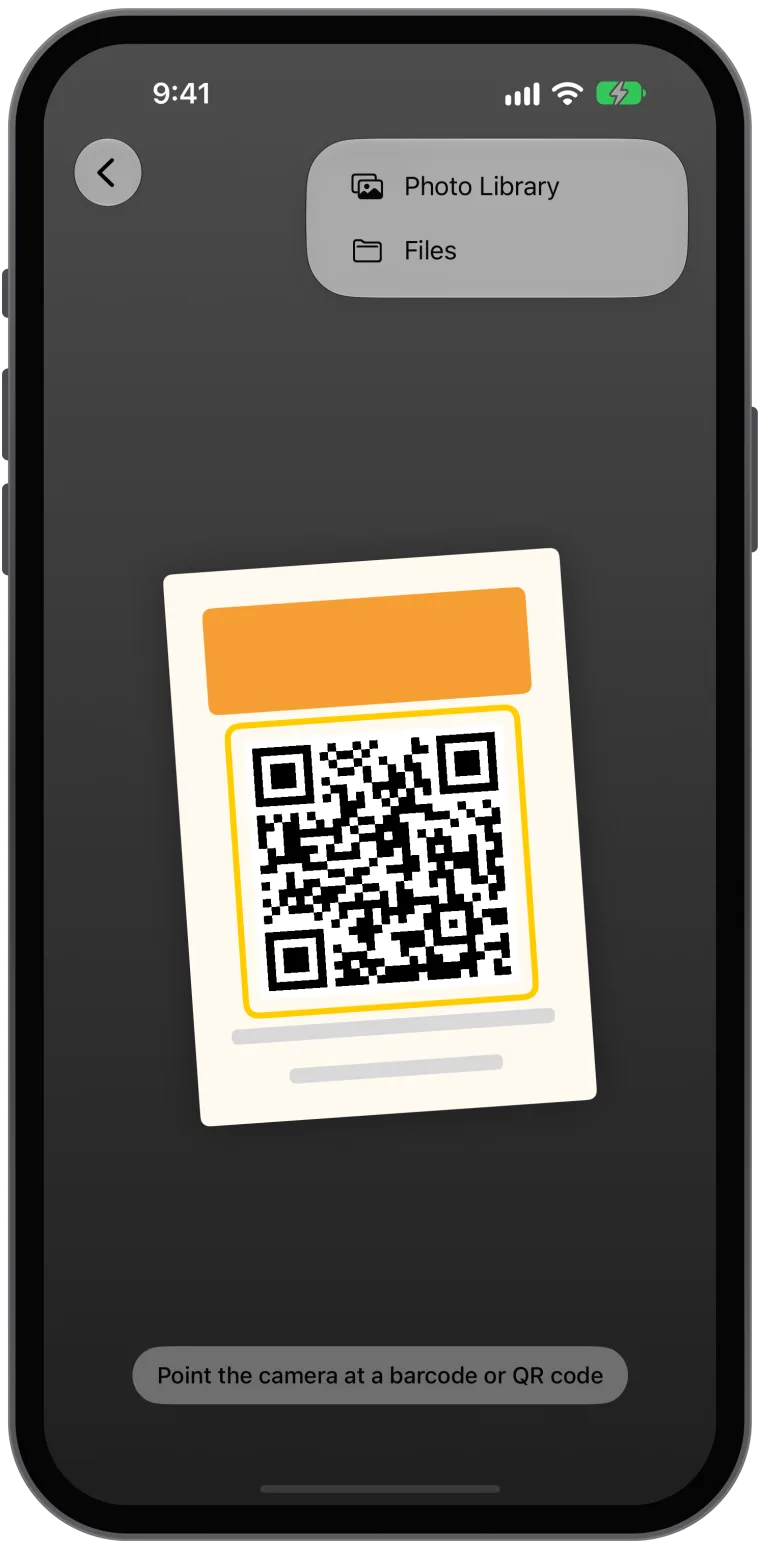
Tap Scan from Photo
On the start screen. Or on the Scan screen, tap From Photo at the top right.
2
Pick the picture
Choose Photo Library or Files, then the photo, screenshot, or image file.
3
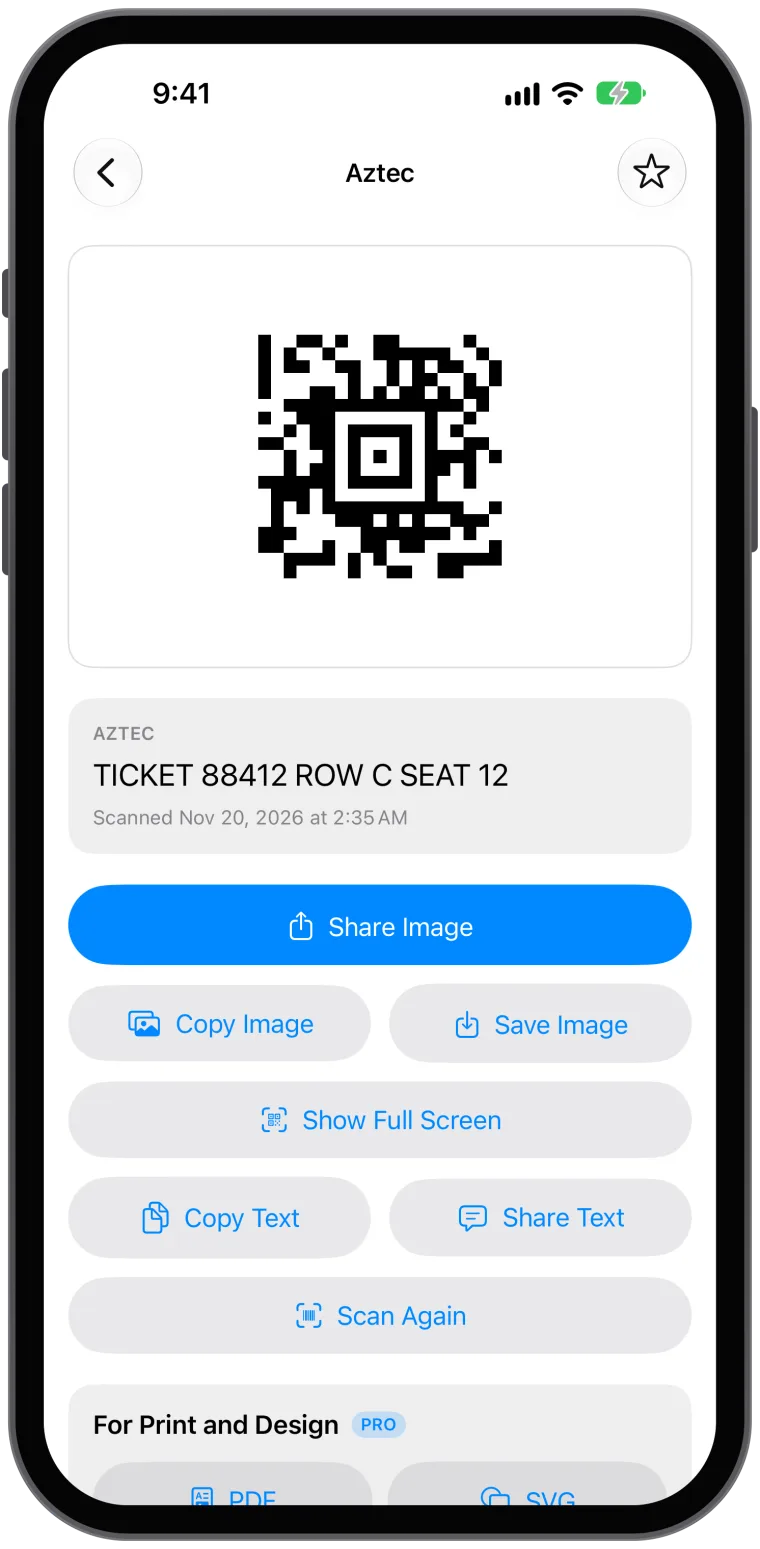
See the result
The code opens on the result screen, with the same buttons as a camera scan.
Several codes in one picture
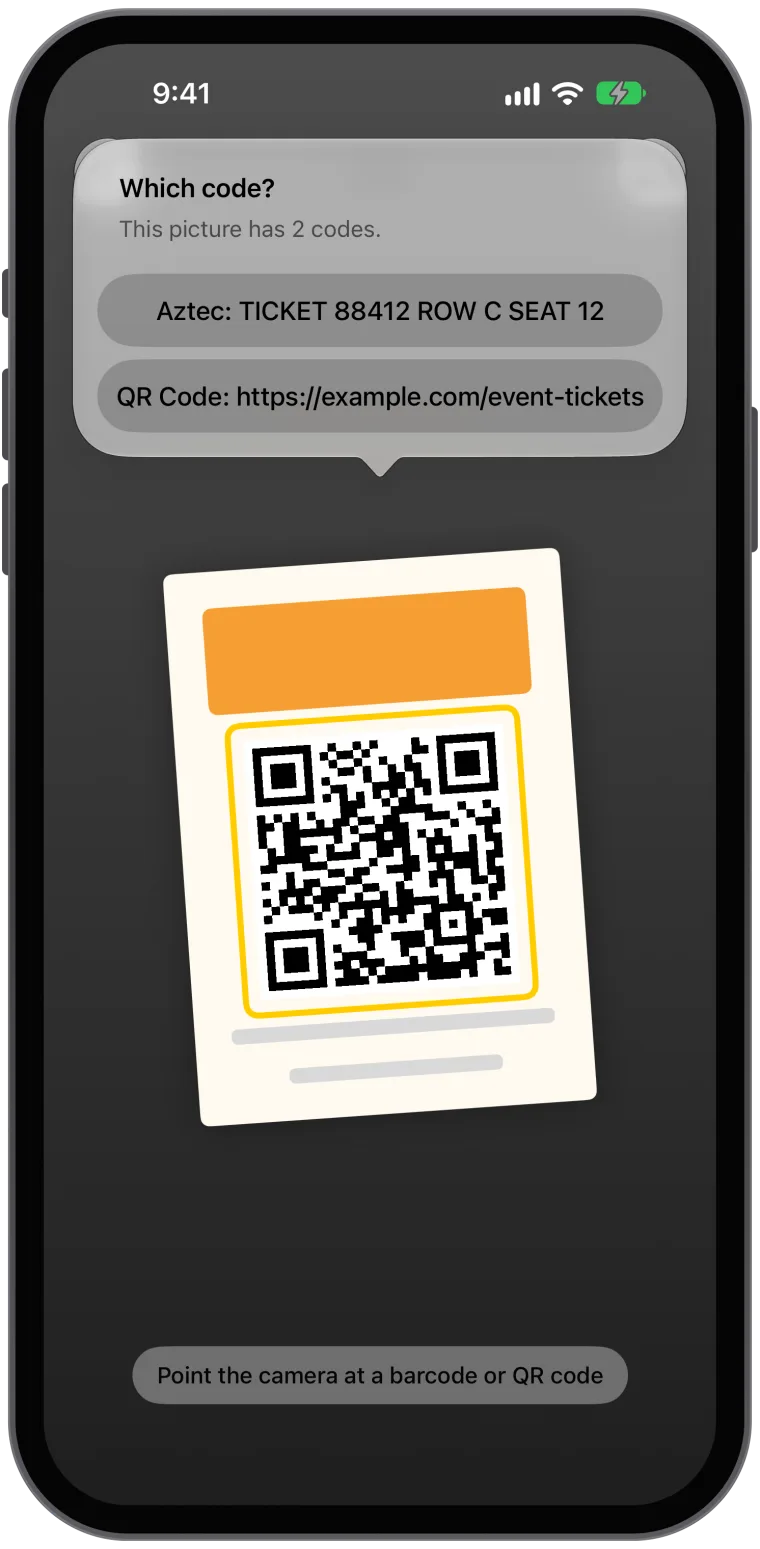
You choose which one
A ticket might have an Aztec code and a QR code. When a picture has more than one, Setrik QR lists each with its type and value: “Which code? This picture has 2 codes.”
Sideways photos are read the right way round.
Small codes in big pictures are found too.
Nothing found? It says so, and suggests a sharper or closer picture.
Reads the same 20 kinds of codes as the camera.
Real-life uses
When the code is already on your phone
The times a camera can’t help.
Boarding passes
Read the code in a boarding pass screenshot to check what it holds.
Event tickets
A ticket that came as an image in an email or a message.
A code someone sent you
A friend texts a QR code for a menu, a Wi-Fi network, or a sign-up page.
A photo you took earlier
You snapped the poster on the way past; read its code later.
Codes on web pages
Take a screenshot of the page and read the code in it.
Image files
A PNG or JPEG in Files, from email or a shared folder.
Private by design
Only the picture you choose
Apple’s photo picker shares only the one picture you choose with Setrik QR. The app can’t see your other photos. The picture is read on your iPhone and isn’t kept: only the code’s value is saved, in your History.
More in the Setrik QR privacy policy.
Part of Setrik QR Pro
Scanning from a photo or file is part of Pro. Pro is a one-time purchase in the app, through Apple: no subscription, nothing renews. See everything Pro includes.
Keep exploring
More of what Setrik QR does
Or see every Setrik QR feature on one page.
Show Full Screen
Big and bright, with the screen kept awake, for the checkout counter.
See Show Full ScreenQuick Scan and Siri
Open the scanner from the Home Screen, Lock Screen, Control Center, or Siri.
See Quick ScanSaved Code widget
One of your codes right on the Home Screen, ready to scan.
See the Saved Code widgetQuestions about scanning from a picture
Can you scan a QR code from a screenshot?
Yes, with Setrik QR Pro. Tap Scan from Photo, choose Photo Library, and pick the screenshot.
Can it read a code from a file?
Yes. Choose Files instead of Photo Library to pick an image file, like a PNG or JPEG someone emailed you.
What if the picture has more than one code?
Setrik QR lists every code it finds, with its type and value, and you pick one.
Does the app keep my photo?
No. Only the picture you choose is shared with the app, it’s read on your iPhone, and only the code’s value is saved.
Read codes in your pictures
Screenshots, photos, and image files. Free to download; scanning from a photo comes with Pro.