Getting started
Your first QR code in about a minute
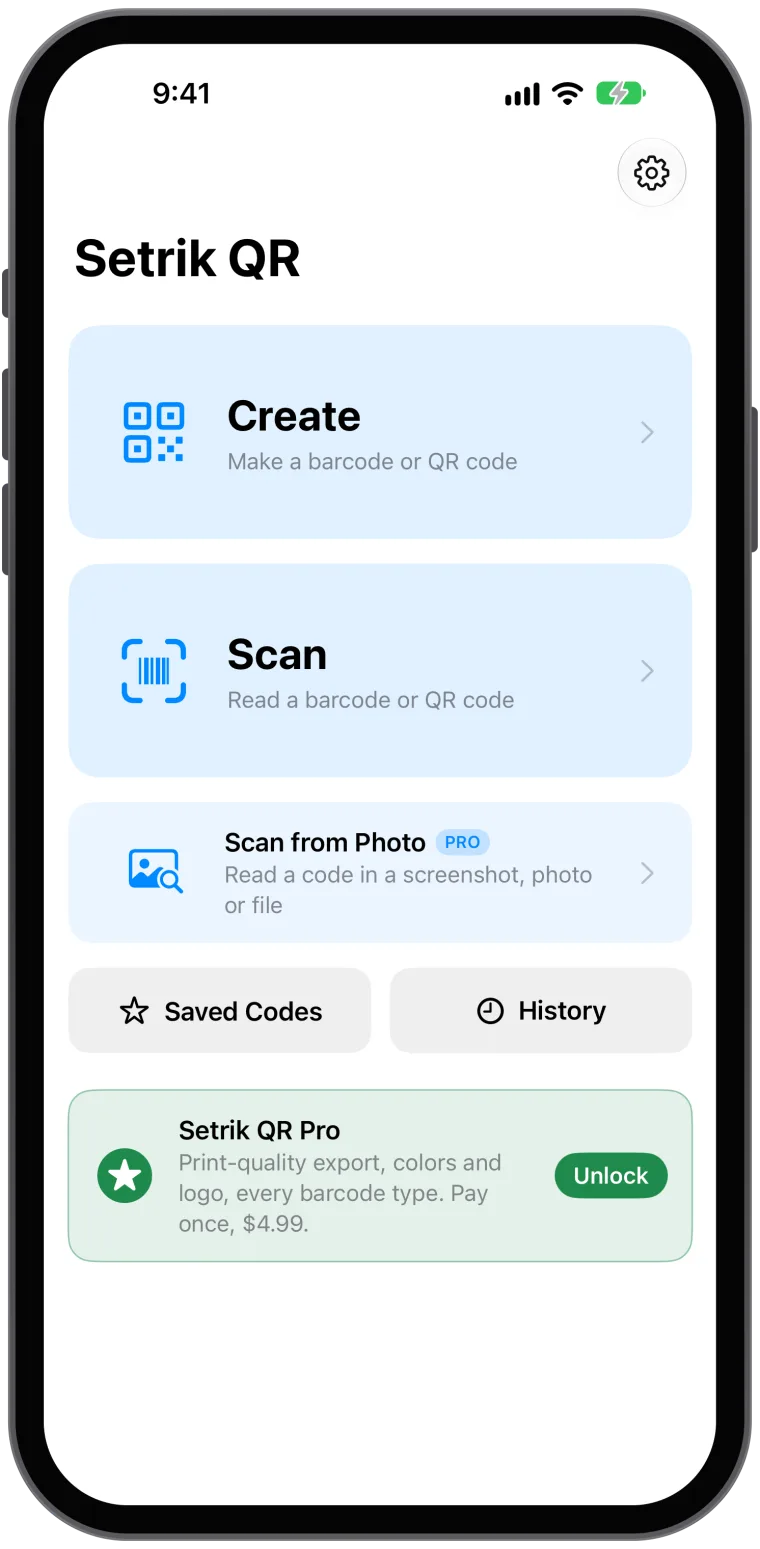
Setrik QR has no account to set up and nothing to learn first. Open it, tap Create, and you’re making your first code. Here’s the quick tour, with the things people use most.
No sign-up: open the app and start.
Everything here is free unless it says Pro.

Free to download · For iPhone · Requires iOS 26 or later
Step 1 · Make a QR code for your website
Make a QR code for your website
The most common first code. It takes four taps.
Open Setrik QR and tap Create.
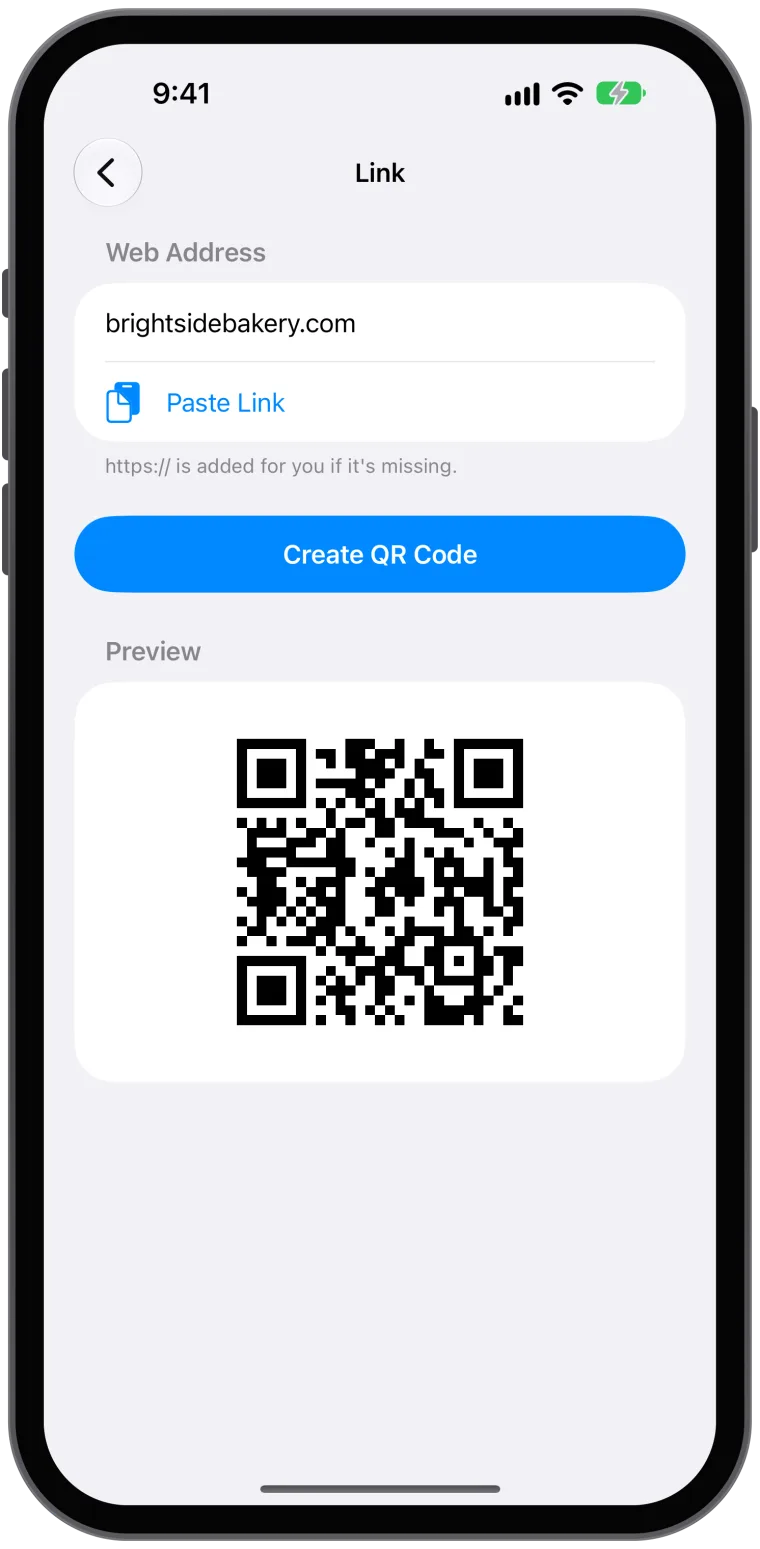
Tap Link, then type your web address or tap Paste Link.
Tap Create QR Code. Look for Checked: scans correctly.
Tap Share Image, Copy Image (to paste into a document or email), or Save Image (to Photos).
Tap the star to keep it in Saved Codes.
Step 2 · Make a Wi-Fi code for guests
Make a Wi-Fi code for guests
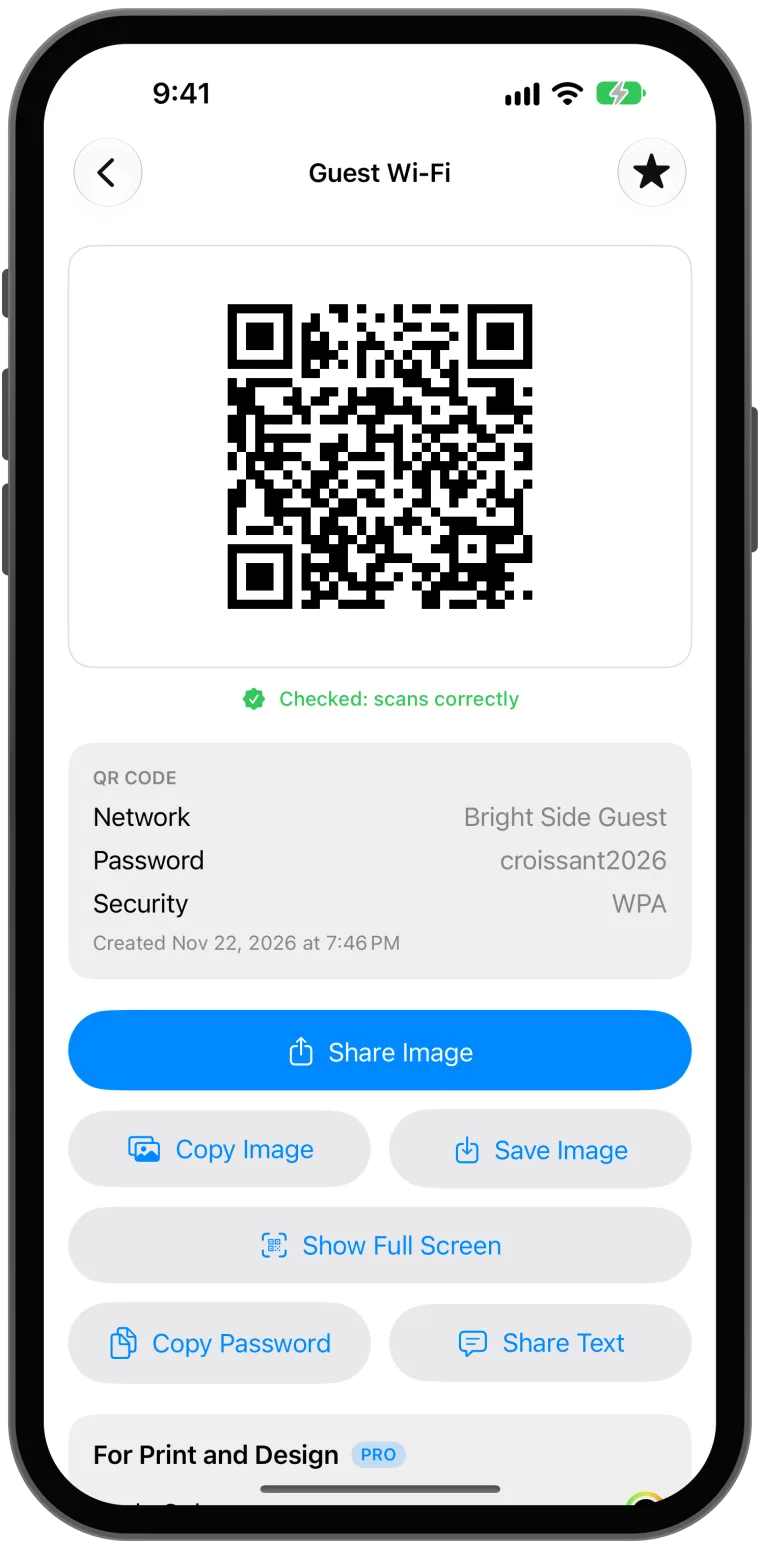
Create, then Wi-Fi. Enter the network name, password, and security (usually WPA), then Create QR Code. Print it, or use Show Full Screen.
Guests point their phone’s camera at it to join.
More on Wi-Fi QR codes.
Step 3 · Put your business card in a QR code
Put your business card in a QR code
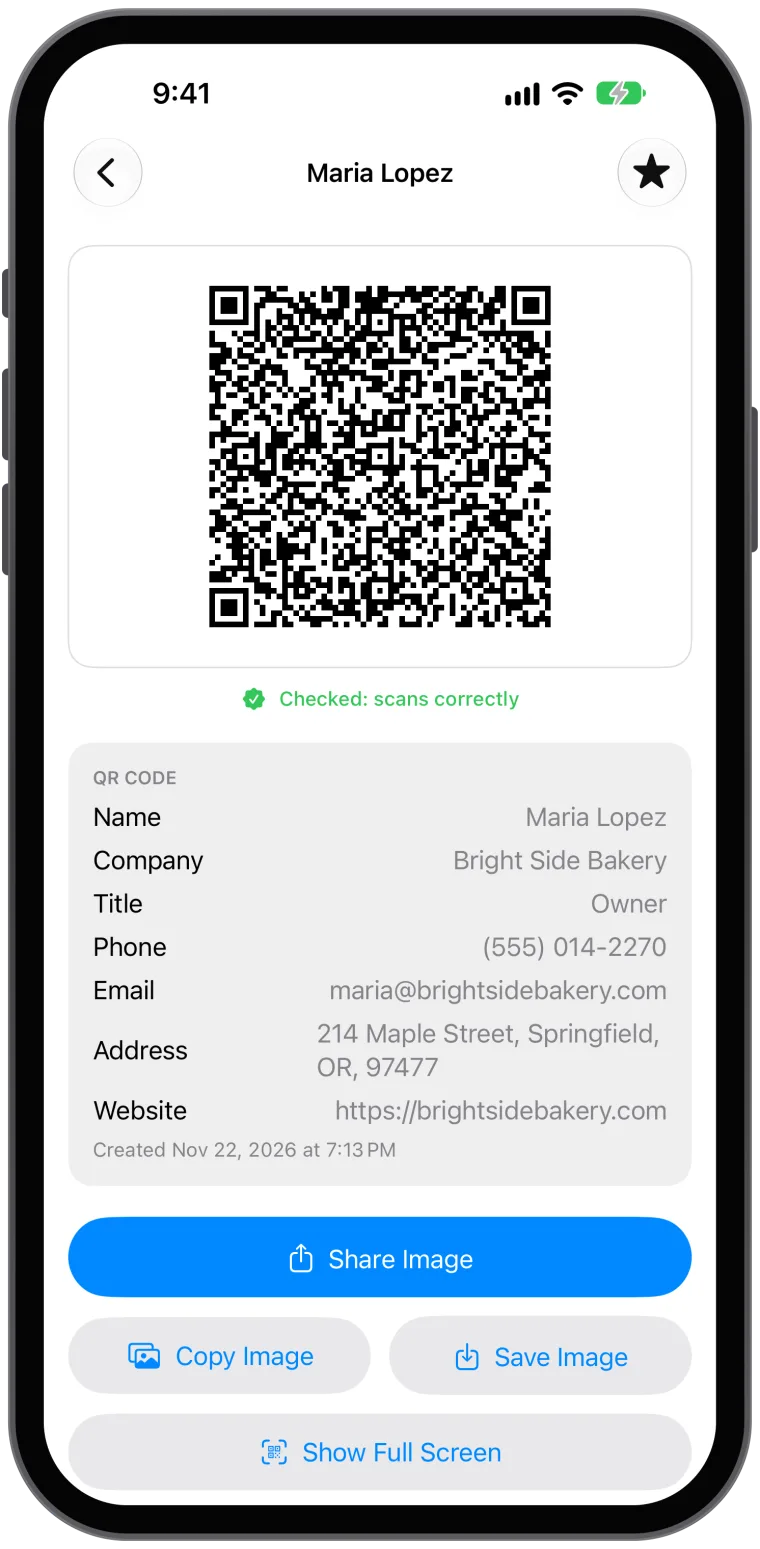
Create, then Contact Card. Add your details (the address is optional), then Create QR Code.
Scanning it offers to add you to the other person’s Contacts.
More on business card QR codes.
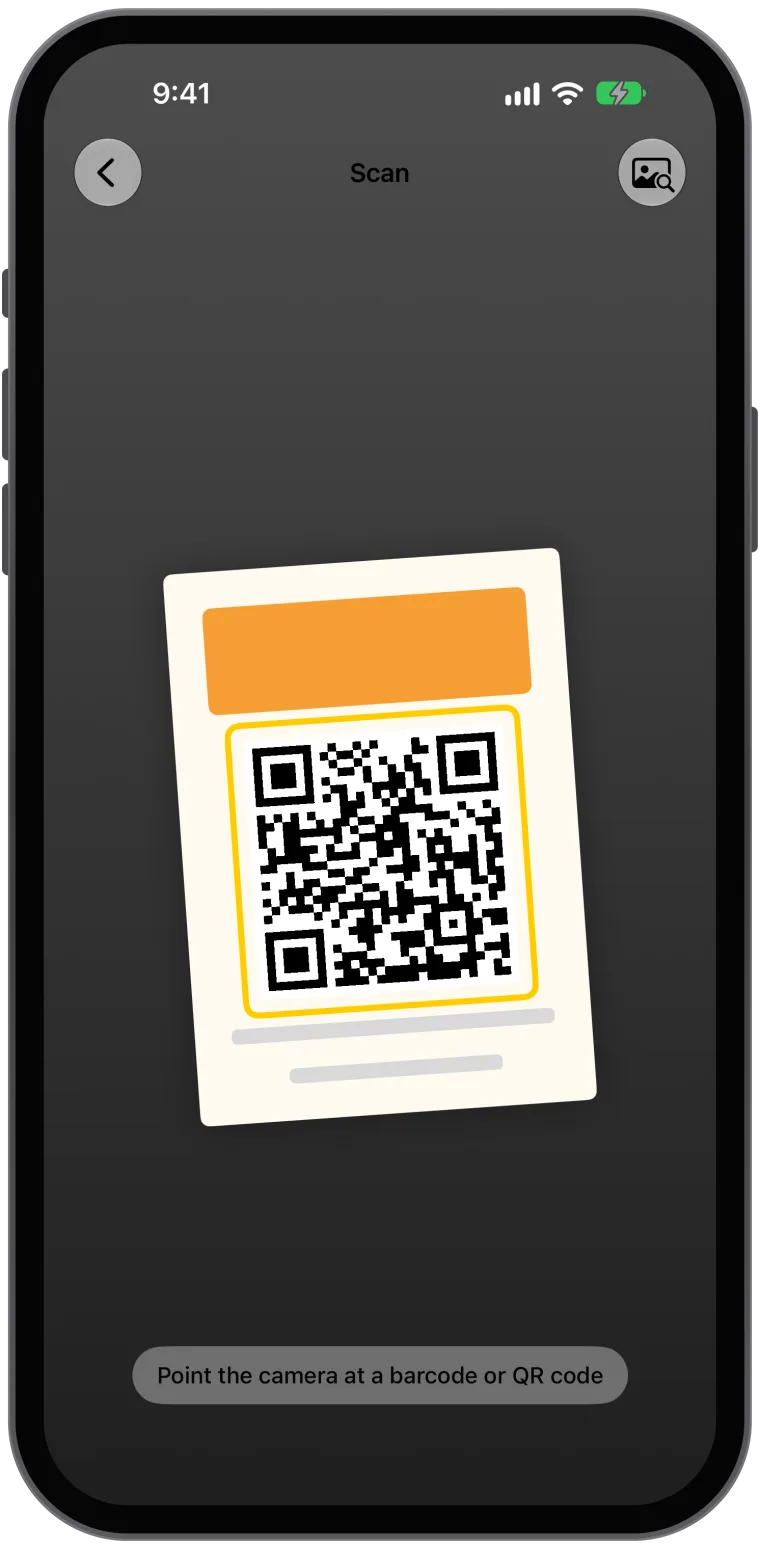
Step 4 · Scan a code
Scan a code
Tap Scan and point the camera at the code. The app vibrates and shows what the code holds, its type, and what you can do with it: open a link, call, email, or copy a Wi-Fi password.
Got the code as a picture? With Pro, tap Scan from Photo on the start screen, then Photo Library or Files.
Faster ways in: the Quick Scan widget, the Scan a Code button in Control Center, or “Scan with Setrik QR” to Siri.
Step 5 · Show a code at the counter
Show a code at the counter
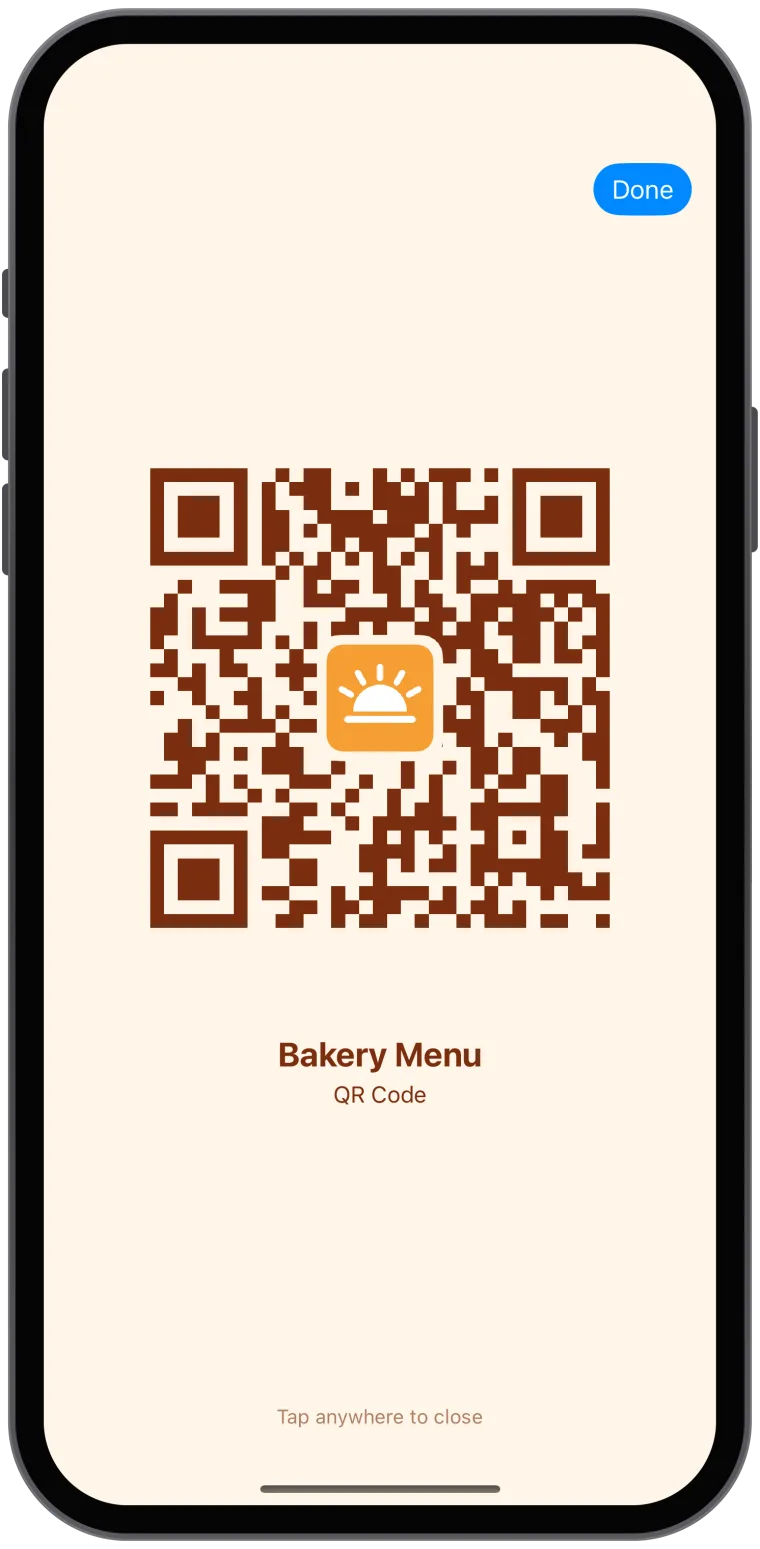
Open a code from Saved Codes or History and tap Show Full Screen: big, full brightness, and the screen stays awake. Tap anywhere to close.
Handy for a store loyalty card you’ve scanned and saved.
When you need more
Setrik QR Pro
Tap the green Unlock card on the start screen. Then:
For Print and Design on any code: PDF, SVG, large PNG, and Print.
Code Color, Background, and Add Logo on QR codes.
Create, then Other Barcodes for UPC, EAN, Code 128, and more.
See Setrik QR pricing for everything Pro includes.
First questions
Do I need to sign up?
No. There’s no account. Your codes sync through the iCloud account already on your iPhone.
Where do my codes go?
Every code you make or scan is in History. The ones you star are in Saved Codes.
Something isn’t working. What do I do?
Open Settings and tap Send Error Log, or email contact@setrik.com. The Setrik QR support page has more answers.
Make your first QR code
Open Setrik QR, tap Create, and you’re there. Free to download, no ads.