Store card app
Keep your loyalty cards, Wi-Fi, and business card in one place
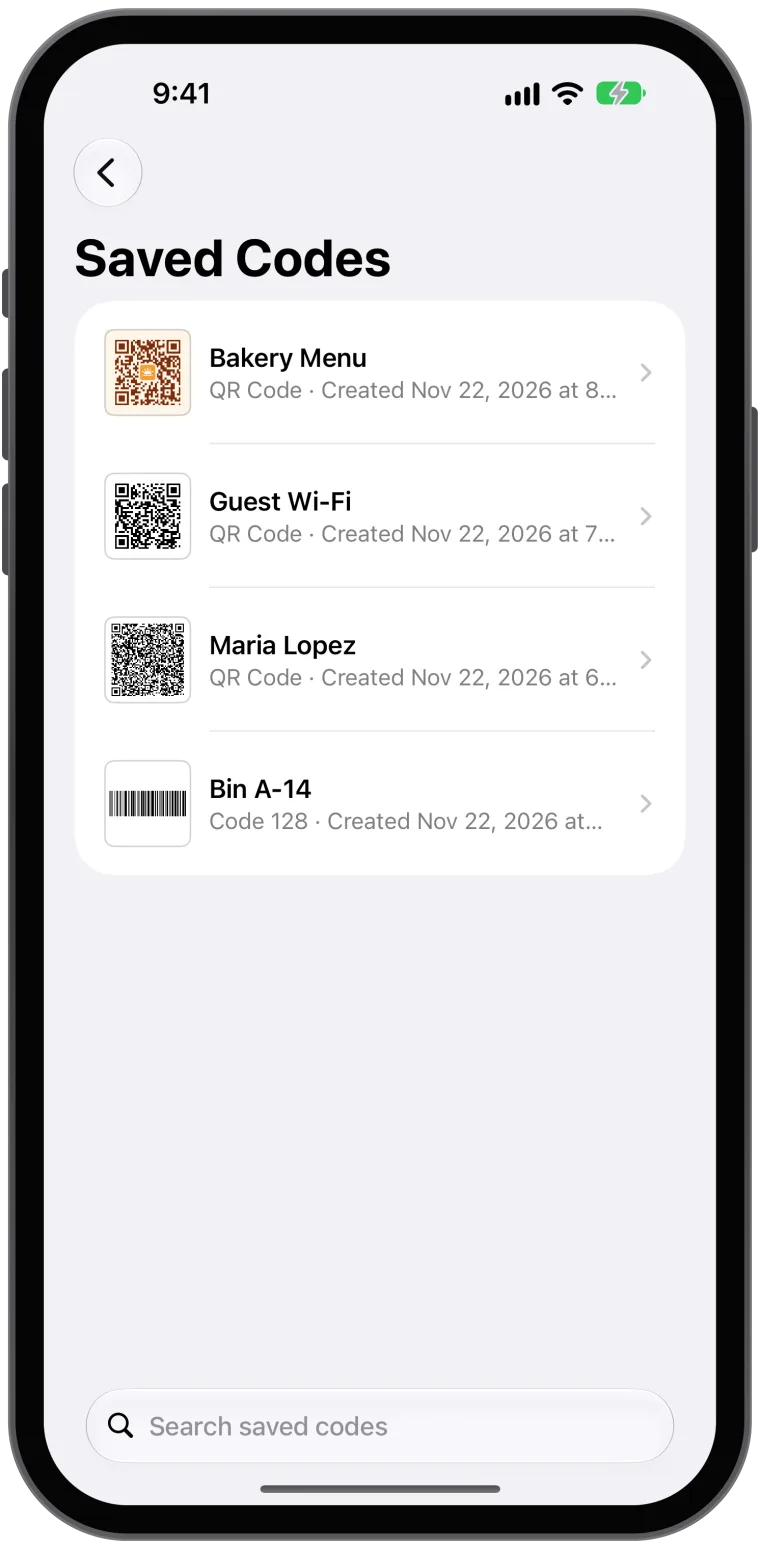
Tap the star on any code to keep it in Saved Codes with a name you choose. Scan the barcode on a store card, gym tag, or library card, and Setrik QR redraws it exactly, ready to show at the counter.
Free keeps 3 codes; Pro keeps as many as you like.
Syncs through your own iCloud.

Free to download · For iPhone · Requires iOS 26 or later
How it works
Save a code
1
Open or scan a code
Any code you make or scan, or one from History.
2
Tap the star
Top right. “Give it a name so it’s easy to find in Saved Codes.”
3
Show it when you need it
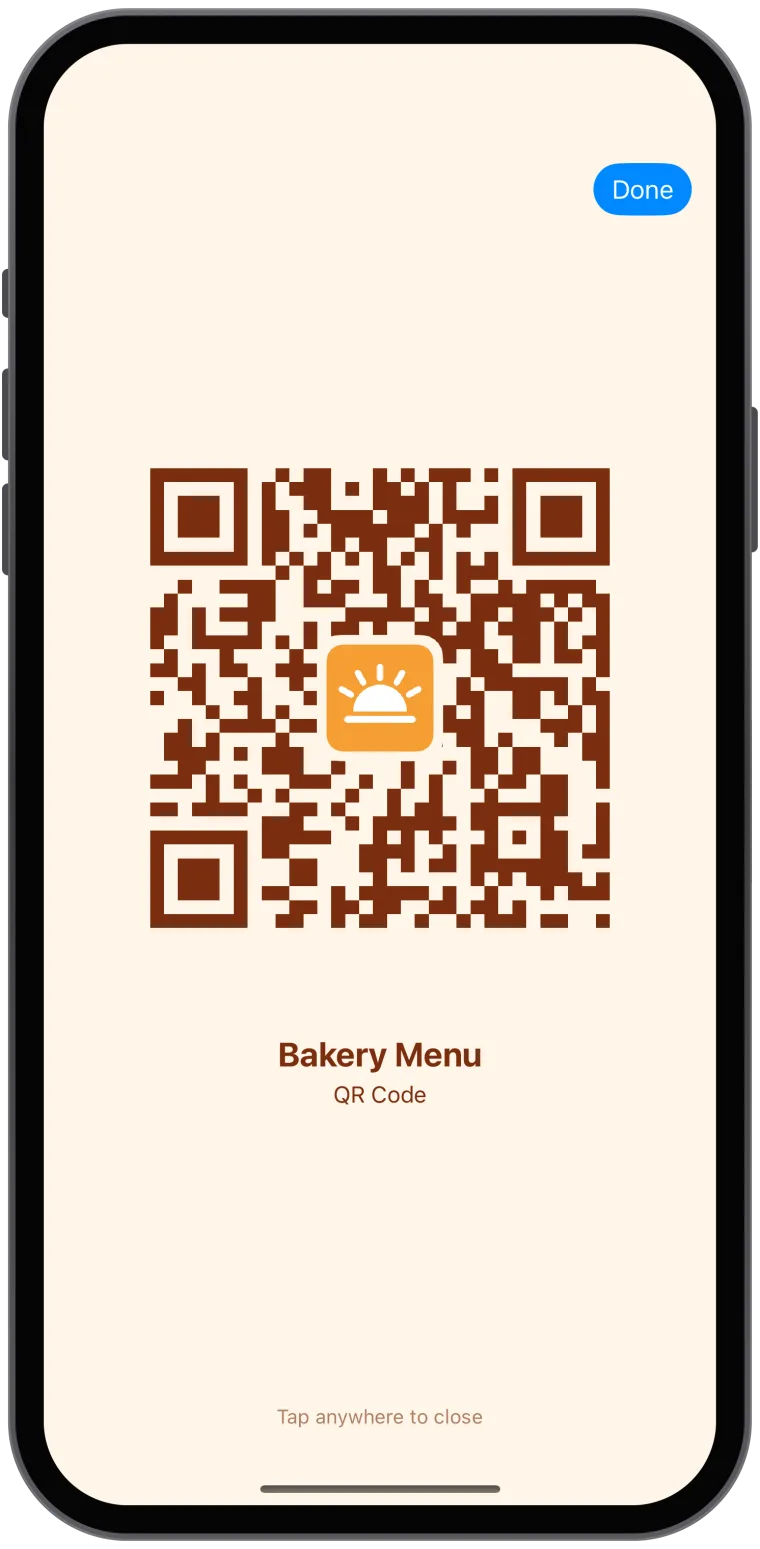
Open Saved Codes, tap the code, and tap Show Full Screen.
Loyalty and membership cards
Leave the plastic cards at home
Scan the barcode on your store loyalty card, membership card, library card, or gym tag and save it. Setrik QR redraws the barcode exactly as it was, so you can show it full screen at the counter.
Swipe right on a saved code to show it full screen.
Long-press for Show Full Screen, Rename, or Remove from Saved.
Search by name, value, or type.
Removing a code from Saved keeps it in History.
Good to know: most checkout scanners read phone screens. Some older laser scanners can’t; that’s down to the store’s scanner, not the app.
Real-life uses
What people keep in Saved Codes
The codes you reach for again and again.
Store loyalty cards
The grocery store card, the pharmacy card, the coffee shop card.
Gym and membership tags
Scan in at the front desk without the key-ring tag.
Library cards
Check out books with the card on your phone.
Your guest Wi-Fi
Show it to visitors full screen, any time.
Your business card
Your contact card code, ready at every meeting.
Your own menu or website
The code you made for your business, for when someone asks.
Free and Pro
How many you can keep
Free keeps 3 Saved Codes. The fourth shows “Saved Codes Are Full.”
Setrik QR Pro keeps as many as you like.
With Pro, the Saved Code widget puts one of them on your Home Screen. See the Saved Code widget.
Keep exploring
More of what Setrik QR does
Or see every Setrik QR feature on one page.
Show Full Screen
Big and bright, with the screen kept awake, for the checkout counter.
See Show Full ScreenQuick Scan and Siri
Open the scanner from the Home Screen, Lock Screen, Control Center, or Siri.
See Quick ScanSaved Code widget
One of your codes right on the Home Screen, ready to scan.
See the Saved Code widgetQuestions about Saved Codes
Can I keep my store loyalty card in Setrik QR?
Yes. Scan the barcode on the card, tap the star, and name it. At the counter, open it and tap Show Full Screen. Most checkout scanners read phone screens; some older laser scanners can’t.
How many codes can I save?
Three in the free version. Setrik QR Pro saves as many as you like.
What’s the difference between Saved Codes and History?
History keeps every code automatically. Saved Codes are the ones you choose to keep, with a name, so they’re quick to find.
Is this the same as Apple Wallet?
No. Setrik QR doesn’t make Apple Wallet passes. Your saved codes live in the app.
Keep the codes you use
Loyalty cards, Wi-Fi, and your business card, one tap away. Free to download.