Barcode scanner for iPhone
A QR code and barcode scanner with no ads
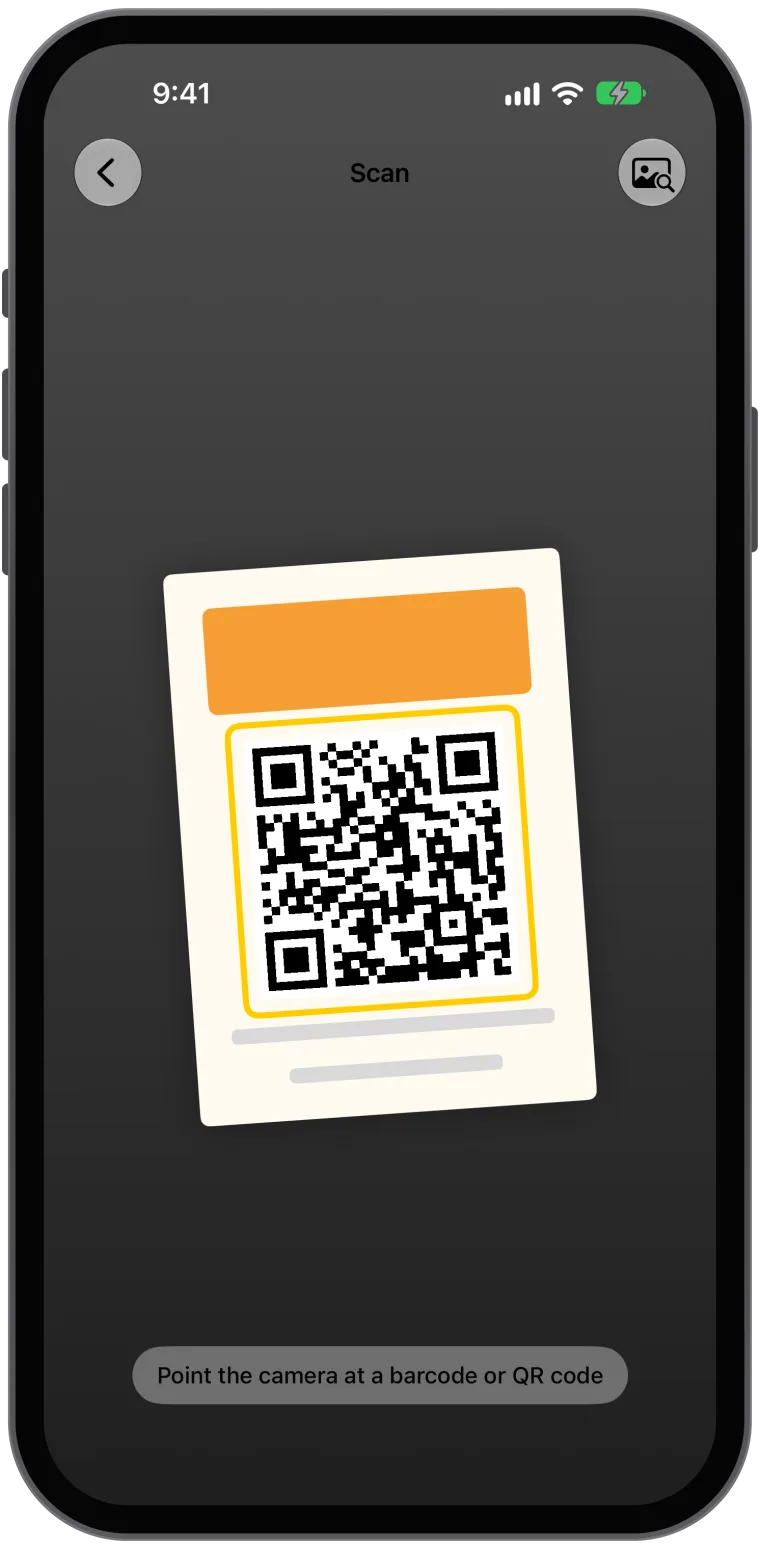
Tap Scan and point the camera. Setrik QR reads QR codes and 20 kinds of barcodes, vibrates and flashes green, and shows you exactly what the code holds before anything opens.
Free and unlimited.
No ads between you and your scan.

Free to download · For iPhone · Requires iOS 26 or later
How it works
Scan a code
1
Tap Scan
The scanner opens straight away. The first time, iPhone asks for camera access.
2
Point the camera
“Point the camera at a barcode or QR code.” The scanner highlights the code it sees; pinch to zoom.
3
See what’s inside
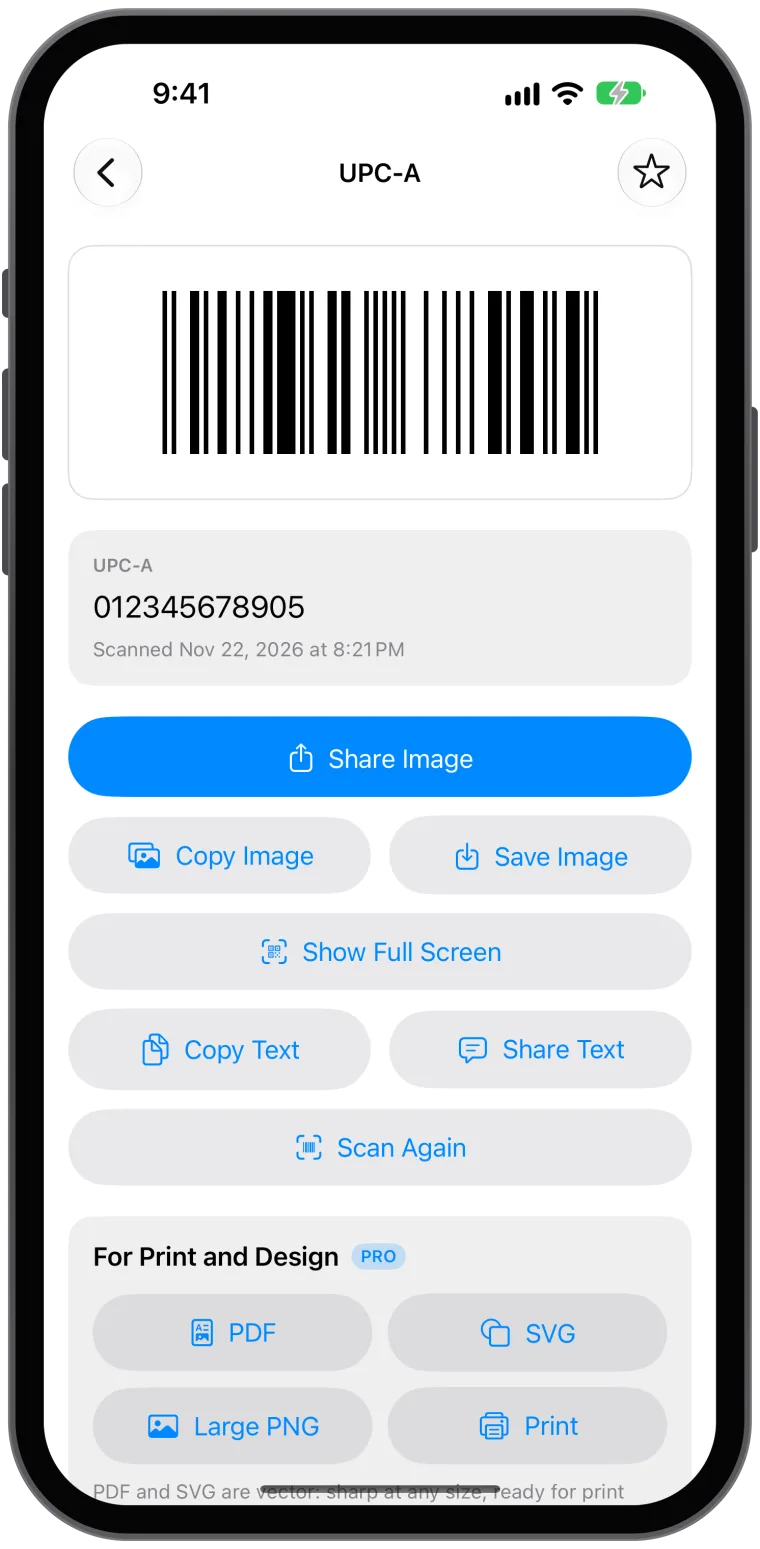
It vibrates, flashes green, and opens the result: the value, the type, and what you can do with it.
See it before you open it
The result first, then your choice
A QR code on a parking meter or a flyer could point anywhere. Setrik QR shows you the link, number, or details first, so you decide what to open.
Links: see the full address, then tap Open Link.
Phone numbers and email: Call or Email in one tap.
Wi-Fi codes: the network, password, and security, with Copy Password.
Contact cards: the name, company, phone, email, address, and website.
Barcodes: the number and type. Product barcodes (UPC-A) show as the right 12 digits.
Copy Text, Share Text, and Scan Again on every result.
What it reads
20 kinds of codes
QR codes and the barcodes you’ll find on products, tickets, shipping labels, and IDs.
QR, Micro QR, Data Matrix, PDF417, MicroPDF417, Aztec, EAN-13, EAN-8, UPC-A, UPC-E, Code 128, Code 39, Code 93, ITF-14, Interleaved 2 of 5, Codabar, GS1 DataBar, GS1 DataBar Expanded, GS1 DataBar Limited, and MSI Plessey.
Codes it can read but not draw (like Data Matrix and Code 93) show their value with a note saying so.
Real-life uses
When a scanner comes in handy
Everyday moments where the camera saves typing.
Menus and flyers
Check where the code goes, then open it.
Joining Wi-Fi
Scan the code on the wall, and copy the password if you need it for a laptop.
Product barcodes
Read the UPC or EAN number on a box, and copy or share it.
Business cards
Read a contact card QR code and see every detail.
Labels and asset tags
Read a Code 128 or Code 39 label and copy the value into a spreadsheet.
Finding it later
Every scan is kept in History, so last week’s code is still there.
Good to know
A few details
It reads one code at a time, on purpose: no batch scanning.
Live camera scanning needs iPhone XS or newer.
Faster ways in: the Quick Scan widget, Control Center, the Action Button, or “Scan with Setrik QR” to Siri. See Quick Scan and Siri.
Got the code as a picture instead? Scan from a photo reads screenshots and image files (Pro).
Keep exploring
More of what Setrik QR does
Or see every Setrik QR feature on one page.
Show Full Screen
Big and bright, with the screen kept awake, for the checkout counter.
See Show Full ScreenQuick Scan and Siri
Open the scanner from the Home Screen, Lock Screen, Control Center, or Siri.
See Quick ScanSaved Code widget
One of your codes right on the Home Screen, ready to scan.
See the Saved Code widgetQuestions about the scanner
Is the scanner free?
Yes. Scanning with the camera is free and unlimited, with no ads.
Does it open links by itself?
No. It shows you the link first, and you choose whether to open it.
Can it scan several codes at once?
No. It reads one code at a time, on purpose. For a picture with several codes, scan from a photo and choose the one you want.
Which iPhones does it work on?
Setrik QR needs iOS 26 or later. Live camera scanning needs iPhone XS or newer.
A scanner with no ads
QR codes and 20 kinds of barcodes, with the result before anything opens. Free to download.