Website QR codes
How to create a QR code for a website
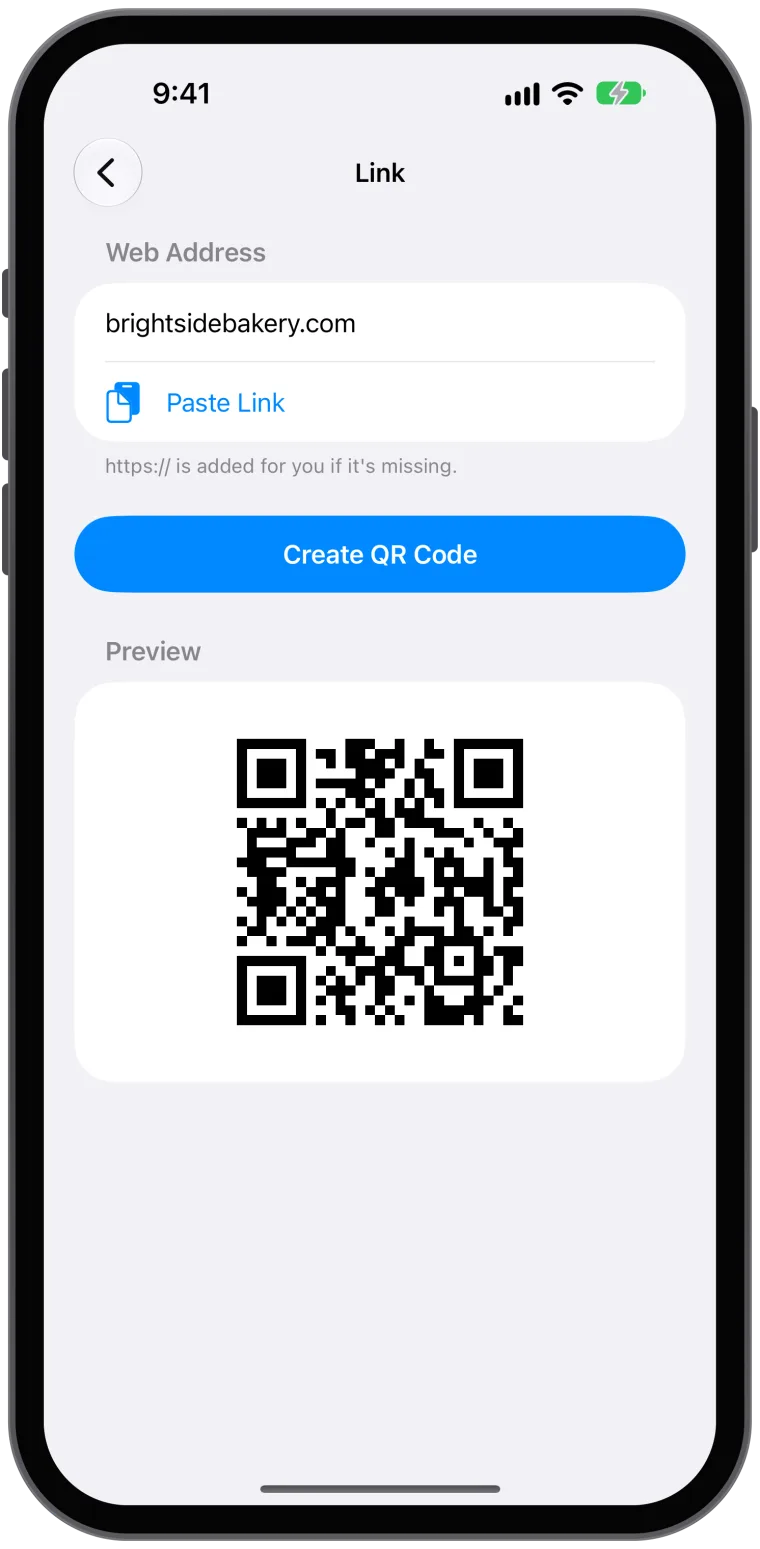
Point people from paper to your website in one scan. In Setrik QR, tap Create, then Link, and type or paste the address. The QR code appears as you type, and the app checks that it scans before you share it.
Free, with no ads and no watermark.
The code holds your address itself, so it never expires.

Free to download · For iPhone · Requires iOS 26 or later
How it works
Make a website QR code in four taps
1
Tap Create, then Link
Link is the first kind on the Create screen: “A website, for flyers, documents and email.”
2
Type or paste the address
Tap Paste Link to fill it from your clipboard. No need to type https://; it’s added for you.
3
Create and share
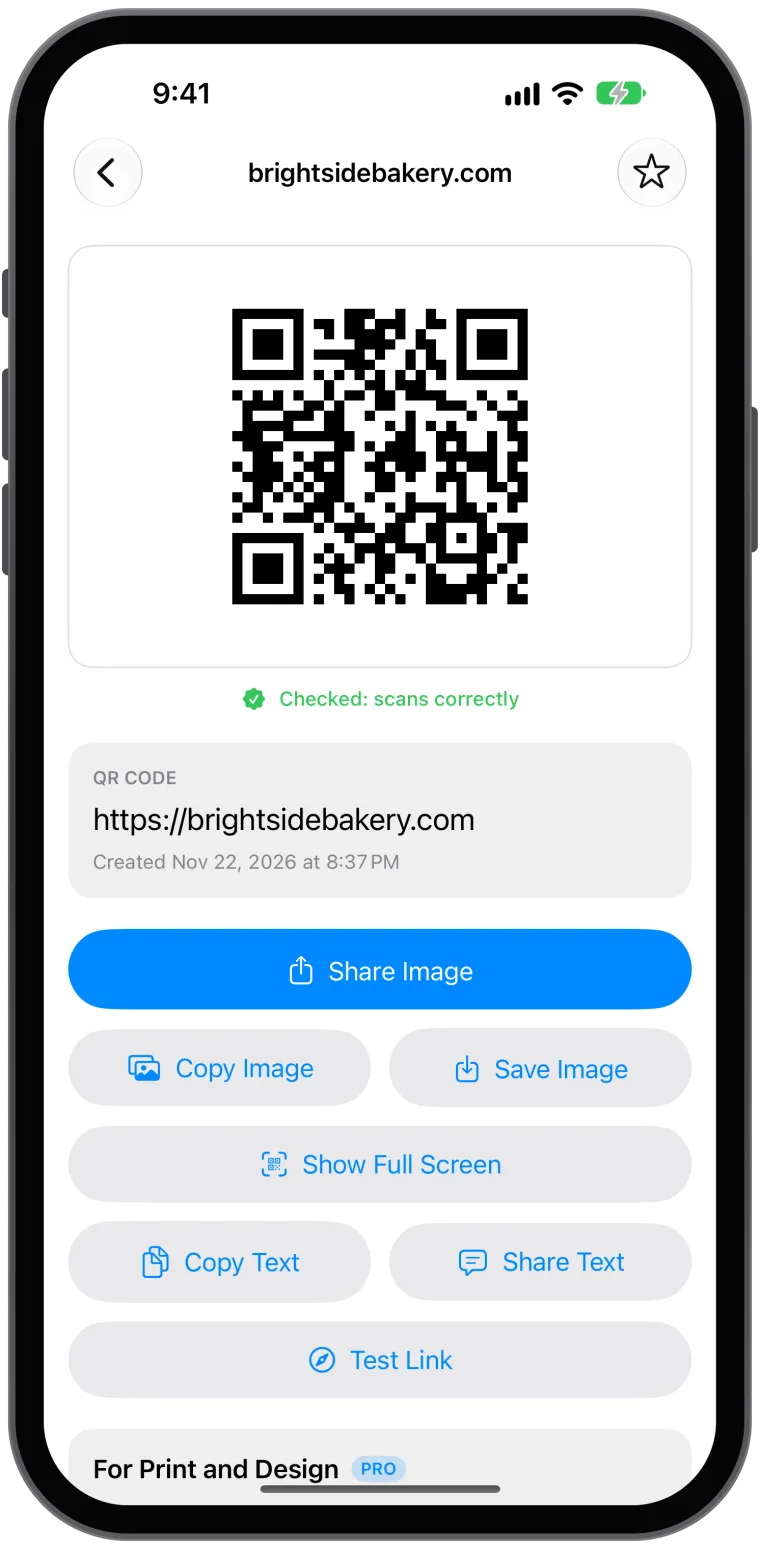
Tap Create QR Code, look for “Checked: scans correctly,” then Share Image, Copy Image, or Save Image.
Caught before you print
Setrik QR checks the address as you type
A typo in a printed QR code means a stack of flyers that go nowhere. Setrik QR catches the common mistakes while you type, in plain words.
Spaces: “Web addresses can’t contain spaces.”
Not a web address: something like “bakery” with no dot gets “Try something like example.com.”
https:// added if it’s missing, so phones open the page straight away.
Test Link on the finished code opens the address in Safari, so you can be sure it’s the right page.
A clear name: the code is named after the site (like brightsidebakery.com), so it’s easy to find later.
Real-life uses
Where a website QR code earns its spot
Anywhere paper or a screen could send someone to a web page.
Restaurant and café menus
A code on the table or the window opens your menu online. Update the menu page any time; the printed code stays the same.
Yard signs and listings
A real estate sign that opens the listing, with photos and the price, for people walking or driving by.
Flyers and posters
An event flyer that opens the tickets page, or a class poster that opens the sign-up form.
Reviews
A small card by the register that opens your review page, so happy customers can leave a review on the spot.
Packaging and manuals
A code on the box that opens the setup guide or the manual, instead of a thick printed booklet.
Résumés and portfolios
A code in the corner of your résumé that opens your portfolio or your online profile.
Before you print
Tips for a code that scans every time
Size: at least about 2 cm (0.8 in) across for close-up scanning, like on a business card. Go bigger for posters people see from across the room.
Test one copy first. Setrik QR checks every code, but print one and scan it with a phone before you print a stack.
Dark on light. Keep the code darker than its background, with a little blank space around it.
Link to a page you control. Your QR code always opens the same address, so point it at a page you can update (your menu page, your events page) rather than a file that might move.
Shorter is simpler. A short address makes a simpler code with fewer squares, which scans more easily when it’s printed small.
Part of Setrik QR Pro
Your brand colors, your logo in the middle, and print-ready PDF and SVG files are part of Pro. Pro is a one-time purchase in the app, through Apple: no subscription, nothing renews. See everything Pro includes.
Keep exploring
More of what Setrik QR does
Or see every Setrik QR feature on one page.
Wi-Fi QR codes
Guests scan to join your network. No more spelling out the password.
See Wi-Fi QR codesContact card QR codes
One scan adds you to someone’s Contacts. Made for business cards.
See contact card QR codesPrint and export
Share or save any code, or print-ready PDF, SVG and large images with Pro.
See printing and exportQuestions about website QR codes
Is a website QR code free to make?
Yes. Making, sharing, copying, and saving website QR codes is free in Setrik QR, with no watermark.
Will my QR code stop working?
No. The code holds your web address itself, with no link through our servers, so it works for as long as your website does. Some QR code websites make codes that stop working when you stop paying; Setrik QR doesn’t.
Can I change where the code goes after I print it?
No. A QR code always opens the address it holds. That’s why it’s best to link to a page you can update, like your menu or events page.
How do I put the code on a flyer or in a document?
Tap Copy Image and paste it into Pages, Word, or an email, or tap Share Image to send it. For print shops and design apps, Pro adds PDF and SVG files; see printing and exporting QR codes.
Make a QR code for your website
Type or paste your address, check that it scans, and share it. Free to download, no ads.