QR code with text
Tell people what the code does, right under it
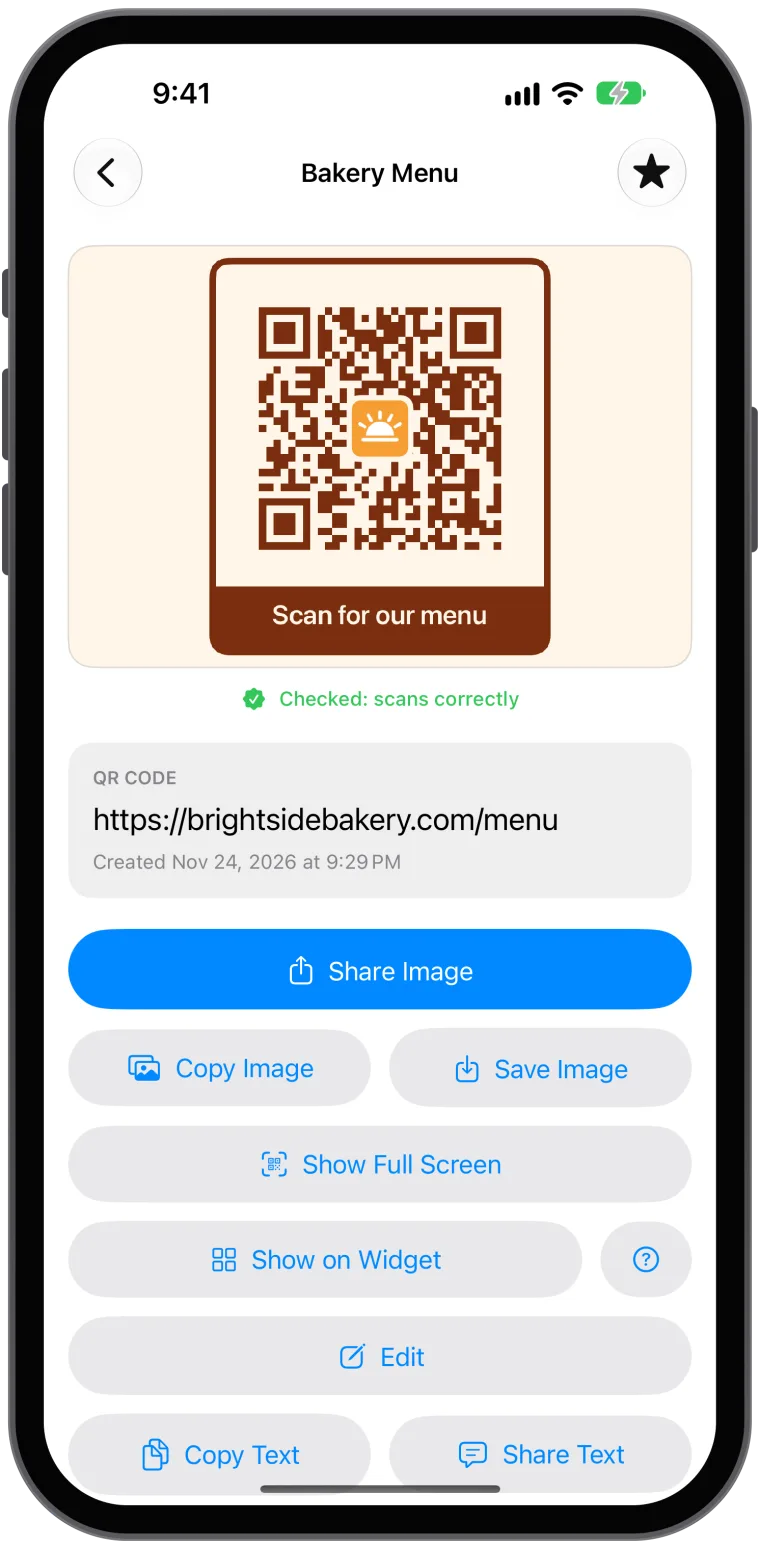
A bare QR code doesn’t say what it’s for, and people skip codes they can’t explain. Add a caption like “Scan for our menu” under any code for free. With Setrik QR Pro, put it in a Border or a “Scan Me” Banner frame in your colors.
Captions are free, on every code.
The scan check tests the finished picture.

Free to download · For iPhone · Requires iOS 26 or later
How it works
Add a caption or a frame
1
Open a code
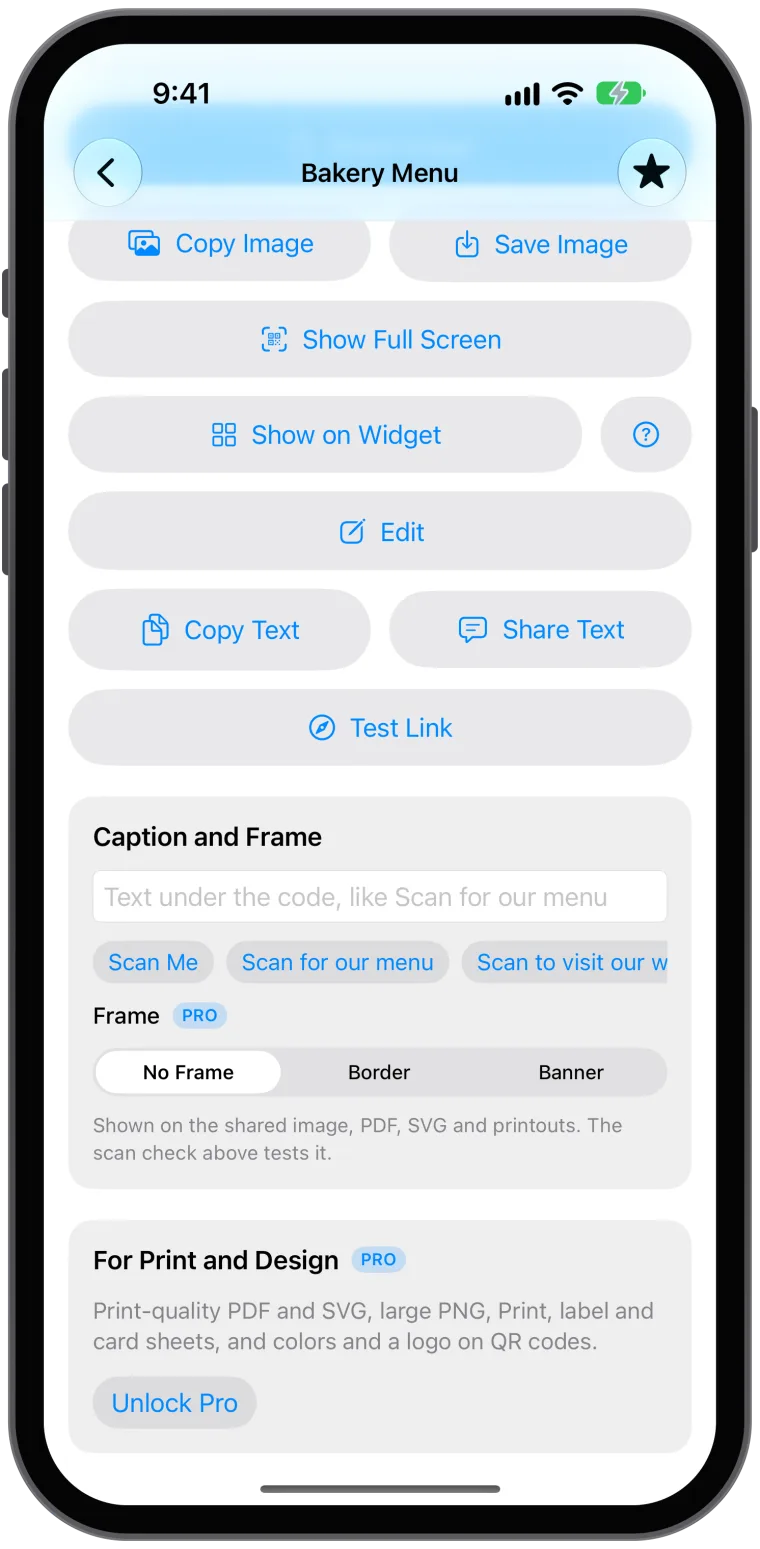
Scroll to the Caption and Frame card under the buttons.
2
Type a caption
One line, up to 40 characters, or tap a quick pick like “Scan Me” or “Scan to join our Wi-Fi.” Tap Done.
3
Pick a frame (Pro)
No Frame, Border, or Banner. Then share, save, export, or print it.
Examples
What they look like
Real files made by Setrik QR’s own export code, every one checked to scan.
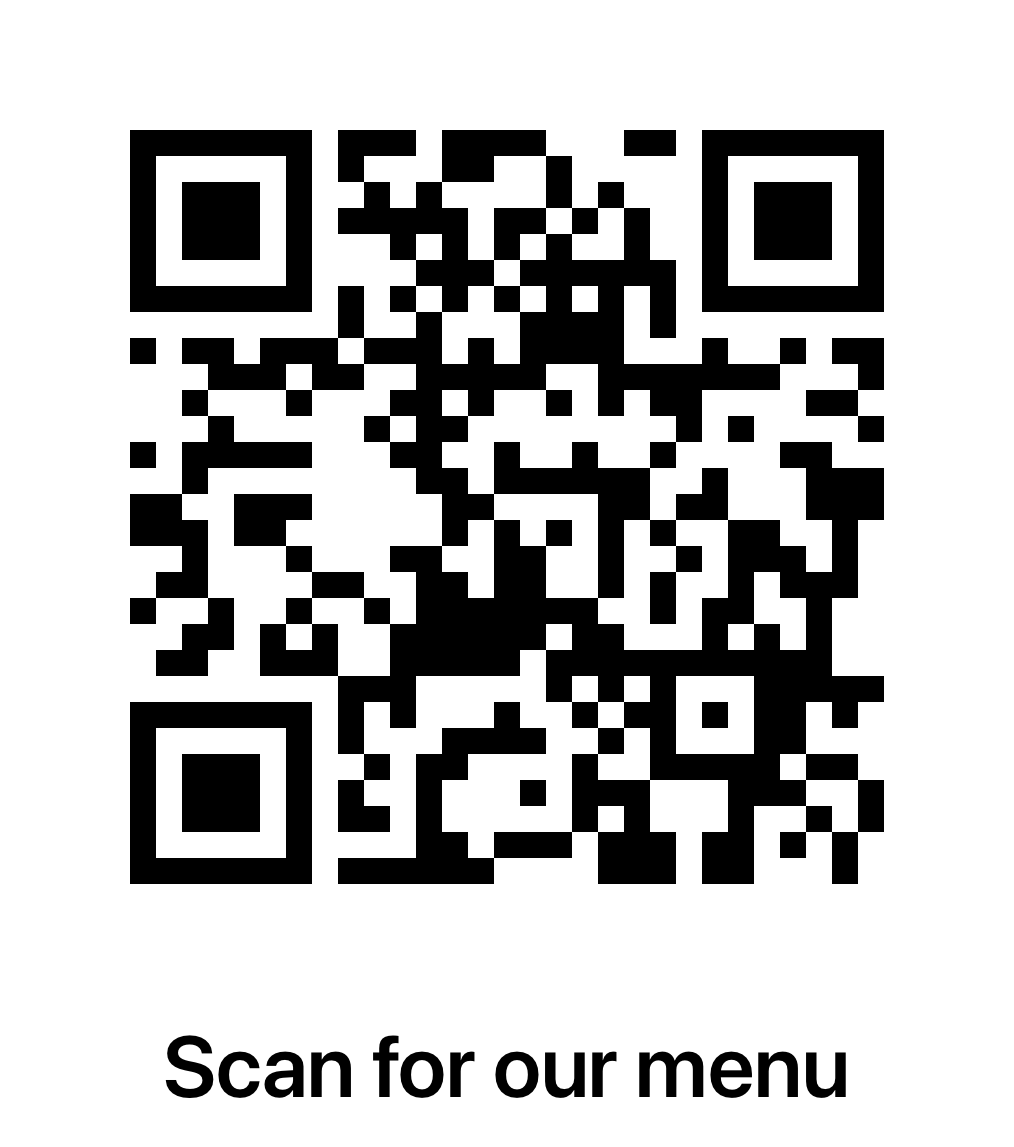
Caption (free)
“Scan for our menu” under the code.
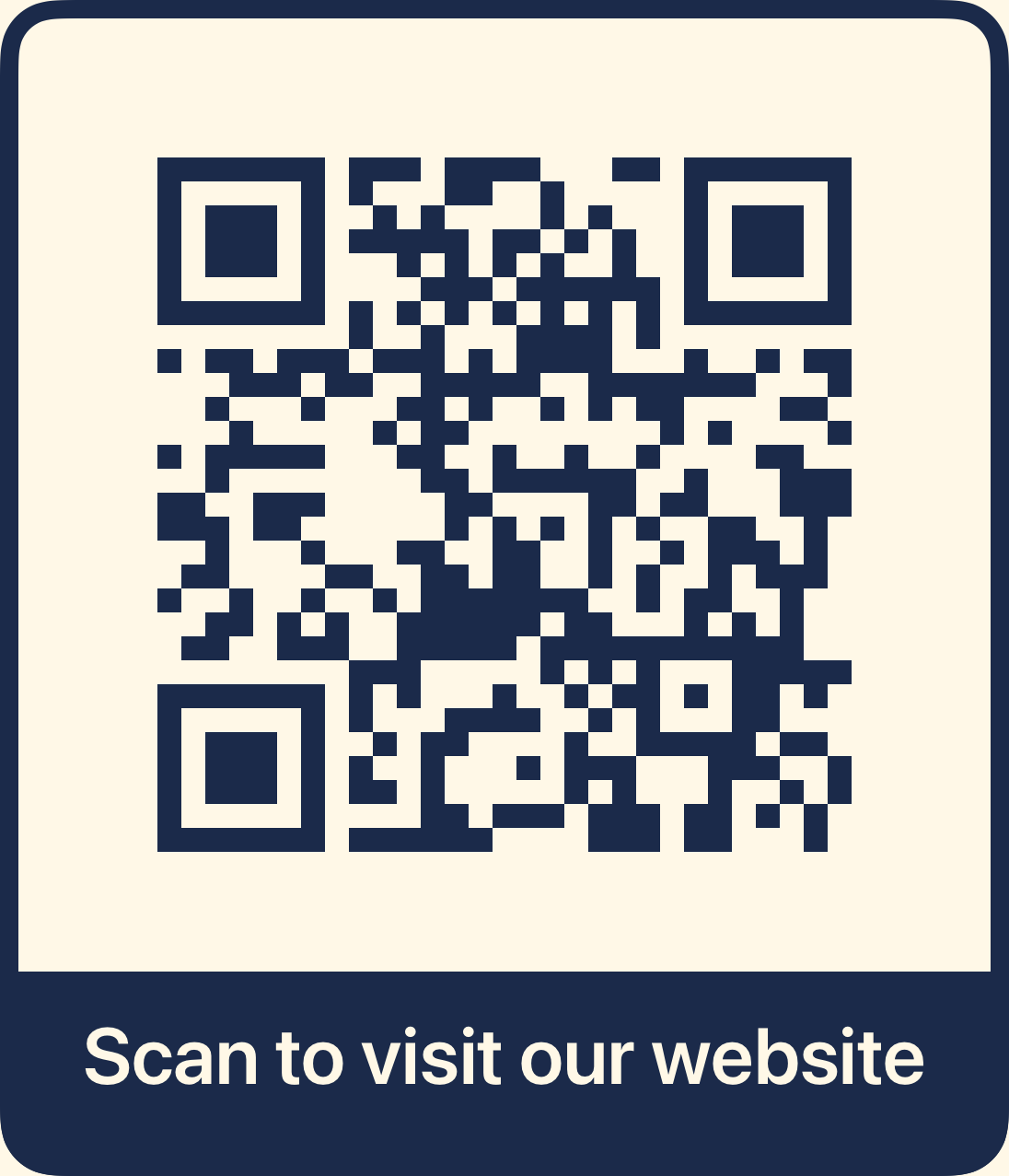
Banner frame (Pro)
The caption in a solid bar, in the code’s colors.
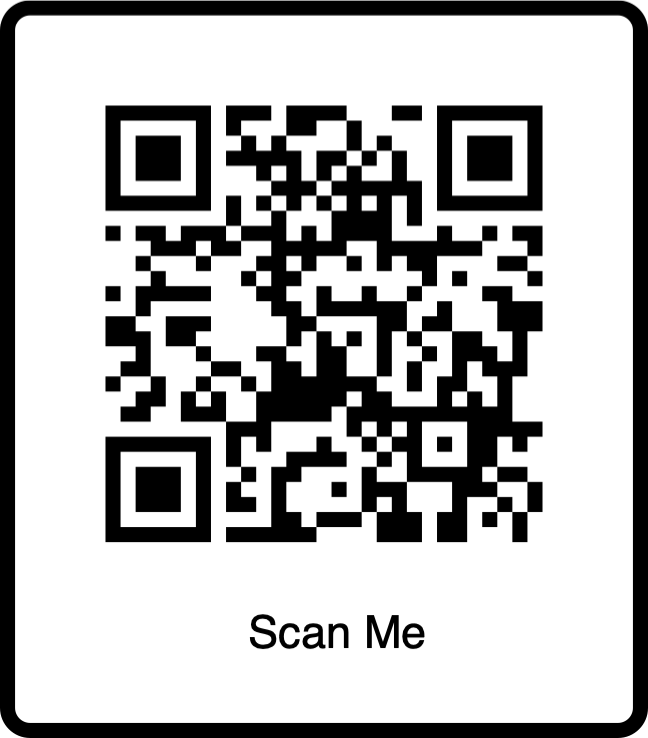
Border frame (Pro)
A rounded border, with “Scan Me.”
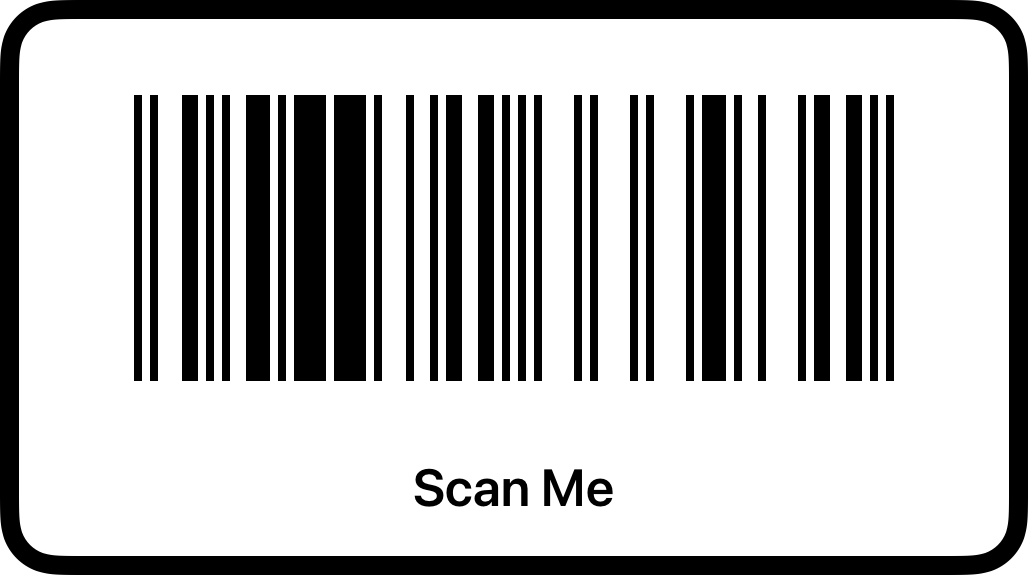
On barcodes too (Pro)
Frames work on every code, not just QR codes.
The details
Where the caption and frame show up
The caption and frame are part of the code’s picture wherever it goes out of the app, so the call to action travels with it.
Quick picks when the caption is empty: Scan Me, Scan for our menu, Scan to visit our website, Scan to join our Wi-Fi, Scan to save my contact.
On every export: Share Image, Copy Image, Save Image, PDF, SVG, the large PNG, Print, and label sheets.
Not on Show Full Screen, the small pictures in your lists, or the widget, so the code stays as big as possible there.
Banner without a caption reads “SCAN ME.” Frames use the code’s own colors.
Checked: the scan check runs again on the framed picture.
Real-life uses
Where a few words get more scans
A short line tells people it’s safe to scan and what they’ll get.
Café table tents
“Scan for our menu” under the code.
A rental’s fridge sign
“Scan to join our Wi-Fi” in a Banner frame.
Conference badges
“Scan to save my contact.”
Yard signs and posters
A framed “Scan Me” code people recognize from across the street.
Product stickers
A Border frame around the code that opens the instructions.
A booth banner
Your website code with “Scan to visit our website.”
Part of Setrik QR Pro
Captions are free. Border and Banner frames are part of Pro. Pro is a one-time purchase in the app, through Apple: no subscription, nothing renews. See everything Pro includes.
Keep exploring
More of what Setrik QR does
Or see every Setrik QR feature on one page.
Label and card sheets
QR code stickers on Avery labels and business cards, or a grid with cut lines.
See label sheetsShare menu and Shortcuts
A QR code for any web page, straight from Safari’s Share button.
See the Share menuPrint and export
Share or save any code, or print-ready PDF, SVG and large images with Pro.
See printing and exportColors and logo
Your colors and your logo in the middle, checked so it still scans.
See colors and logoQuestions about captions and frames
Can I put text under a QR code?
Yes. Add a caption under any code for free, up to 40 characters, like “Scan for our menu.” It’s on every image, PDF, SVG, and printout.
Can I make a “Scan Me” frame?
Yes, with Setrik QR Pro. Choose Banner for a solid bar with your caption (or “SCAN ME”), or Border for a rounded border. Both use the code’s colors.
Will a framed code still scan?
Setrik QR checks the framed picture, just like a plain one. Test one printed copy before printing many.
Do frames work on barcodes?
Yes. Frames work on QR codes and barcodes.
Give your code a reason to be scanned
A caption for free, a “Scan Me” frame with Pro. Free to download.