Barcode generator (Pro)
A barcode generator for Code 128, UPC, EAN and more
Setrik QR Pro makes ten kinds of barcodes on your iPhone. Type the value, and the app checks it as you type, adds the check digit, and draws the barcode right away, ready to share, save, or print.
Check digits worked out for you, the standard way.
All ten types tested to scan with Apple’s own barcode reader.

Free to download · Pro is a one-time purchase · For iPhone, iOS 26 or later
Which one should I use?
Pick the barcode by the job
Not sure? Start here, then read the section for that type below.
Labeling your own things
Code 128 for bins, inventory, and shipping labels. Code 39 if your scanner or system asks for it.
See Code 128Products sold in stores
UPC-A in the US and Canada, EAN-13 elsewhere. UPC-E or EAN-8 for small packages. Numbers come from GS1.
See UPC-AA link, Wi-Fi, or contact
Use a QR code instead: it’s free, and phones open it straight away.
See the QR codesHow it works
Make a barcode
1
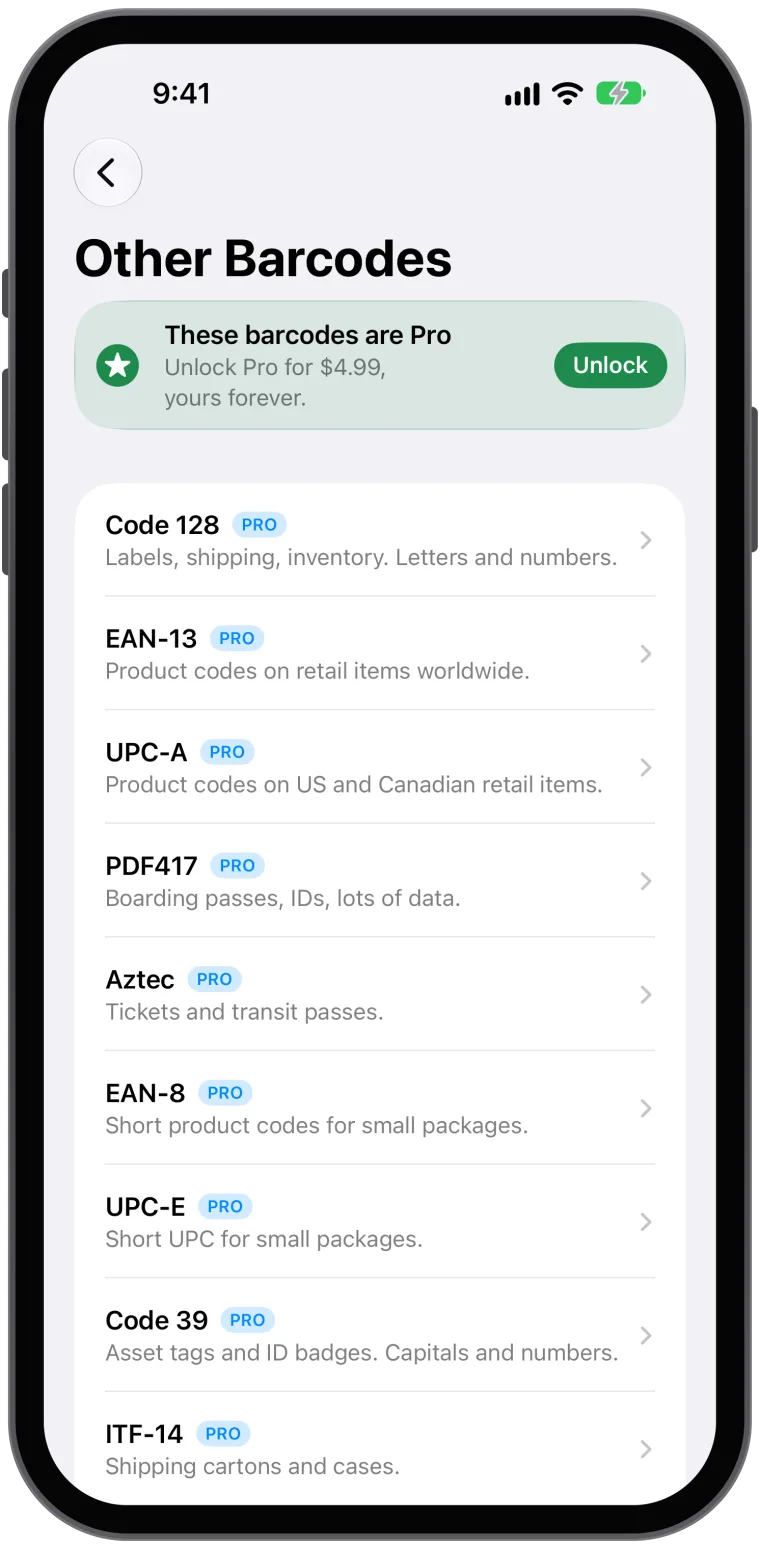
Tap Create, then Other Barcodes
Pick the type. Each form shows its rule, like “12 digits. The 13th (check digit) is added for you.”
2
Type the value
Number pad for numbers-only types. Problems show in an orange note; helpful changes in a gray one, like “Check digit 5 added.”
3
Share, save, or print
Share Image, Copy Image, Save Image, or Pro’s PDF, SVG, large PNG, and Print.
Selling products in stores? Get your numbers from GS1
Setrik QR draws UPC and EAN barcodes, but the product numbers for items sold in stores must come from GS1 (gs1.org, or your country’s GS1 office). The app doesn’t supply numbers or check who owns them. For your own labels, bins, and tags, use Code 128 or Code 39 with any value you like.
Barcode 1 of 10
Code 128
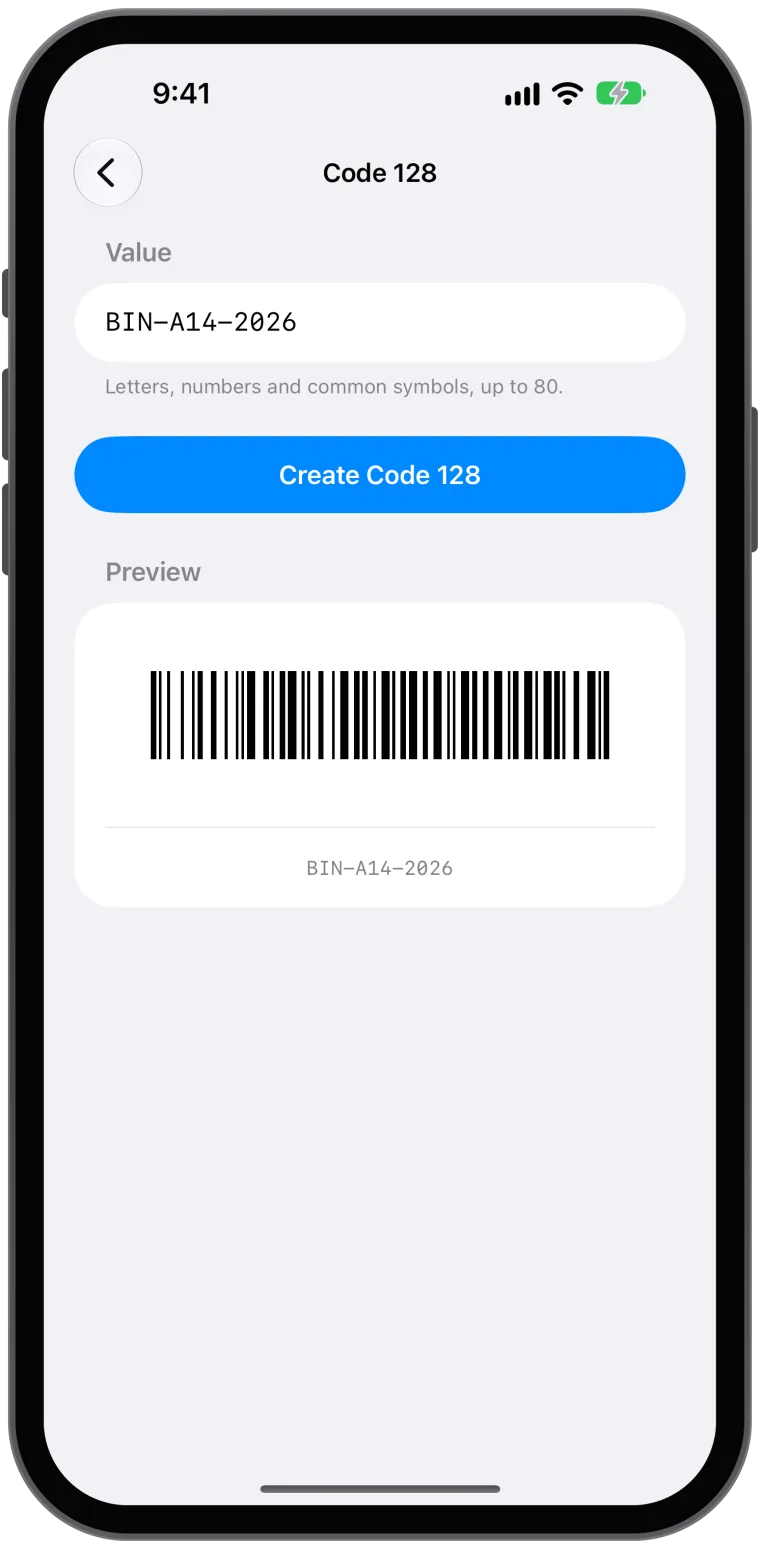
The everyday workhorse for labels. It holds letters, numbers, and common symbols, so a label can read like “BIN-A14-2026.”
Used for: Inventory and bin labels, shipping labels, asset tracking, and anything you label in-house.
What you type: Letters, numbers, and common symbols, up to 80 characters. No accents or emoji. Its check is built into the bars.
Example: BIN-A14-2026
Barcode 2 of 10
UPC-A
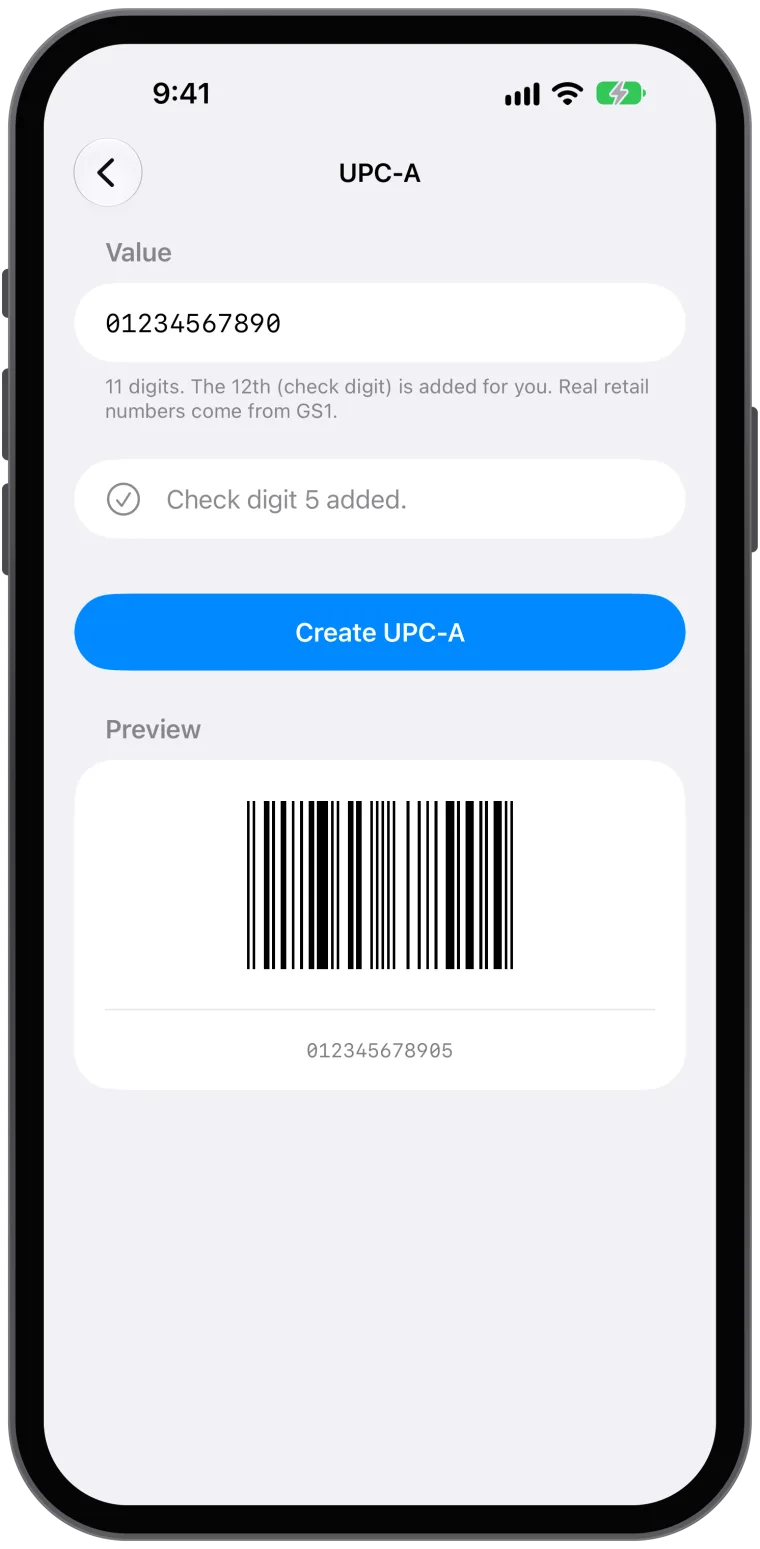
The 12-digit product barcode on most things you buy in the US and Canada.
Used for: Products sold in stores in North America.
What you type: 11 digits; the 12th, the check digit, is added for you. Type all 12 and the check digit is verified.
Example: 01234567890 becomes 012345678905
Barcode 3 of 10
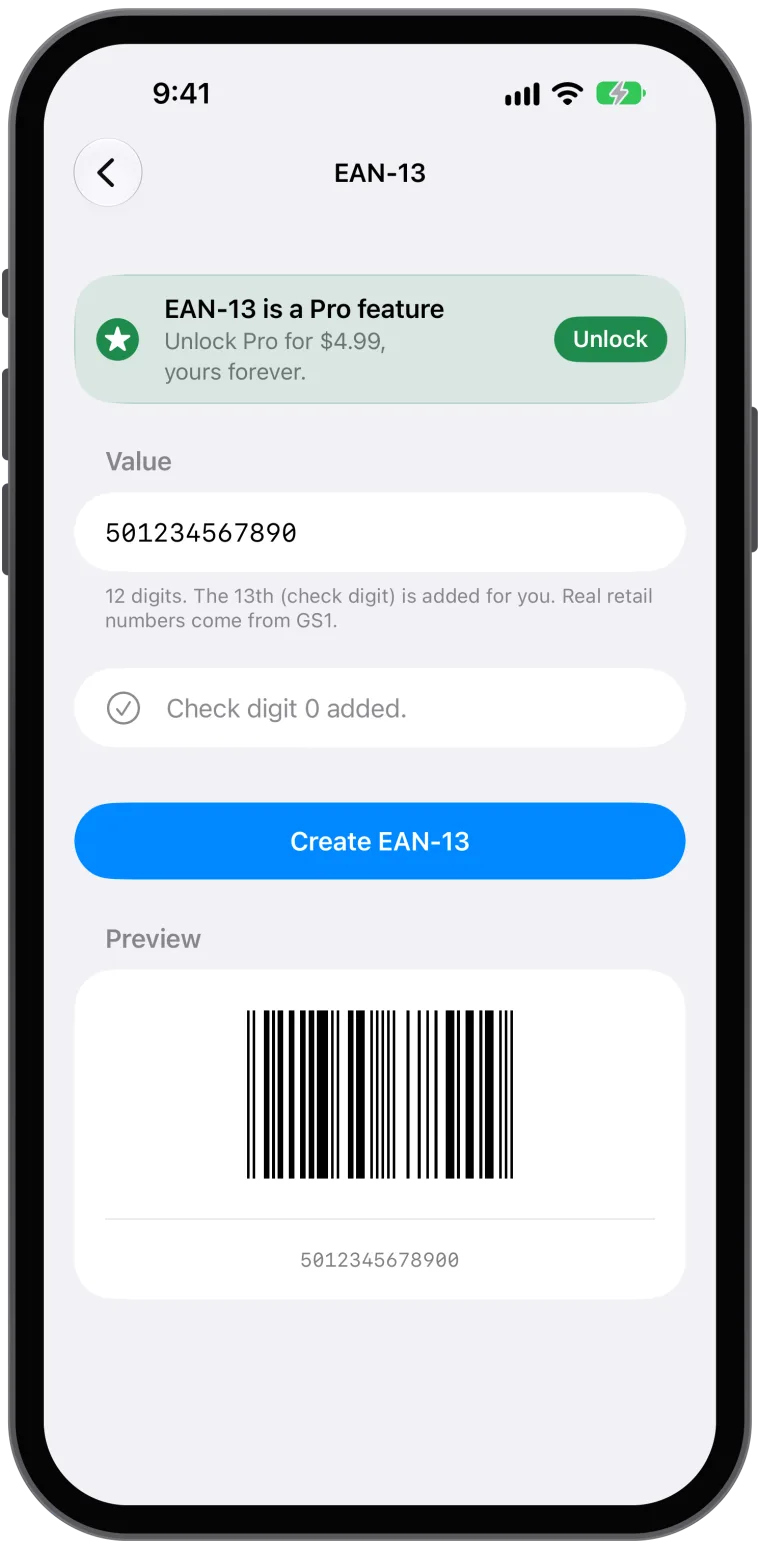
EAN-13
The 13-digit product barcode used in most of the world, and on books (the ISBN barcode).
Used for: Products sold in stores outside North America, and books.
What you type: 12 digits; the 13th is added for you, or verified if you type it.
Example: 501234567890 becomes 5012345678900
Barcode 4 of 10
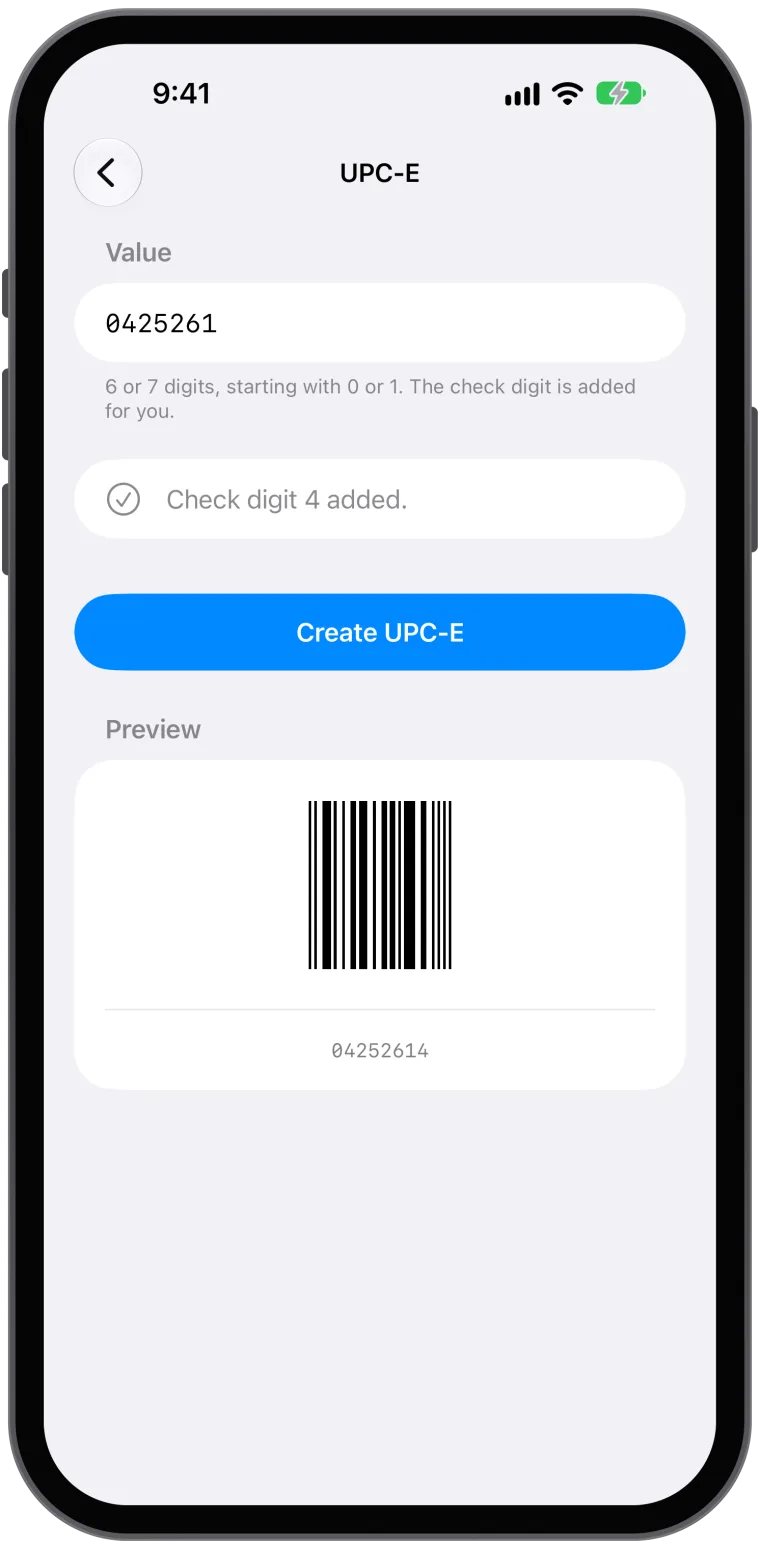
UPC-E
A short version of UPC-A for small packages where a full barcode won’t fit.
Used for: Small items like cans, gum, and cosmetics.
What you type: 6 or 7 digits, starting with 0 or 1. The check digit is added for you, worked out from the full UPC-A as the standard requires.
Example: 0425261 becomes 04252614
Barcode 5 of 10
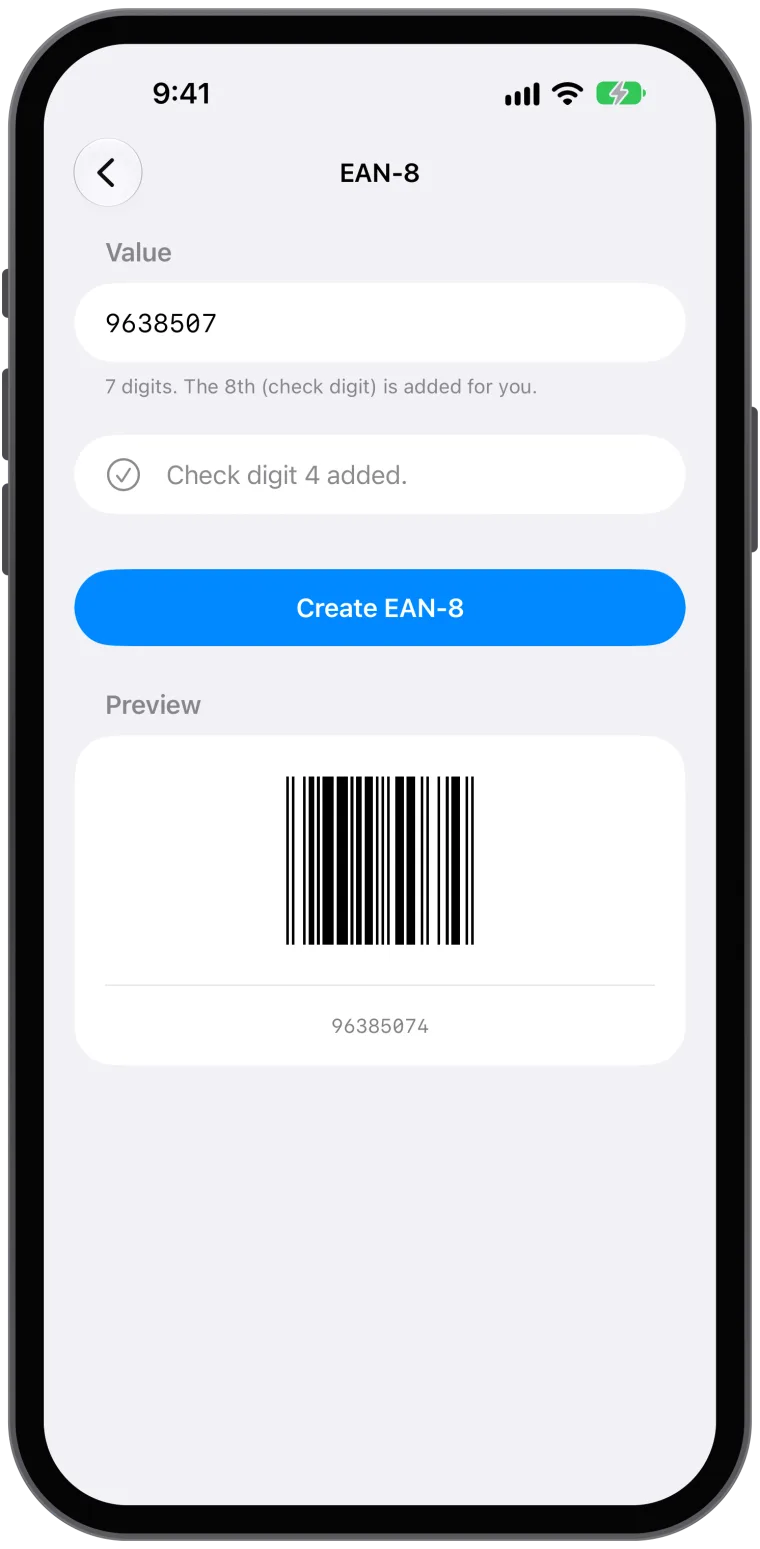
EAN-8
A short version of EAN-13 for small packages.
Used for: Small products sold outside North America.
What you type: 7 digits; the 8th is added for you.
Example: 9638507 becomes 96385074
Barcode 6 of 10
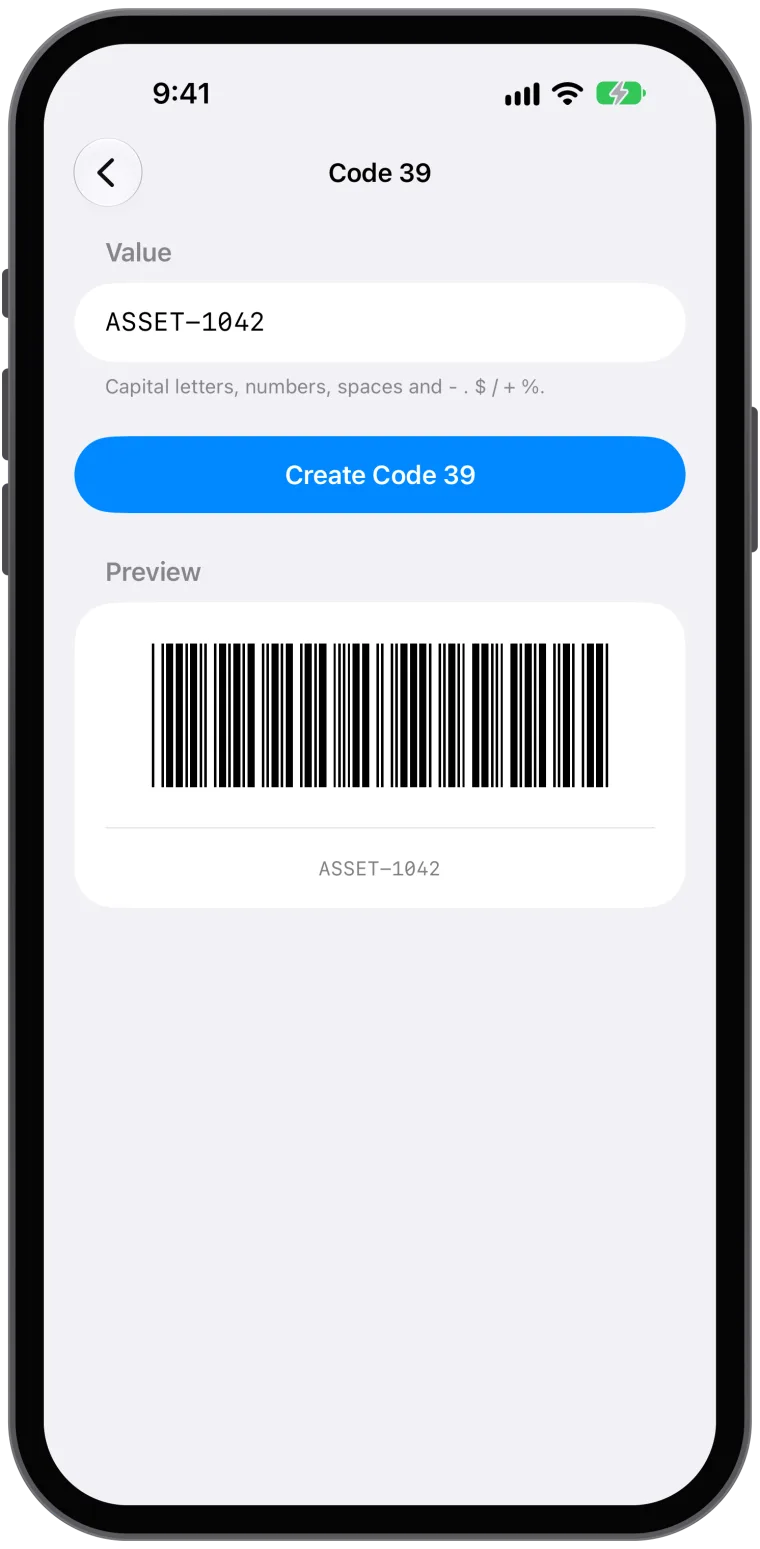
Code 39
An older, simple barcode that many scanners and systems still use.
Used for: Asset tags, ID badges, and parts labels.
What you type: Capital letters, numbers, spaces, and - . $ / + %, up to 40 characters. Lowercase is changed to capitals for you.
Example: ASSET-1042
Barcode 7 of 10
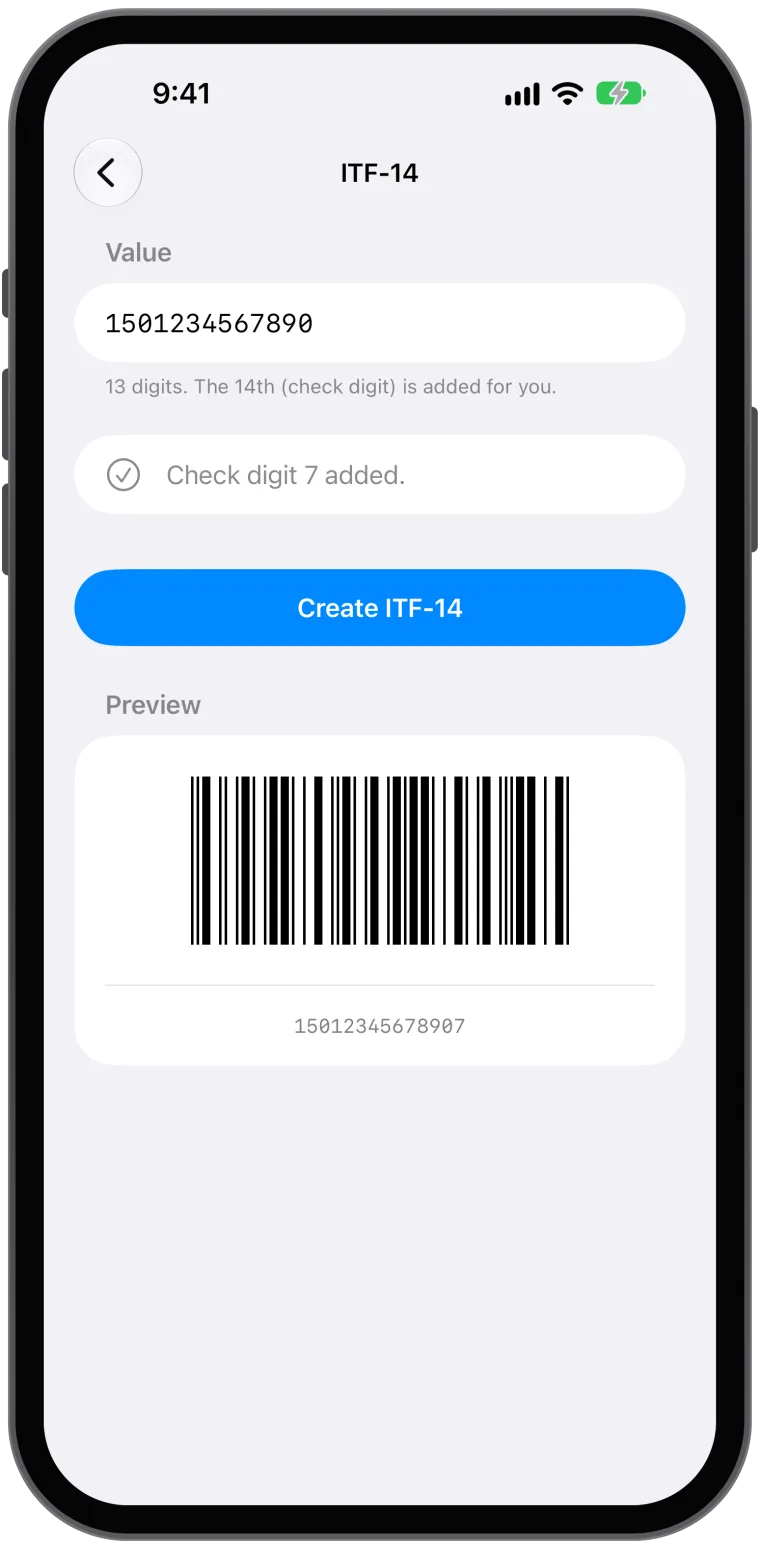
ITF-14
The barcode printed on shipping cartons that hold several retail items.
Used for: Cases and cartons in warehouses and shipping.
What you type: 13 digits; the 14th is added for you.
Example: 1501234567890 becomes 15012345678907
Barcode 8 of 10
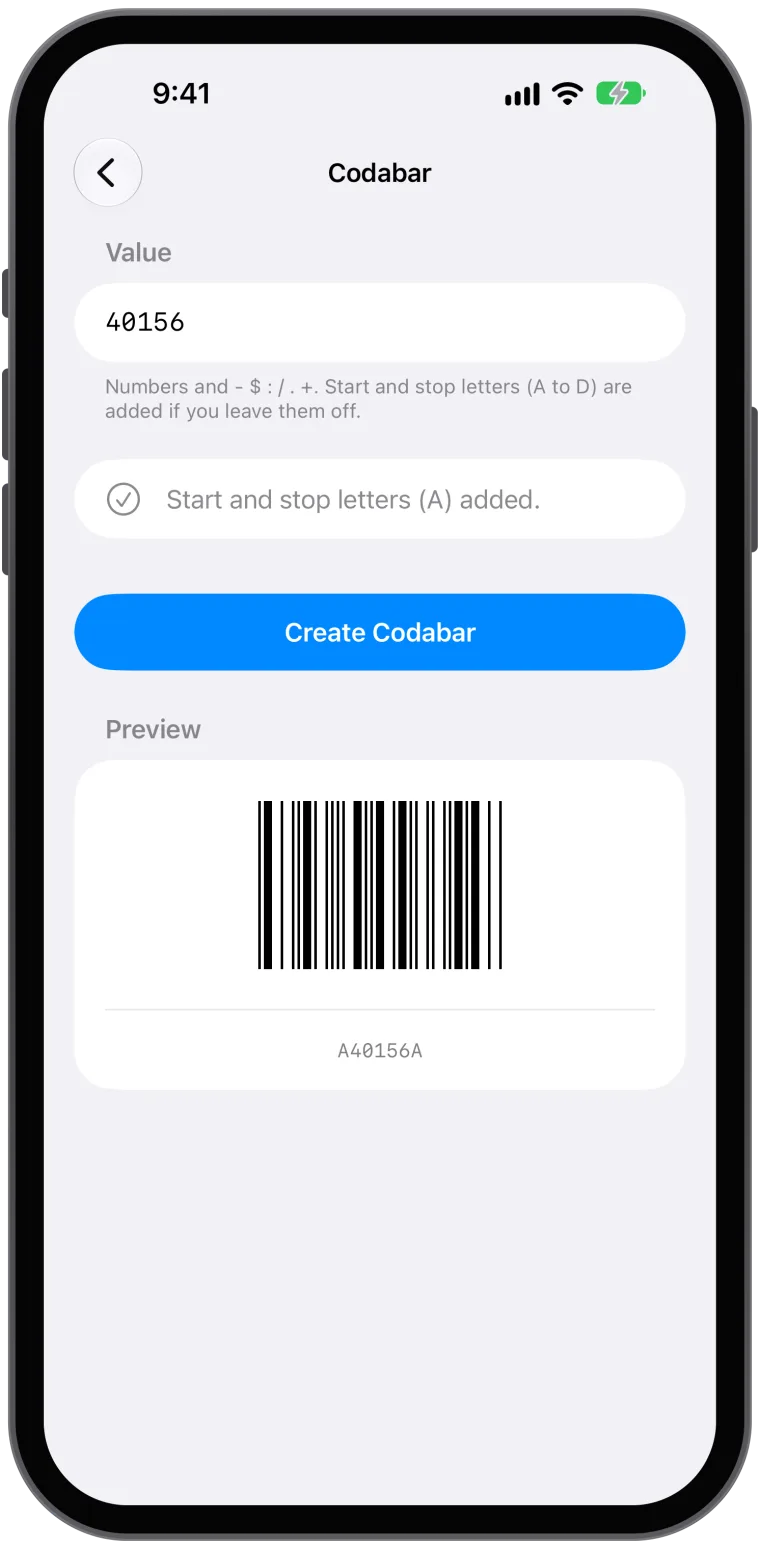
Codabar
An older barcode still found in libraries, labs, and some shipping systems.
Used for: Library cards, blood bank and lab labels, and older systems.
What you type: Numbers and - $ : / . +. Start and stop letters (A to D) are added if you leave them off; type your own and they’re kept.
Example: 40156 becomes A40156A
Barcode 9 of 10
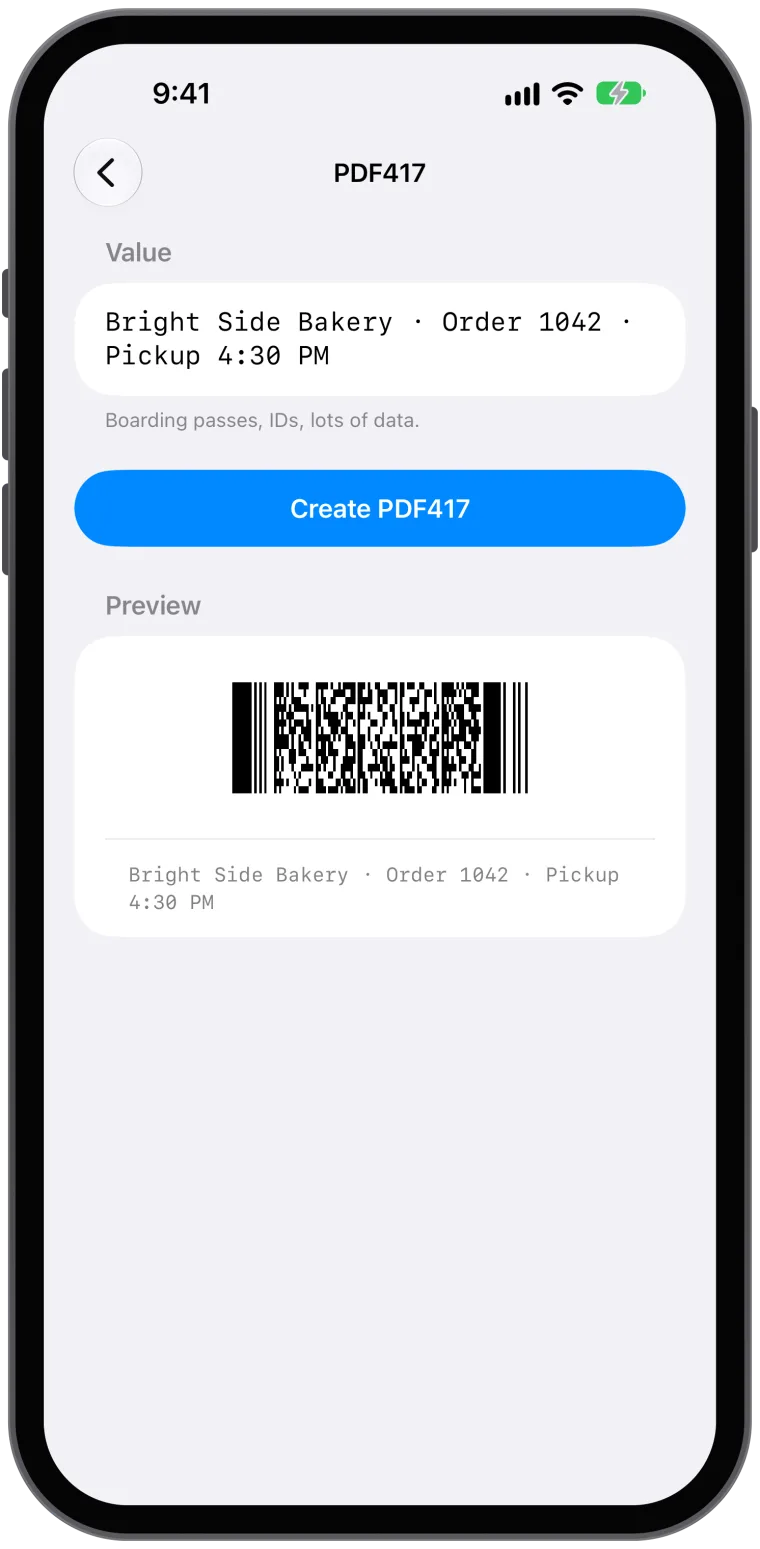
PDF417
A stacked barcode that holds a lot of text in a small space.
Used for: Boarding passes, ID cards, and shipping documents.
What you type: Any text, with no set limit (very long text makes a very wide code). Error correction is built in.
Example: Bright Side Bakery · Order 1042 · Pickup 4:30 PM
Barcode 10 of 10
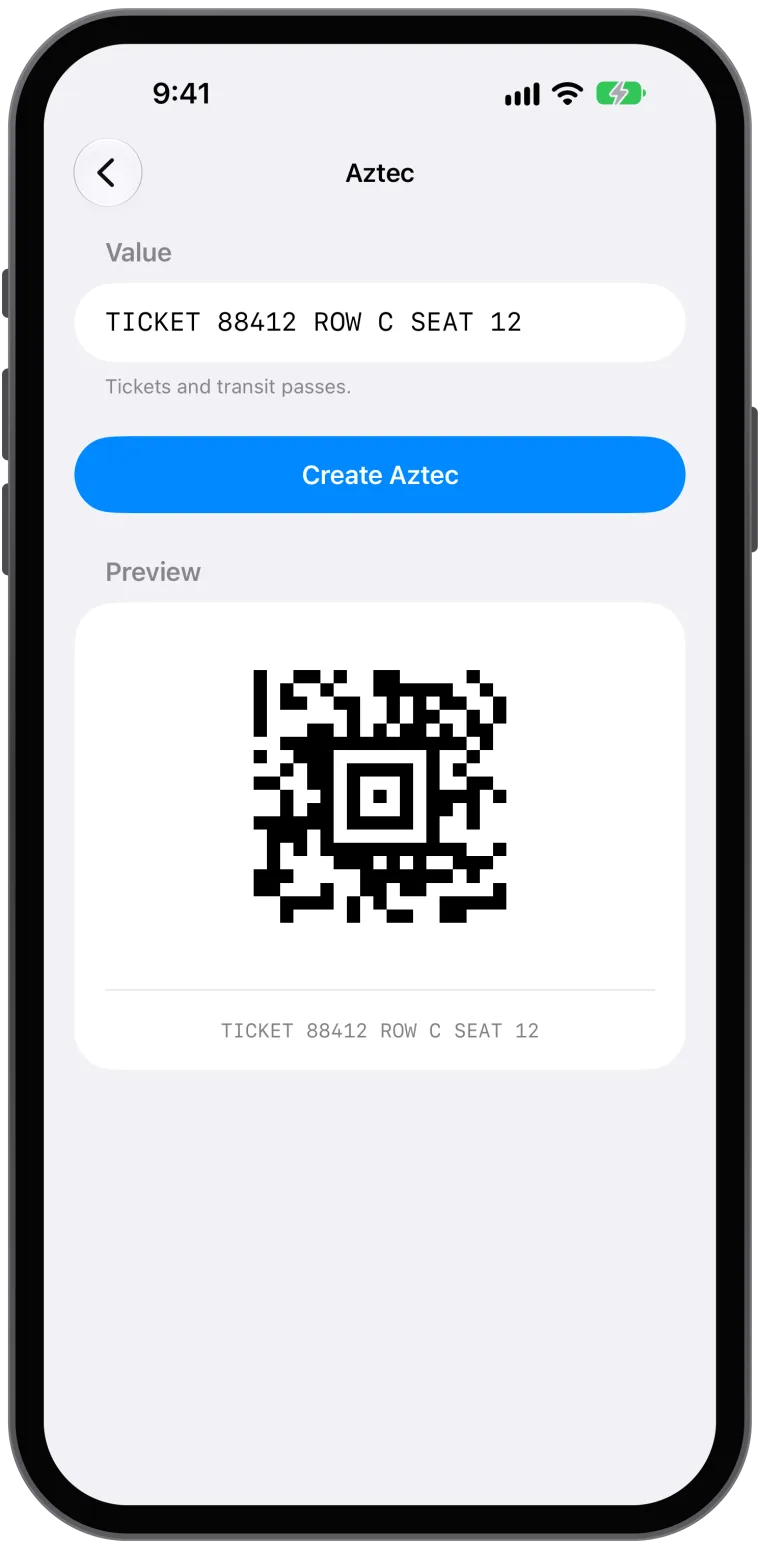
Aztec
A square code, like a QR code, that scans well from phone screens.
Used for: Tickets and transit passes.
What you type: Any text, with no set limit. Error correction is built in.
Example: TICKET 88412 ROW C SEAT 12
Good to know
A few details
Barcodes are drawn with the bars only: the numbers aren’t printed underneath in the image. Add them in your label design if you need them.
Setrik QR reads Data Matrix codes but can’t make them.
Barcodes are part of Setrik QR Pro, a one-time purchase. QR codes are free.
Keep exploring
More of what Setrik QR does
Or see every Setrik QR feature on one page.
Print and export
Share or save any code, or print-ready PDF, SVG and large images with Pro.
See printing and exportColors and logo
Your colors and your logo in the middle, checked so it still scans.
See colors and logoSaved Code widget
One of your codes right on the Home Screen, ready to scan.
See the Saved Code widgetWebsite QR codes
A link to your site, menu, or review page, for flyers and signs.
See website QR codesContact card QR codes
One scan adds you to someone’s Contacts. Made for business cards.
See contact card QR codesQuestions about barcodes
Does Setrik QR add the check digit?
Yes. For UPC-A, UPC-E, EAN-13, EAN-8, and ITF-14 it works out the check digit and adds it. If you type the check digit yourself, it checks it and tells you if it’s wrong.
Can I make barcodes for products I sell in stores?
The app can draw UPC and EAN barcodes, but the real product numbers come from GS1. Use the number GS1 gives you.
Which barcode should I use for inventory labels?
Code 128 for most labels: it holds letters, numbers, and symbols. Use Code 39 if your scanner or software asks for it.
Are barcodes free?
QR codes are free. The ten barcode types are part of Setrik QR Pro, a one-time purchase. See Setrik QR pricing.
Make your barcodes on iPhone
Ten types, with the check digits done for you. Free to download; barcodes come with Pro.