QR code stickers and labels (Pro)
A sheet of QR code stickers from your iPhone
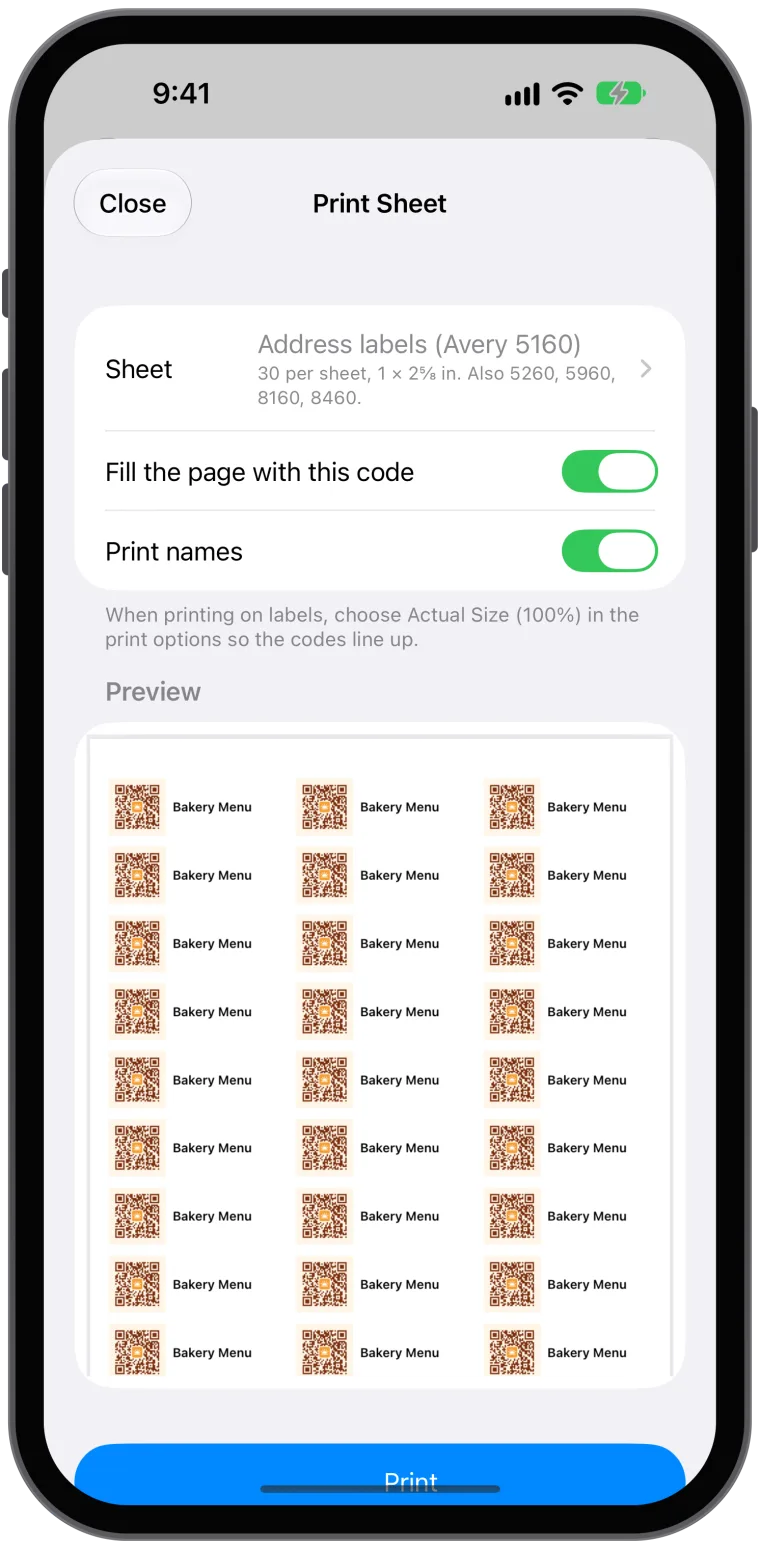
Lining up 30 codes on a label sheet in Word is nobody’s idea of fun. Setrik QR Pro lays your codes out on Avery address labels, shipping labels, or business cards, or on a plain grid with cut lines, ready to print or share as a PDF.
Fill a page with one code, or print several saved codes together.
Vector PDF, so every code prints sharp.

Free to download · Pro is a one-time purchase · For iPhone, iOS 26 or later
How it works
Print a sheet
1
Open Print Sheet
On a code: For Print and Design, then Print Sheet: Labels and Cards. For several codes: Saved Codes, the ··· button, then Print Sheet of Codes.
2
Pick the sheet
Choose the layout and whether to print names. Check the live preview.
3
Print or share
Tap Print, or Share PDF to send it to a print shop. Choose Actual Size (100%) when printing on labels.
The layouts
Five sheets to choose from
The app remembers the last one you used.
Address labels (Avery 5160)
30 per sheet, 1 × 2⅝ in. Also 5260, 5960, 8160, 8460.
Shipping labels (Avery 5163)
10 per sheet, 2 × 4 in. Also 5263, 5963, 8163.
Business cards (Avery 8371)
10 per sheet, 2 × 3½ in. Also 5371, 8471.
Plain grid, US Letter
12 per page with cut lines, 2½ in squares.
Plain grid, A4
12 per page with cut lines, 6.5 cm squares.
Your colors, logo, and caption
Every code prints the way it looks in the app, frame included.
Sample files
See a real sheet
Made by Setrik QR’s own code; every code on them scans.
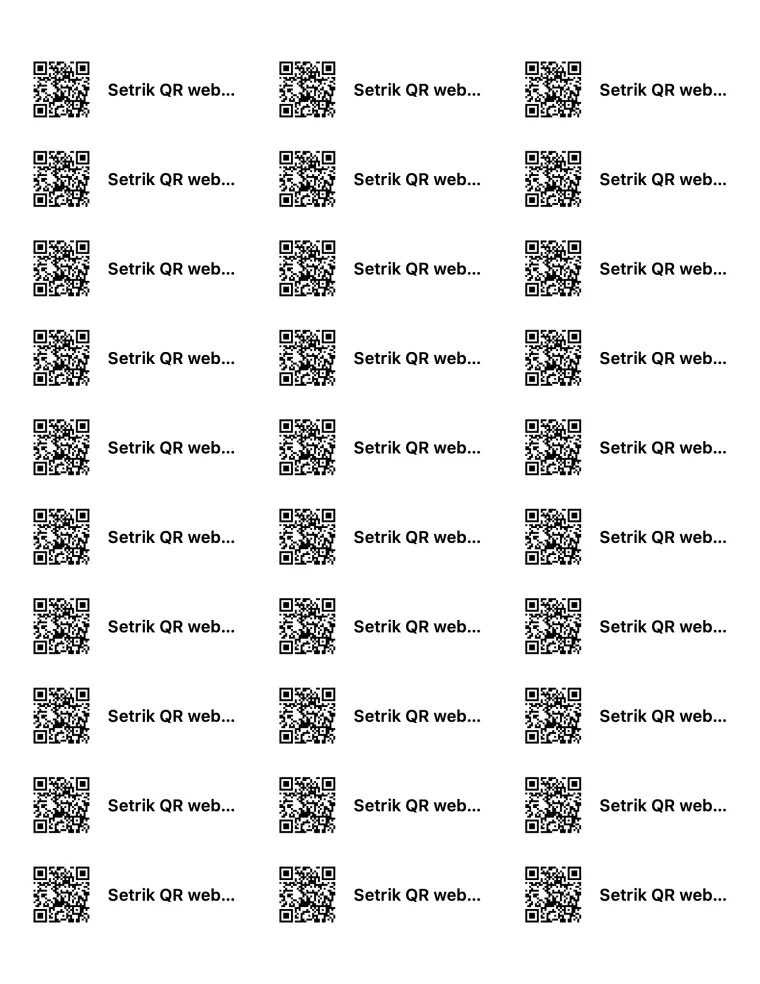
Address labels
One code filling an Avery 5160 sheet (30 labels).
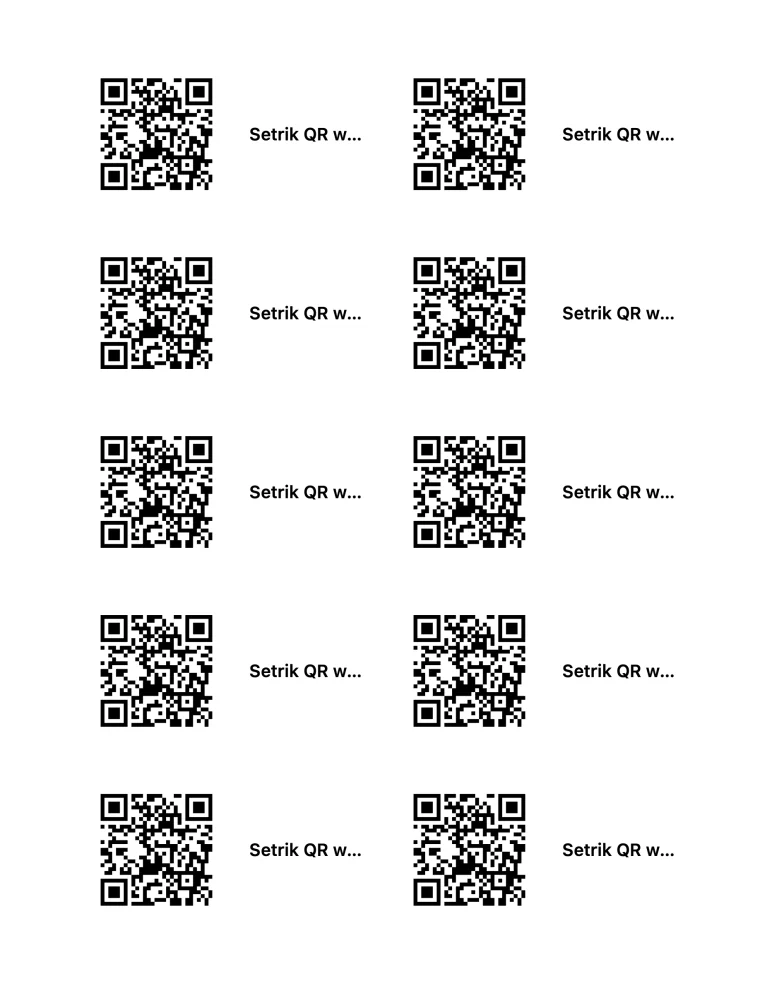
Business cards
Ten cards on an Avery 8371 sheet.
Open the sample label sheet PDF to try a test print on plain paper.
Several codes on one sheet
Print your saved codes together
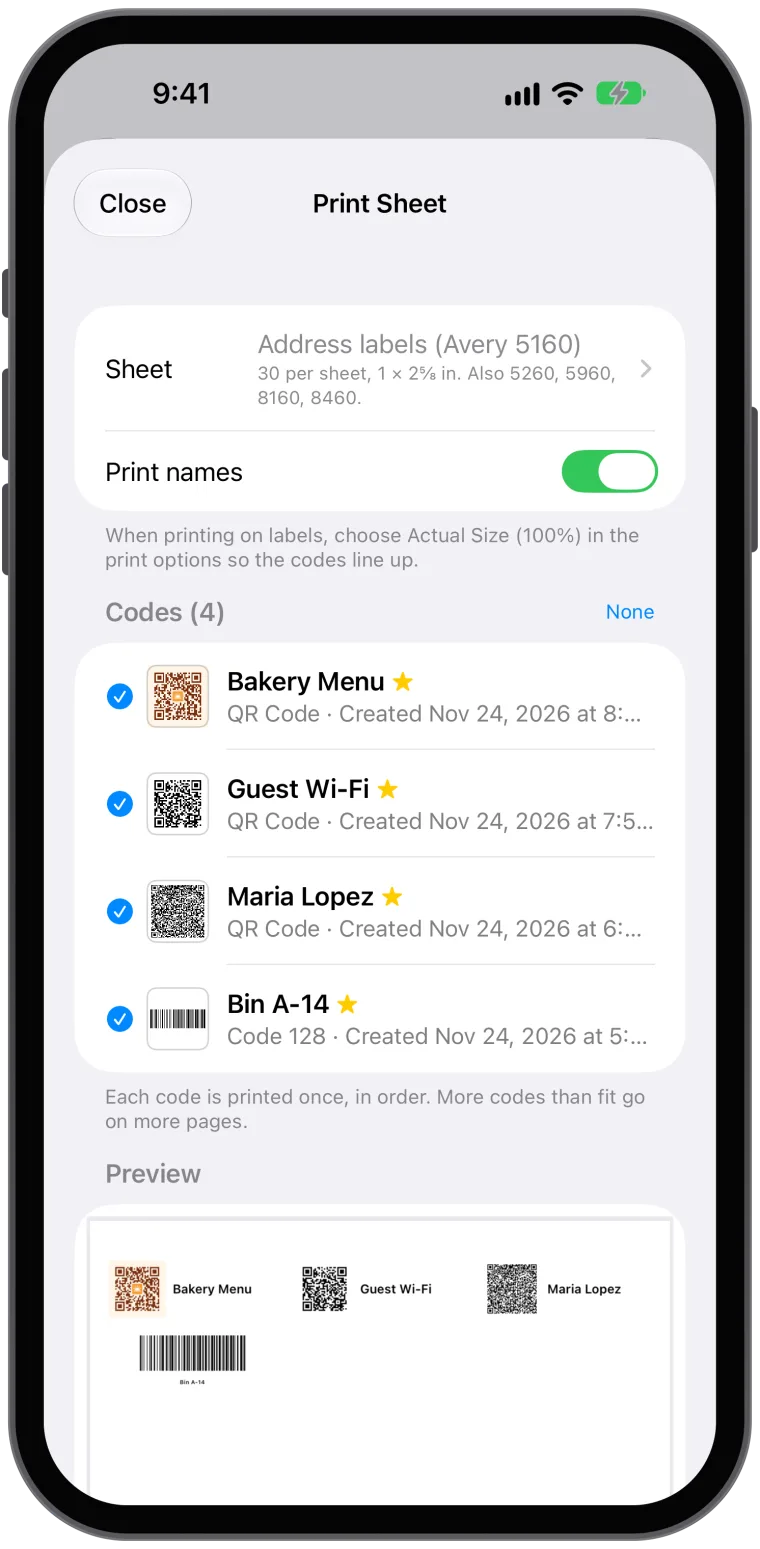
From Saved Codes, tick the codes you want. Each one is printed once, in order, with its name if you like. More codes than fit go on more pages.
All / None to tick or clear the list. The first page’s worth is ticked to start.
Print names beside the code on wide labels, or under it on square cells.
Fill the page with this code (from one code) is on by default: the whole sheet, one code.
Real-life uses
What people print
Getting codes onto paper is the real job. This makes it quick.
Bin and asset labels
A sheet of Code 128 labels for a small warehouse or a tool room.
Table stickers
The menu code for every table in the café.
Wi-Fi stickers
A sheet of guest Wi-Fi stickers for every rental unit.
Business cards
Cards with your contact code for a new employee.
Classroom codes
A teacher prints a code for each student group.
Product tags
Stickers that open the care instructions page.
Before you print
Tips for labels that line up
Print at Actual Size (100%). The app reminds you: “When printing on labels, choose Actual Size (100%) in the print options so the codes line up.”
Test on plain paper first. Printers vary. Hold the test page against a label sheet before using the real thing.
Scan one label with a phone before you stick them all on.
Avery and the Avery product numbers are trademarks of their owner. Setrik QR isn’t affiliated with or endorsed by Avery.
Part of Setrik QR Pro
Label and card sheets are part of Pro. Pro is a one-time purchase in the app, through Apple: no subscription, nothing renews. See everything Pro includes.
Keep exploring
More of what Setrik QR does
Or see every Setrik QR feature on one page.
Captions and frames
“Scan for our menu” under any code, or a “Scan Me” frame with Pro.
See captions and framesShare menu and Shortcuts
A QR code for any web page, straight from Safari’s Share button.
See the Share menuPrint and export
Share or save any code, or print-ready PDF, SVG and large images with Pro.
See printing and exportColors and logo
Your colors and your logo in the middle, checked so it still scans.
See colors and logoQuestions about printing labels
Can I print QR code stickers or labels?
Yes, with Setrik QR Pro. Print Sheet lays your codes out on Avery 5160 address labels, 5163 shipping labels, or 8371 business cards, or a plain grid with cut lines (US Letter or A4).
Can I print different codes on one sheet?
Yes. From Saved Codes, tap the ··· button, then Print Sheet of Codes, and tick the codes you want.
Why don’t my labels line up?
Choose Actual Size (100%) in the print options, not “fit to page.” Try a plain-paper test page first; printers vary.
Can I send the sheet to a print shop?
Yes. Tap Share PDF: it’s a vector PDF, so every code stays sharp.
QR code stickers in minutes
Avery labels, business cards, or a grid with cut lines. Free to download; sheets come with Pro.