
What a Google Form QR code does
A QR code is a web address turned into a small square of dots. When someone points their iPhone camera at it, a link pops up, and one tap opens your form in their browser, ready to fill in. The code doesn't collect anything itself: answers still go straight into Google Forms, the same as if people had typed the address. It also doesn't depend on any outside service. A plain code like this (sometimes called a static code) holds the link itself, so there's nothing in between that can expire.
Good places for a form code
Club sign-up sheets
Picture a book club table at a community fair: one code on a stand, and new members sign up on their own phones while you talk to the next person.
Event RSVPs
Put the code on a school event flyer or a printed invitation so guests can reply without hunting for an email.
Class and workshop surveys
Show the code on the last slide so people answer before they leave the room.
Customer feedback
A shop like Bright Side Bakery could print a short feedback survey code on a card by the register.
First, copy the right link from Google Forms
Most code problems start here, not in the QR code app. First, publish the form, because Google's help page on sending a form says responders can't open an unpublished form, even with the link. Then click Published (or Share) and choose Copy responder link. Don't copy the address from your browser's address bar while you're editing, since that's the editor's link, not the one for the people filling it in. Ticking the Shorten URL box gives you a much shorter link, which is worth doing.
Why does a shorter link help? A QR code with fewer letters in it has fewer, bigger squares, so it's easier for a phone to read, especially when it's printed small. One more thing to check before you share your Google Form QR code: Google notes that if you limit people to one response, they must sign in to a Google Account first. That's fine for a staff survey, but it can stop guests who don't have one, so turn it on only if you need it.
How to make a QR code for a Google Form on your iPhone
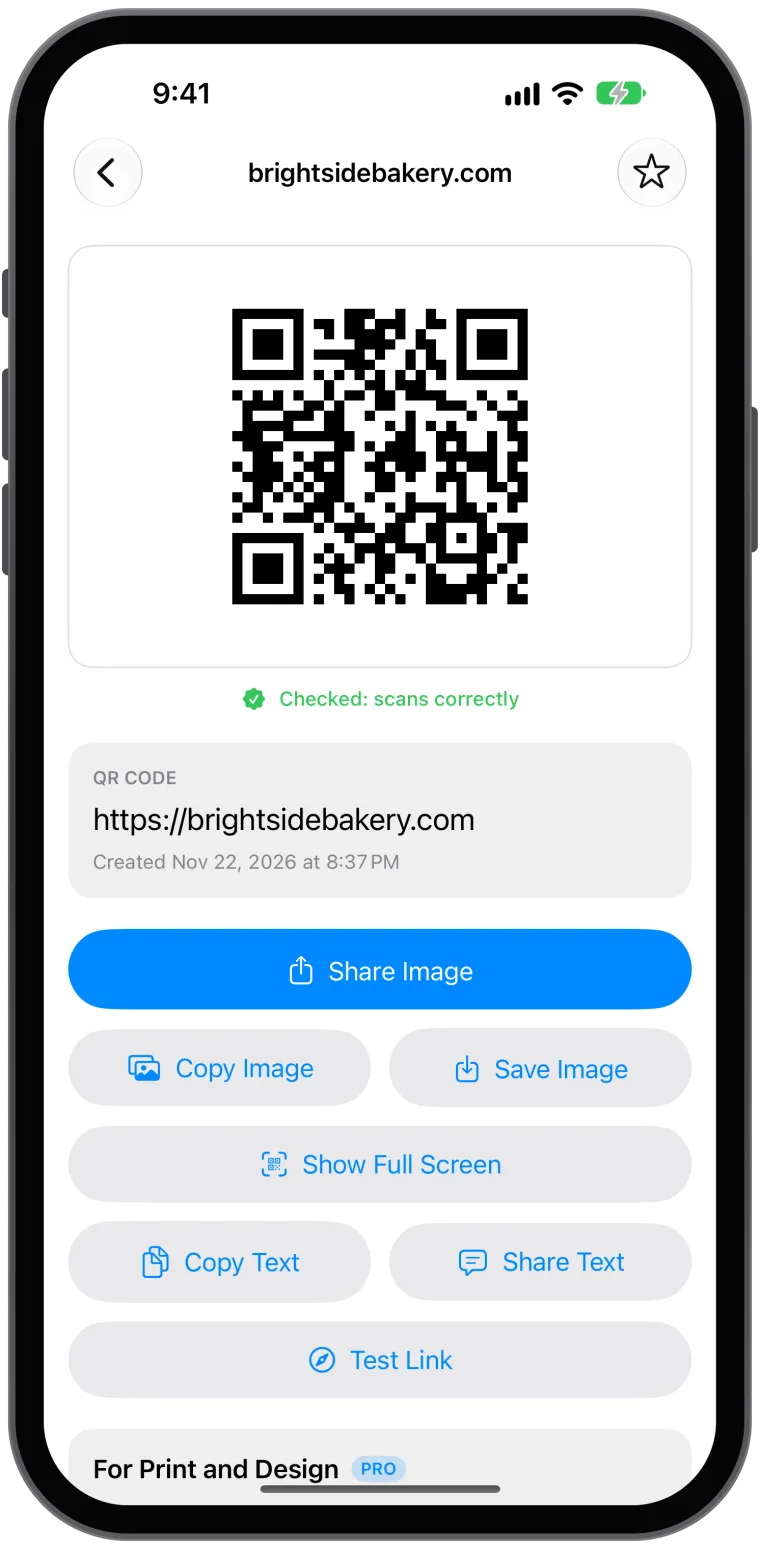
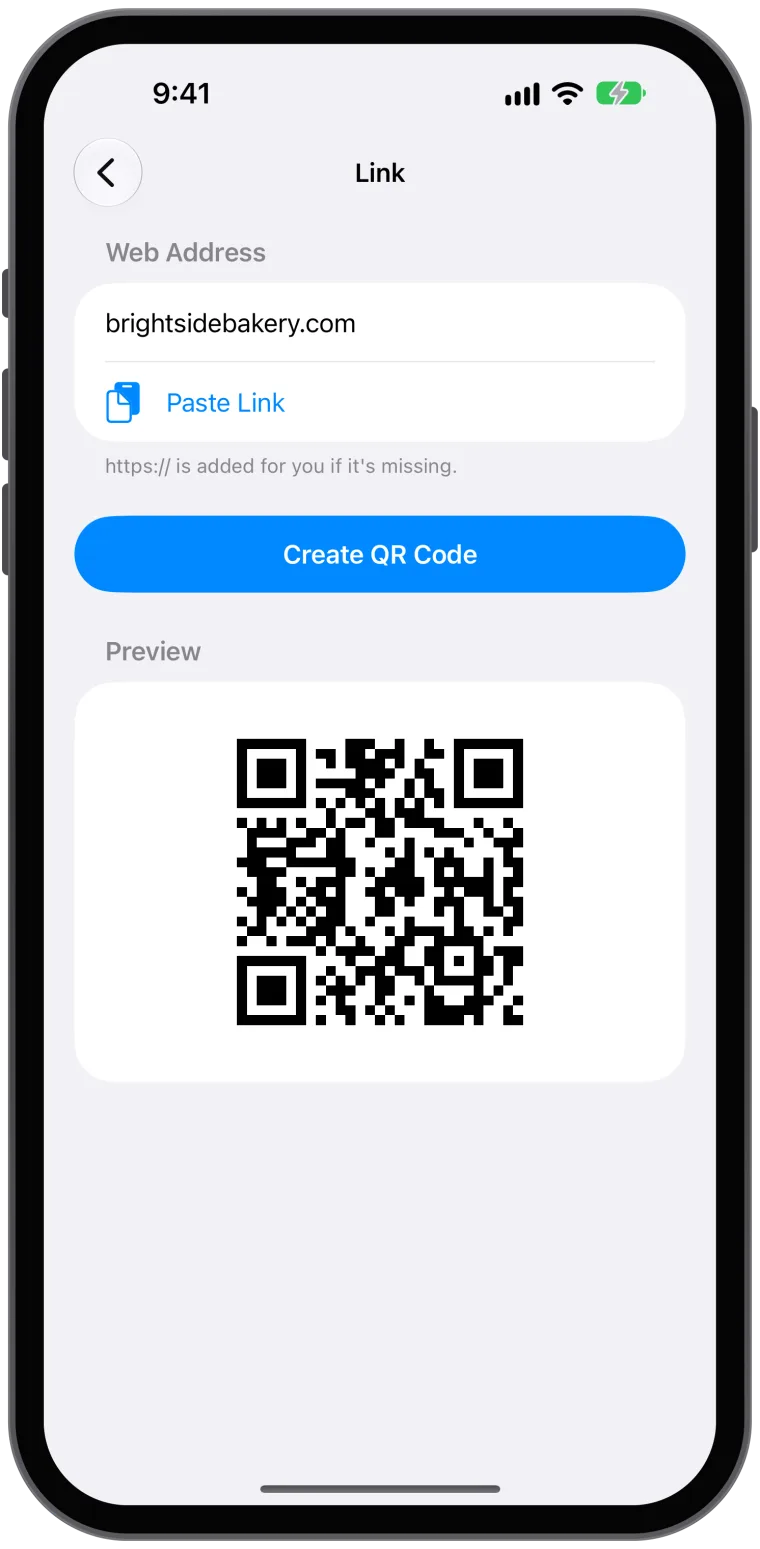
With the form's link copied, open Setrik QR, tap Create, then Link, and tap Paste Link. The code appears in the preview as soon as the address is usable, and Create QR Code finishes it. Setrik QR then reads its own picture back and shows Checked: scans correctly, so you know the code itself works. Making a QR code for any website link is free, and the help article on making a QR code for your website has every tap.
Next, tap Test Link, which opens the address in Safari. You should land on the form people will fill in, not an editing page or a "you need access" message. Then scan it from your screen with someone else's phone; the iPhone Camera app reads QR codes on its own, as Apple's guide to scanning a QR code shows. To use the code, tap Copy Image and paste it into your flyer in Word, Pages or Google Docs, or use Save Image to drop it onto a slide. The help article on sharing, copying or saving a code image covers each one.
Put the code where people will scan it
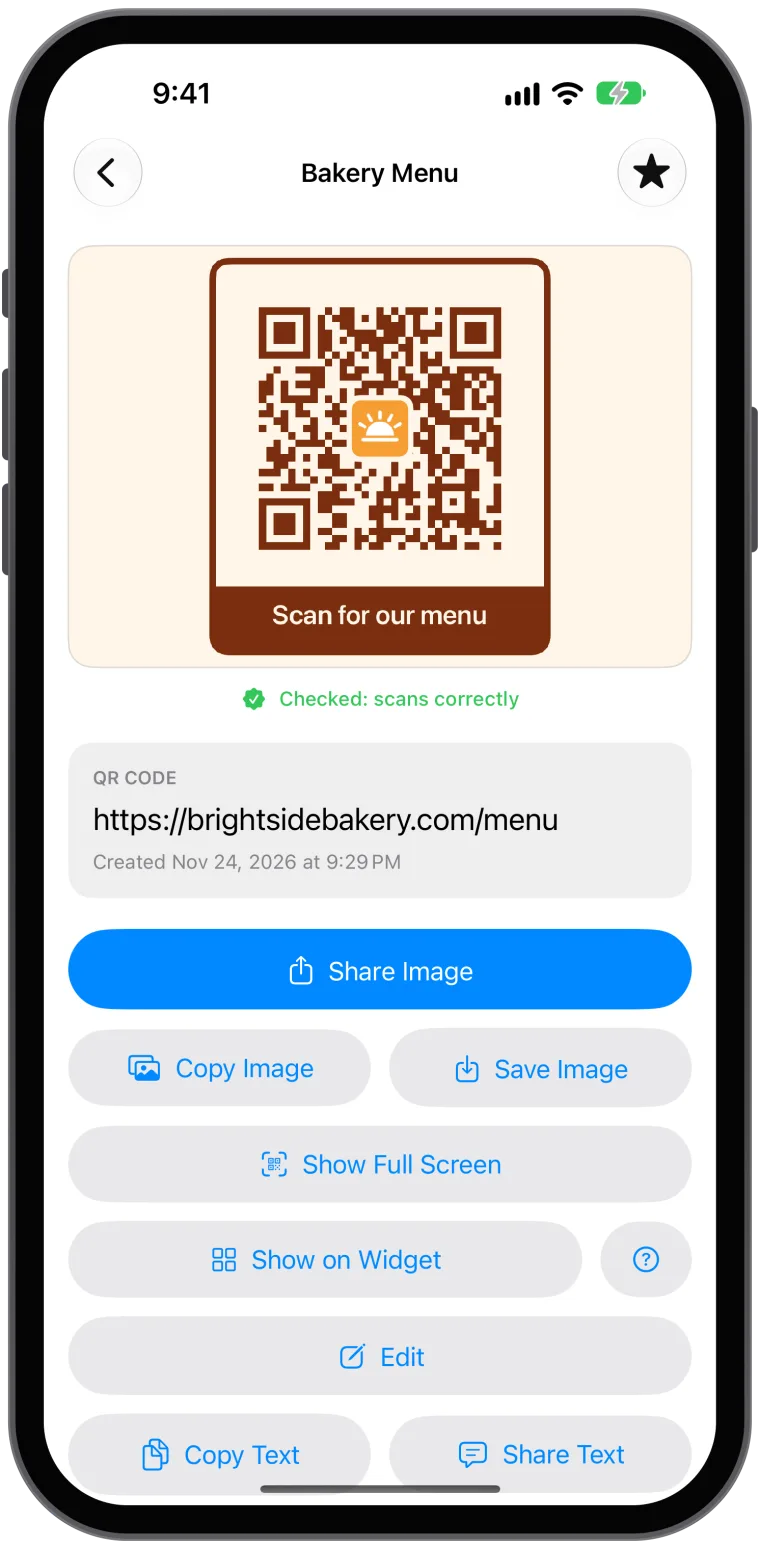
People scan a code when they know what they'll get. A few words under it, like "Scan to sign up" or "Scan to RSVP", do more than any design. In Setrik QR you can add a caption of up to 40 characters under the code for free, and it goes onto the shared image, the PDF and the printout. The help article on adding a caption under a code shows where it is, and a bold "Scan me" frame around the code comes with Setrik QR Pro.
Before you print the copies
Leave a blank margin
Keep an empty white border around the code (printers call it the quiet zone), and don't let text or pictures touch it.
Don't print it tiny
About 2 cm (0.8 in) across is a common minimum for scanning up close; for a poster seen from farther away, go bigger.
Scan the paper copy
Print one page, scan it with a phone, and only then print the rest.
Check the form is open
Make sure the form is published and accepting answers on the day you hand out the flyers.
Tell people what the code is for.
Add "Scan to sign up" under the code, free.
Will the code keep working?
Yes, as long as the form does. A Google Form QR code holds the form's link itself, so every copy you've printed keeps opening the same form for as long as that form exists. When sign-ups end, stop accepting responses in Google Forms rather than deleting the form, so the code doesn't lead to an error page. If you make a brand-new form next year, it gets a new link, and that means a new code. A printed code can't be changed, so plan your flyers around the form you'll actually use.
If you're running a sign-up table, you don't even need paper. Save the code with the star, then use Show Full Screen to put it big and bright on your iPhone so people can scan it right off your phone. Making and showing codes is free. Print-quality PDF files, colors and frames are part of Setrik QR Pro, a one-time purchase you can see on the Setrik QR pricing page.
The bottom line
So, how do you make a Google Form QR code?
Publish the form, copy its responder link with Shorten URL ticked, paste it into a link QR code, and check that it opens the right page before anything goes to the printer. That's the whole job, and the code you get is plain, so a Google Form QR code made this way keeps working for as long as the form stays up. Put a few words under it so people know what it's for, and give it a clear margin. Then scan one printed copy, and your sign-ups can start coming in while you hand out the flyers.
Printing something tomorrow?
Make the QR code tonight, and the app reads it back to check it scans before it goes to the printer. Free to download.
See how it works