

Share, copy or save a code's image
Send a code by Mail, Messages or AirDrop, paste it into a document, or save it to Photos.
Every code the app can draw has three ways out, free.
Steps
- Open the code (right after you make it, or from Saved Codes or
History). - Pick one:
– Share Image: sends a 1024-pixel PNG to Mail, Messages, AirDrop,
Files and other apps. The file has a clear name, like “QR Code –
brightsidebakery.com.png”.
– Copy Image: then paste it straight into Mail, Word, Pages or
Notes. The button shows Copied.
– Save Image: adds it to Photos. The button shows Saved.
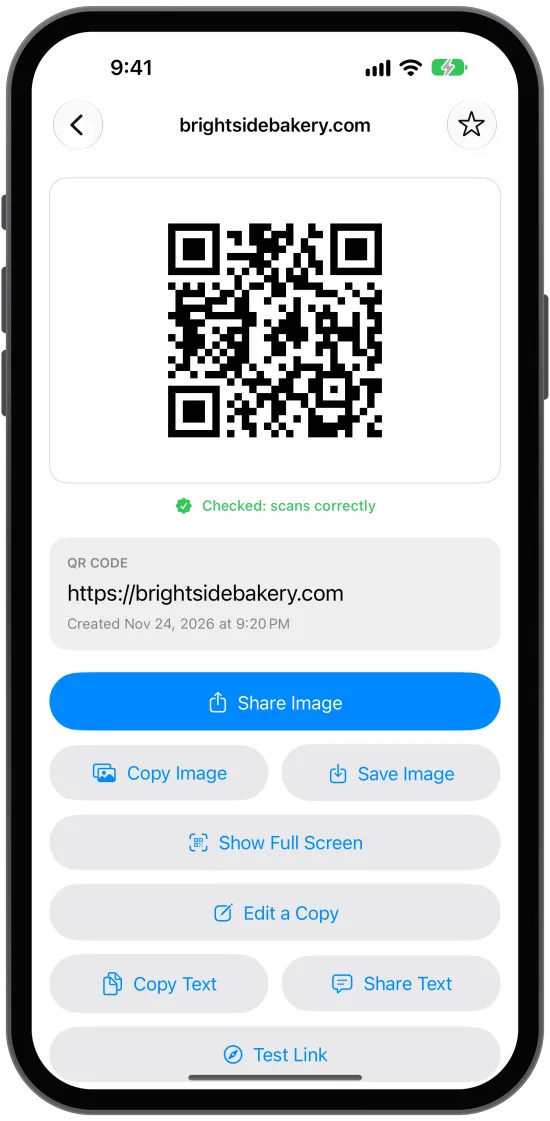
The first time you save
The app asks to add photos (“Setrik QR saves the codes you make to your
photo library.”). This is add-only: the app can’t see your other photos.
Tips
- The image uses the code’s own colors and logo, if it has them, and its
caption and frame. - Copy Text and Share Text send what’s inside the code (the web
address, for example), not the picture. - Printing it large, or sending it to a print shop or designer? Use a PDF
or SVG (how, Pro).
If something goes wrong
“Can’t Save to Photos” with “Allow Setrik QR to add photos in Settings.”
means photo access was turned off. Tap Open Settings, then
Photos, and choose Add Photos Only.
Related articles
Still stuck? Email contact@setriksoftware.com with your app version (Settings › About) and what you saw. If something went wrong in the app, sending the error log helps too. You can also browse the Help Center or the messages the app can show.