

Make a QR code for your website
Turn a web address into a QR code you can print, share or paste into a document.
Use this for flyers, menus, documents and emails: anyone who scans the
code opens your website.
Steps
- On the start screen, tap Create.
- Tap Link.
- Type your web address in the Web Address field, or tap Paste Link to use the address you copied.
You don’t need to typehttps://: it’s added for you if it’s missing.
The QR code appears under Preview as soon as the address is usable.
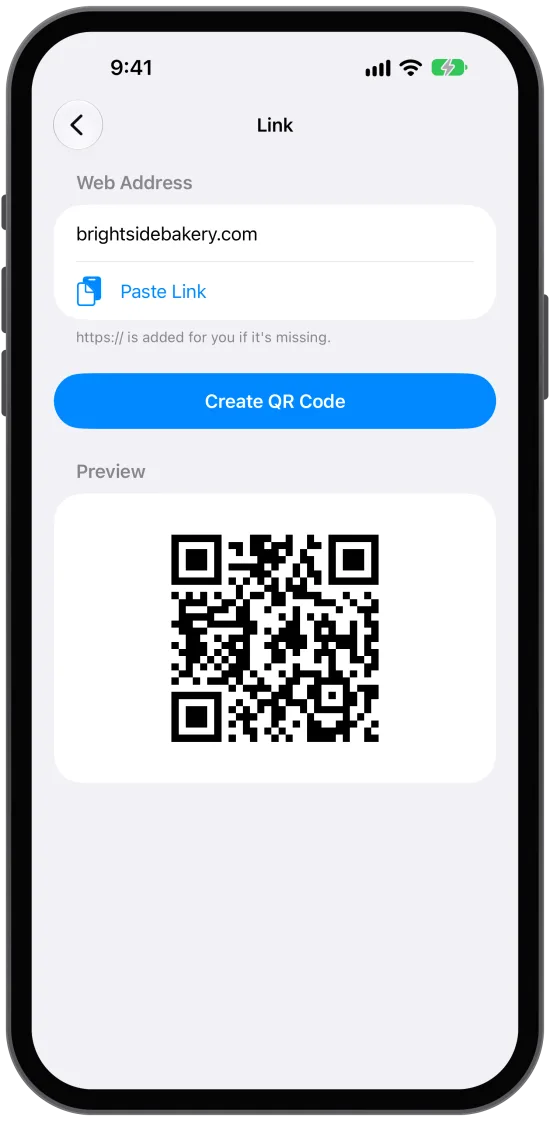
- Tap Create QR Code (or the keyboard’s Return key).
What you’ll see
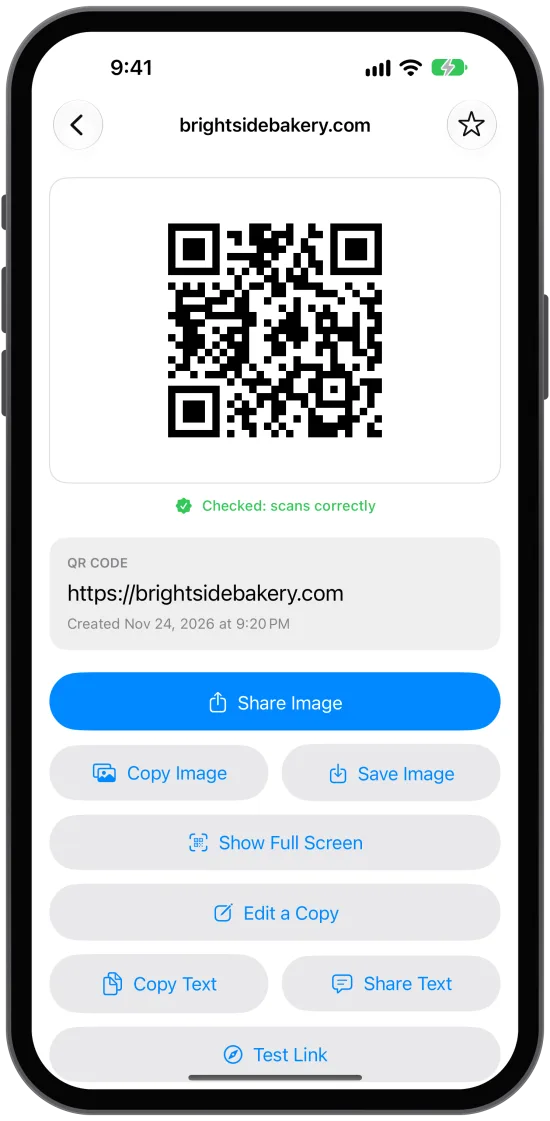
The finished code, with Checked: scans correctly under it: the app
read its own picture back to make sure it works. The code’s name is your
site’s name, like brightsidebakery.com, and it’s added to History.
Next
- Share Image, Copy Image or Save Image to use it
(how). - Test Link opens the address in Safari, so you can check it’s the
right page. - Tap the star at the top right to keep it in Saved Codes.
If something goes wrong
Create QR Code stays grey until the address is usable, and an orange
note says why: “Web addresses can’t contain spaces.” or “That doesn’t
look like a web address. Try something like example.com.” See
Troubleshooting.
Related articles
Still stuck? Email contact@setriksoftware.com with your app version (Settings › About) and what you saw. If something went wrong in the app, sending the error log helps too. You can also browse the Help Center or the messages the app can show.