

Save a code
Keep a code in Saved Codes with a name, so it's easy to find again.
Every code you make or scan goes to History by itself. Save the ones you
use again and again, like your website, business card or Wi-Fi.
Steps
- Open the code (right after making or scanning it, or from History).
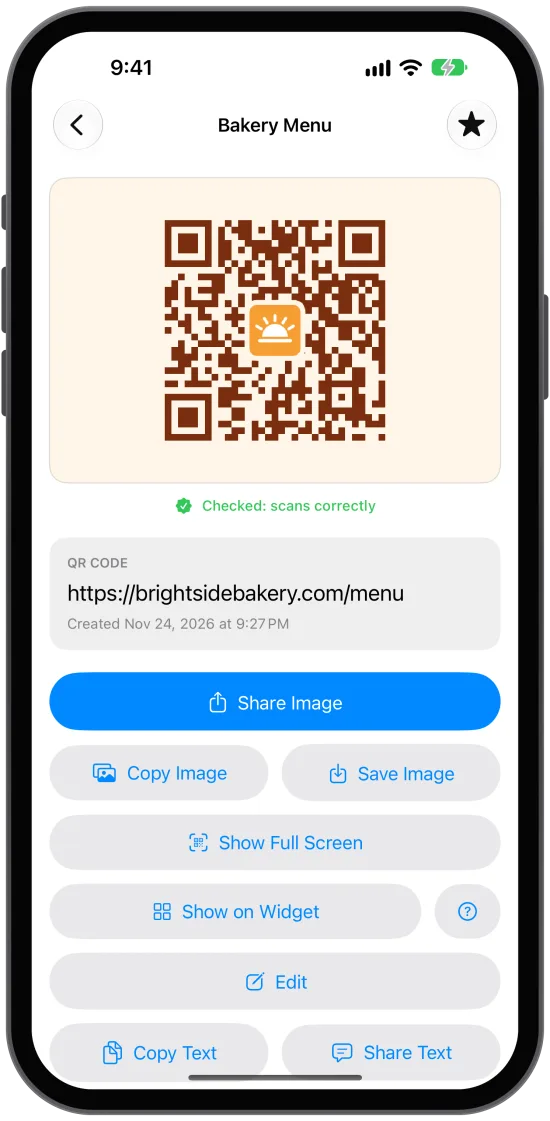
- Tap the star at the top right.
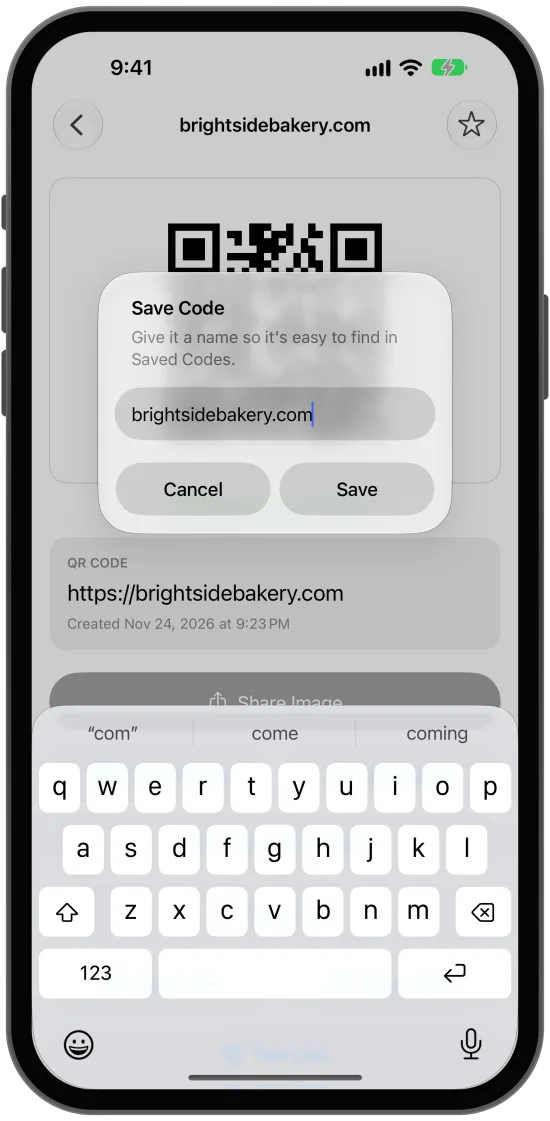
- In Save Code (“Give it a name so it’s easy to find in Saved
Codes.”), keep the name that’s filled in (like the website) or type
your own, like “Home Wi-Fi”. - Tap Save. With no name, the list shows what’s inside the code.
What you’ll see
The star turns solid, and the code appears at the top of Saved Codes
(newest saved first). In History it shows a small yellow star. From
version 1.1, the code’s screen also gets a Show on Widget button
(how).
Unsave it
Tap the solid star again. In version 1.0 it leaves Saved Codes right
away (no question asked). From version 1.1 it asks first: “Remove from
Saved Codes?” with Remove from Saved. Either way it stays in
History, and saving it again offers its old name.
Free version
You can keep 3 saved codes. Saving a 4th shows “Saved Codes Are Full”
with Unlock Pro or Not Now. Pro saves as many as you like.
Related articles
Still stuck? Email contact@setriksoftware.com with your app version (Settings › About) and what you saw. If something went wrong in the app, sending the error log helps too. You can also browse the Help Center or the messages the app can show.