

Choose the code on your widget from the app
Pick which saved code your Saved Code widgets show, right from the code's screen.
Steps
- Open a saved code and tap Show on Widget (or touch and hold it in
Saved Codes and tap Show on Widget). The button is only on saved
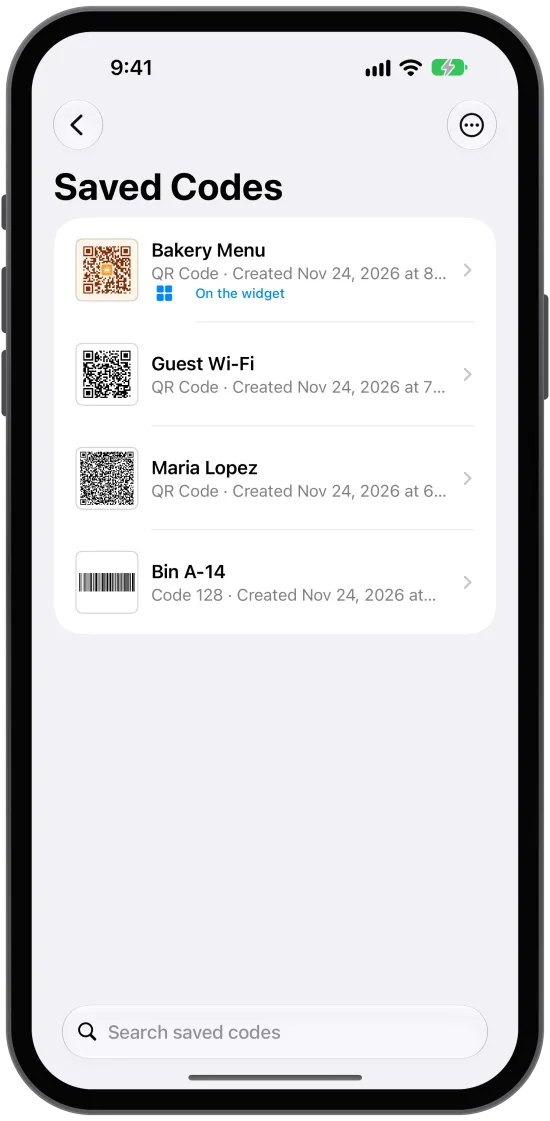
codes the app can draw. - The button changes to Shown on Widget, and the code is marked “On
the widget” in Saved Codes.
What you’ll see
Every Saved Code widget left on Chosen in the App switches to that
code. A widget you set to one code with Edit Widget › Code keeps its
own code. Your choice is for this iPhone only.
Step-by-step help in the app
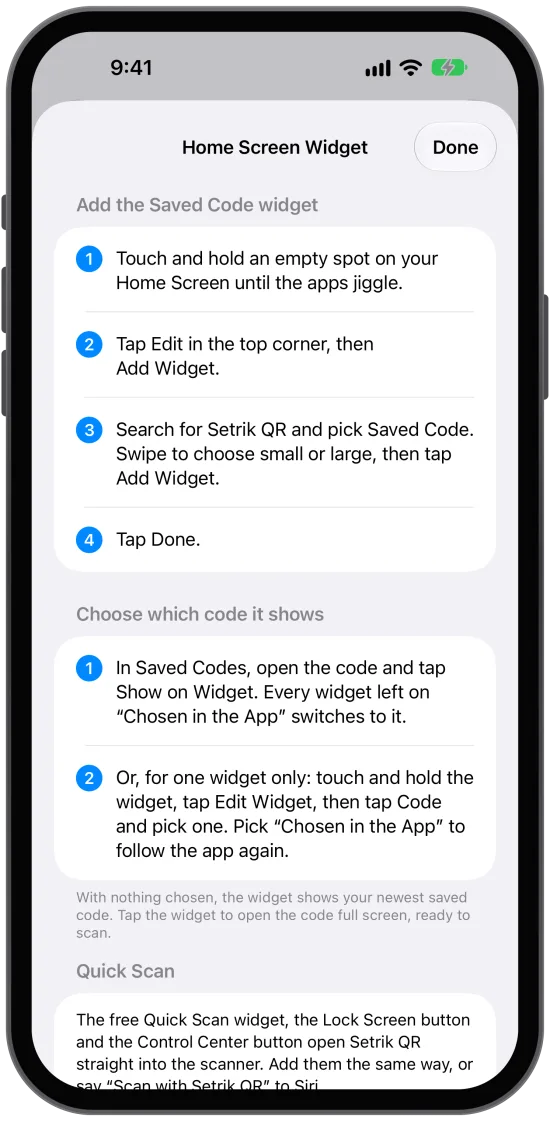
Tap the ? button next to Show on Widget, or go to Saved Codes › ⋯ › Home Screen Widget or Settings › Home Screen Widget. The Home Screen Widget screen explains how to add the widget, choose its
code, and add Quick Scan. Tap Done to close it.
Related articles
Still stuck? Email contact@setriksoftware.com with your app version (Settings › About) and what you saw. If something went wrong in the app, sending the error log helps too. You can also browse the Help Center or the messages the app can show.