

Find and open a saved code
Search your Saved Codes and open one to share, show or print it.
Steps
- On the start screen, tap Saved Codes.
- To find one fast, pull the list down a little and type in Search saved codes. It matches the name, what’s inside the code, or its
type (like “Wi-Fi” or “Code 128”). - Tap the code to open it.
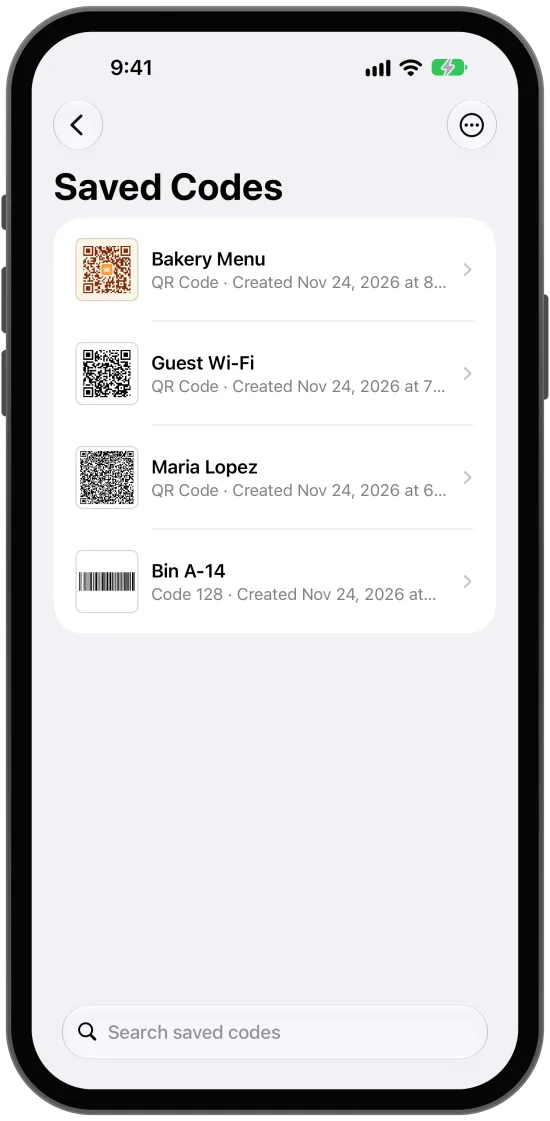
What you’ll see
Each row has a small picture of the code (in its colors), its name, type,
“Created” or “Scanned” and the date it was made or scanned. The code your
widget shows is marked “On the widget”. Opening one shows
the full result screen: share, copy, save, show full screen and more.
Shortcuts in the list
- Swipe right: Show (full screen).
- Swipe left: Remove (from Saved Codes), and Edit.
- Touch and hold: Show Full Screen, Edit,
Rename, Show on Widget, Remove from Saved. - The ⋯ button at the top right: Print Sheet of Codes (Pro) and Home Screen Widget (how to add the widget).
Codes the app can read but can’t draw (like Data Matrix) have no Show,
Edit or Show on Widget.
Free version
Under the list: “N of 3 saved codes. Pro saves as many as you like.”
Nothing here yet?
“No Saved Codes” with “Tap the star on any code to keep it here, like
your website, business card or Wi-Fi.” (how)
Related articles
Still stuck? Email contact@setriksoftware.com with your app version (Settings › About) and what you saw. If something went wrong in the app, sending the error log helps too. You can also browse the Help Center or the messages the app can show.