
What a QR code menu really is
A QR code menu is a small printed square that opens your menu on a guest's phone. The guest points their iPhone camera at it, taps the link that appears, and the menu opens in their browser, as Apple explains in its guide to scanning a QR code with an iPhone. The code itself holds only the web address, nothing else. That's why the menu has to be online before you make anything. It's also good news: the code keeps working for as long as that address does, with no monthly fee attached to the square on your table.
Give the menu a home online first
Every QR code menu for restaurant tables starts with a menu that's already online, and Setrik QR doesn't host menus, so you'll need a place for it to live. For most small restaurants, cafes and food trucks, that's one of three places. Write down the exact address it gives you, because that address is what goes into the code, and open it on your own phone to make sure the menu is easy to read on a small screen.
Three places your menu can live
A menu page on your website
This is the best choice if you have a site, because you can change the page any time and the address stays the same.
A PDF on your website
Upload your printed menu as a PDF and link to it. It's quick, though small text on a phone means a lot of pinching and zooming.
A file-sharing link
A shared PDF from a cloud storage service works too. Check that anyone with the link can open it without signing in.
This is where a QR code menu most often goes wrong. A printed code never changes, so if a new version of the menu gets a new address, every code on every table still opens the old one. With a menu page, you just edit the page. With a PDF or a shared file, check whether uploading a new version keeps the same link, and if it doesn't, move the menu to a page you control. Say Bright Side Bakery puts its menu at brightsidebakery.com/menu: the prices can change every season, and the code never needs reprinting.
Making a QR code menu for restaurant tables
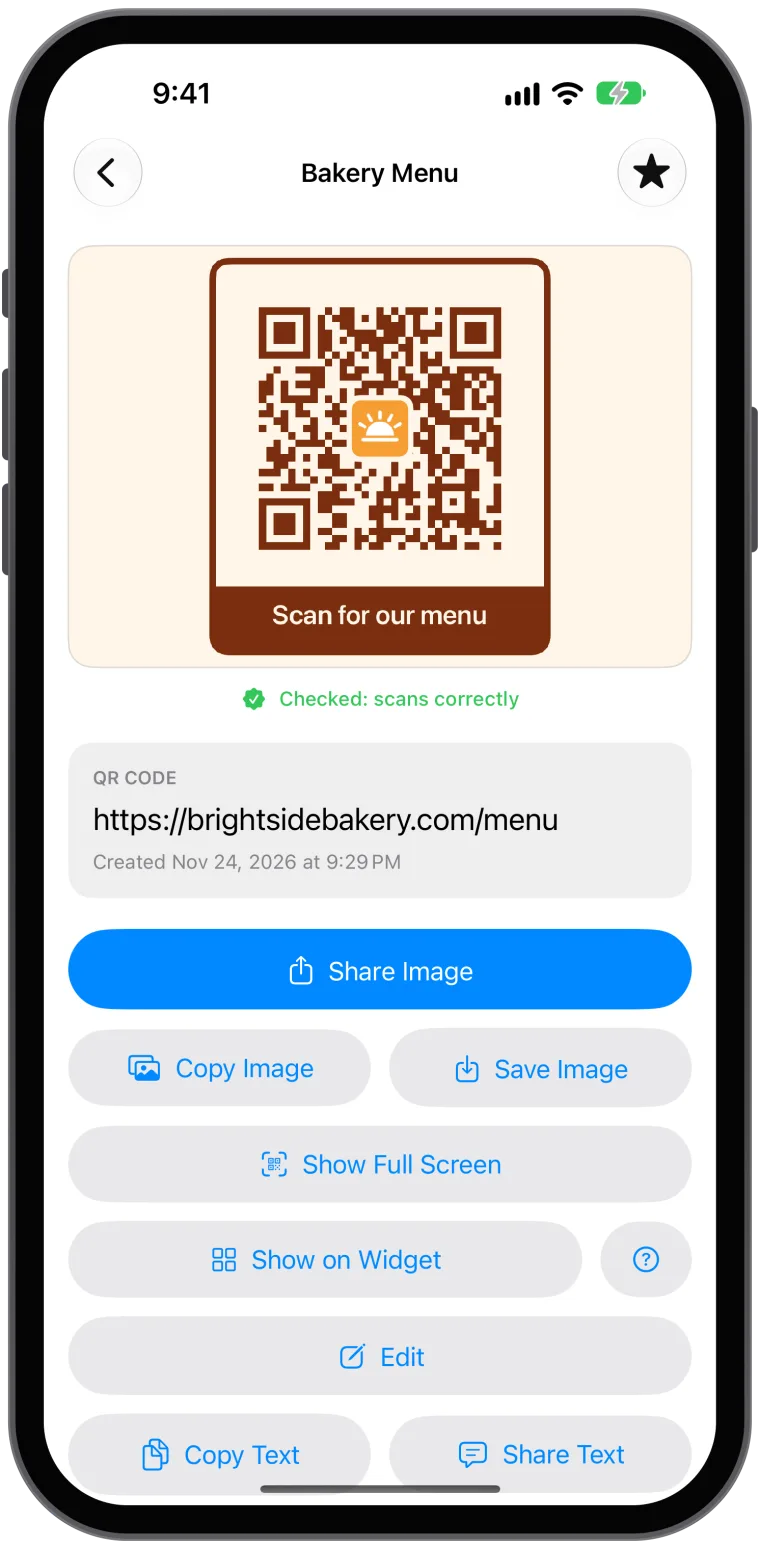
Once the menu has an address, the code is the easy part. In Setrik QR you paste the link into a QR code for a website, and the app reads its own code back to check that it scans before you print a single card. Making every kind of QR code is free, with no watermark. The tap-by-tap version is in the help article on making a QR code for your website.
Five steps from menu to table
Copy the menu's address
Open the menu on your phone and copy the link from the browser, so you know it's the exact page guests should see.
Make a link QR code
Paste the link, tap Create QR Code, and look for "Checked: scans correctly" under the code.
Add a line under it
A short caption under the code, like "Scan for our menu," tells guests what the square is for. Captions are free; a Banner frame around it is part of Setrik QR Pro.
Print one test card
Print a single card at the size you plan to use before you print forty of them.
Test it at the table
Sit where a guest sits, in the evening light, and scan it with two or three different phones.
How big to print it, and in what light
A common rule of thumb says a QR code should be about one tenth as wide as the distance it's scanned from. It's a guide, not a standard, but it works well. A guest holds their phone about 12 to 16 inches from a table card, so a code around 1.5 to 2 inches wide is comfortable. A menu board read from a few feet back needs a much bigger code. Either way, leave a clear blank margin around the code; that white border is what scanners call the quiet zone.
Restaurant light is the test most people skip. Candles, warm bulbs and evening shadows make a small code harder to read, and shiny laminate can throw a glare right across it. Keep the code dark on a light background, choose matte paper, and scan it at dinner time, not just at noon. If it struggles, print it bigger before changing anything else; the help article on checking that a code scans covers the rest.
Getting it onto table cards
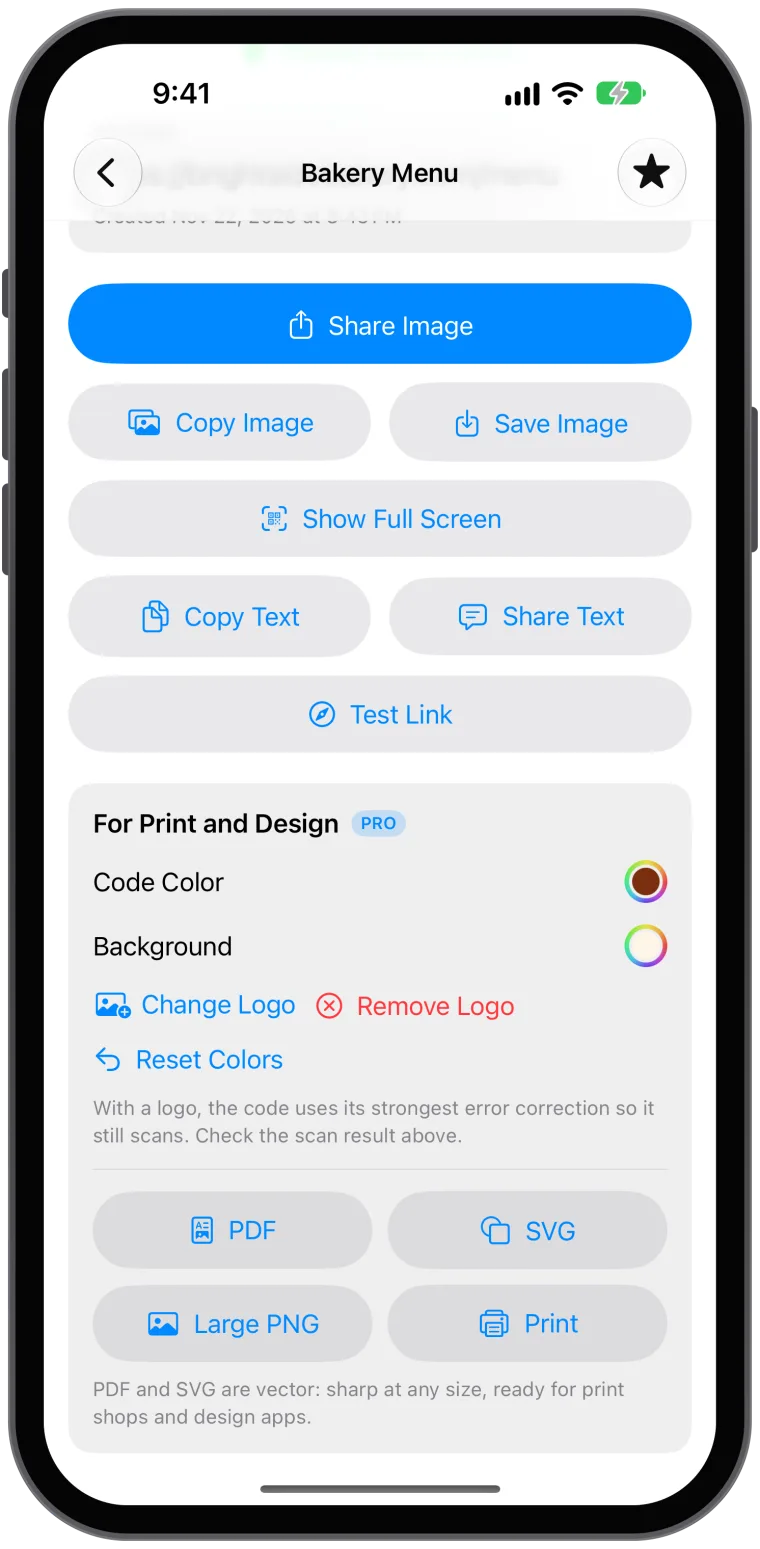
For a few cards, a large, clear image of the code dropped into a document is often enough. For a print shop or a design app, Setrik QR Pro adds print-quality PDF and SVG files, which stay sharp at any size, plus a large PNG. Pro can also fill a sheet for you: a plain US Letter grid holds 12 codes in 2½-inch squares with cut lines, ready to trim and slip into table stands. Setrik QR Pro is a one-time purchase, and the details are on the Pricing page.
If you add your colors or logo, keep the contrast strong. The app warns you when colors are too close to scan and rechecks the code each time you change something. A deep brown code on cream paper can work well; a pale code on a dark tablecloth usually won't.
Sharp at any size
Print-quality PDF and SVG files for print shops and design apps, plus large PNGs.
Keep paper menus, and check your codes
A QR code menu works best alongside paper, not instead of it. Some guests would rather not use a phone at the table, and some phones are low on battery. Keep a handful of printed menus ready and offer them without fuss. Printing the web address in small type under the code helps too, so anyone can type it in.
It's also worth glancing at your table codes now and then. The FTC warns that scammers sometimes cover real QR codes with their own, and a sticker over your code would send guests somewhere you never chose. A quick scan of each card when you open is enough: your own short web address, the same one printed under the code, tells you all is well.
The bottom line
Is a QR code menu right for your place?
For most small restaurants, cafes and food trucks, yes, as long as it's set up the plain way. A QR code menu is only a link, so the menu needs a home online at an address that won't change, and the code needs to be big and clear enough to scan in your real light. Add a short caption, test one card at dinner time, and keep a few paper menus for guests who prefer them. Then the same cards keep working through every price change and every new special.
Printing something tomorrow?
Make the QR code tonight, and the app reads it back to check it scans before it goes to the printer. Free to download.
See how it works