
Why a QR code for Google reviews helps
Asking for a review is easy. Getting someone to find your business on Google, tap the stars and start typing later that evening is the hard part. A QR code shortens that trip to one step: the customer points their iPhone camera at it, taps the link, and lands on the page where they can write a review for your business. Google's own help page on customer reviews notes they need to be signed in to a Google Account to post one, which most phone owners already are.
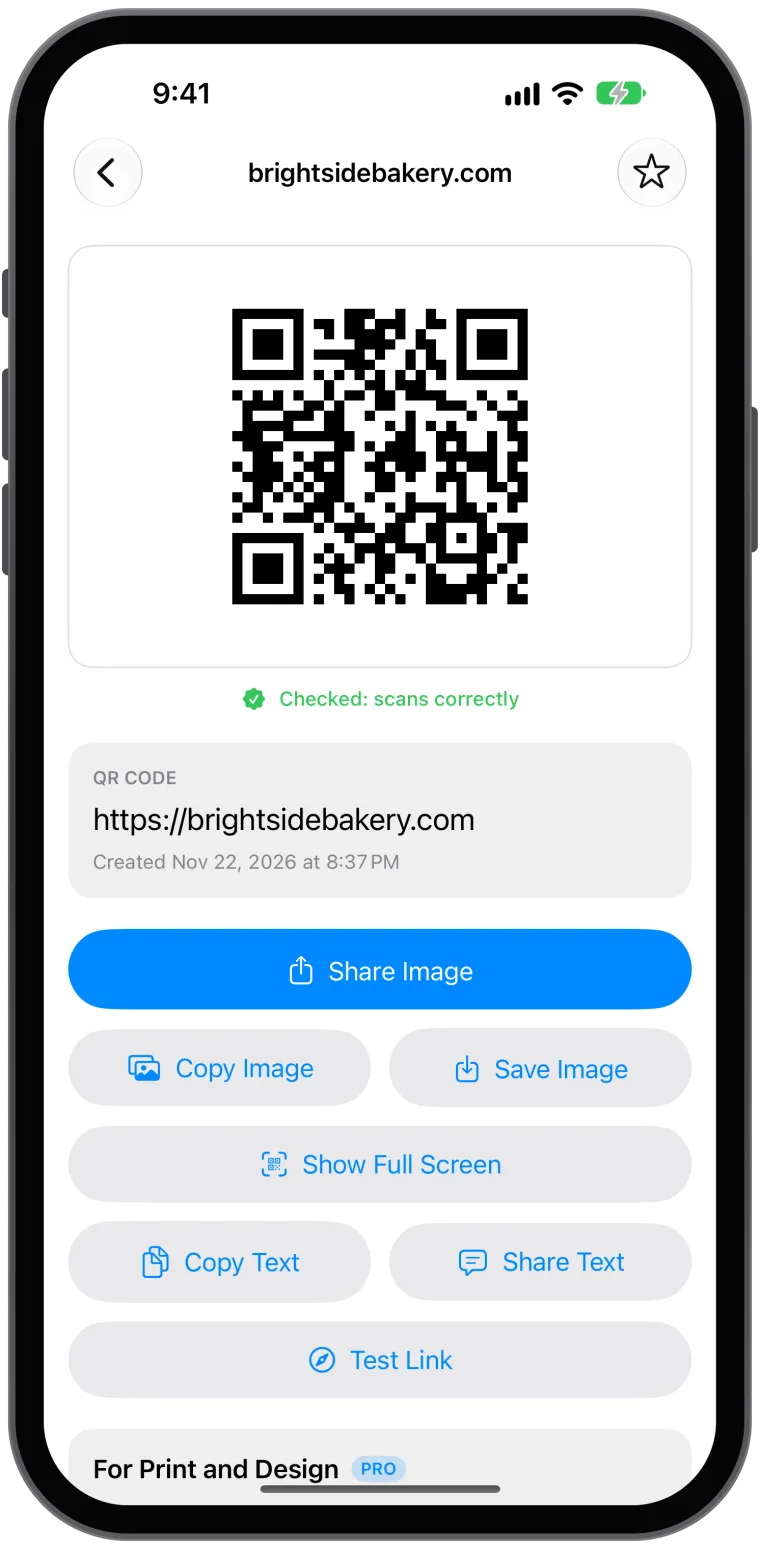
The code itself is plain. It holds Google's review link and nothing else, so it doesn't run through anyone's server and doesn't expire. That also means it can't count scans or tell you who scanned it. You'll see the results the normal way, as new reviews in your Business Profile, and that's really the only number that matters here.
How to get a QR code for Google reviews
Google gives you the review link right inside your Business Profile. As its help page on creating a link or QR code to request reviews explains, open your Business Profile, choose Read Reviews, then Get more reviews, and select Copy to copy the link. The same screen also shows a QR code you can right-click and save. Google says that code can only be made in a computer's web browser for now, not on a phone. That's fine if you have a computer handy, but it's only a plain picture, so sizing it, labeling it and printing it are up to you.
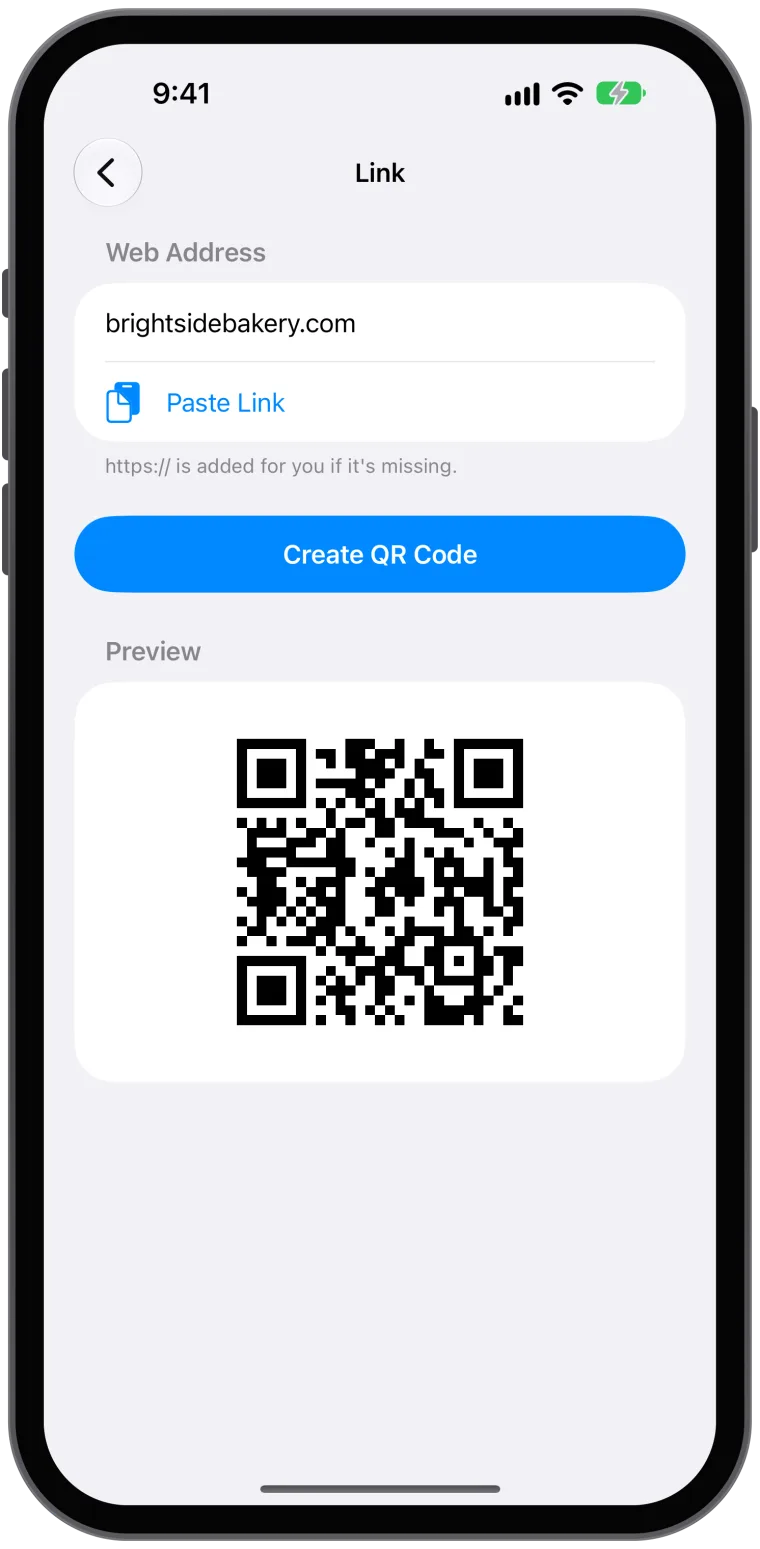
Making the code on your iPhone takes one extra step: get the link onto your phone. Email it to yourself or paste it into a note that syncs, then copy it on your iPhone. In Setrik QR, tap Create, then Link, then Paste Link, and finish with Create QR Code. The app reads its own picture back and shows Checked: scans correctly before you print anything. Making a QR code for a website link like this is free, and the help article on making a QR code for your website has every tap.
Before you print, tap Test Link to open it in Safari and make sure it's your business, not a similar name down the street. Then scan the code with another phone; the Camera app reads QR codes on its own, as Apple's guide to scanning a QR code shows. Save the code with the star so it's easy to find when you need more copies. A good QR code for Google reviews is one you've tested on a real phone, not just on your screen.
Where to put your review code
The best spot is wherever a happy customer has a spare moment. Google itself suggests receipts, thank-you emails and a printed code in your store. Think about the moment right after the good part: the coffee is handed over, the haircut is done, the order is packed. Take Bright Side Bakery: a small sign by the register that says "Enjoyed your visit? Tell us on Google" catches people while they wait for their change.
Five spots that work for small businesses
By the register
A small framed sign at eye level, where people wait anyway, works better than one on the wall behind you.
On receipts
If your receipt or invoice template takes an image, paste the code in once and every receipt carries it.
On table tents
Cafes and restaurants can add the code to the little folded cards already on each table.
In bags and orders
A sticker on the bag or a thank-you card in the box reaches people at home, when they have time.
In thank-you emails
Use Copy Image to paste the code into an email, and add the plain link under it for people reading on their phone.
How the code looks on paper matters as much as where it goes. Put a few words under it, like "Scan to review us", so people know what it does; a caption under the code is free in Setrik QR. Keep a blank white margin around the code, print it at least about 2 cm (0.8 in) across, and avoid shiny laminate that reflects the lights, since glare can stop a camera from reading it. Stickers for bags work well on label sheets, and a sheet of Avery 5160 labels holds 30 codes.
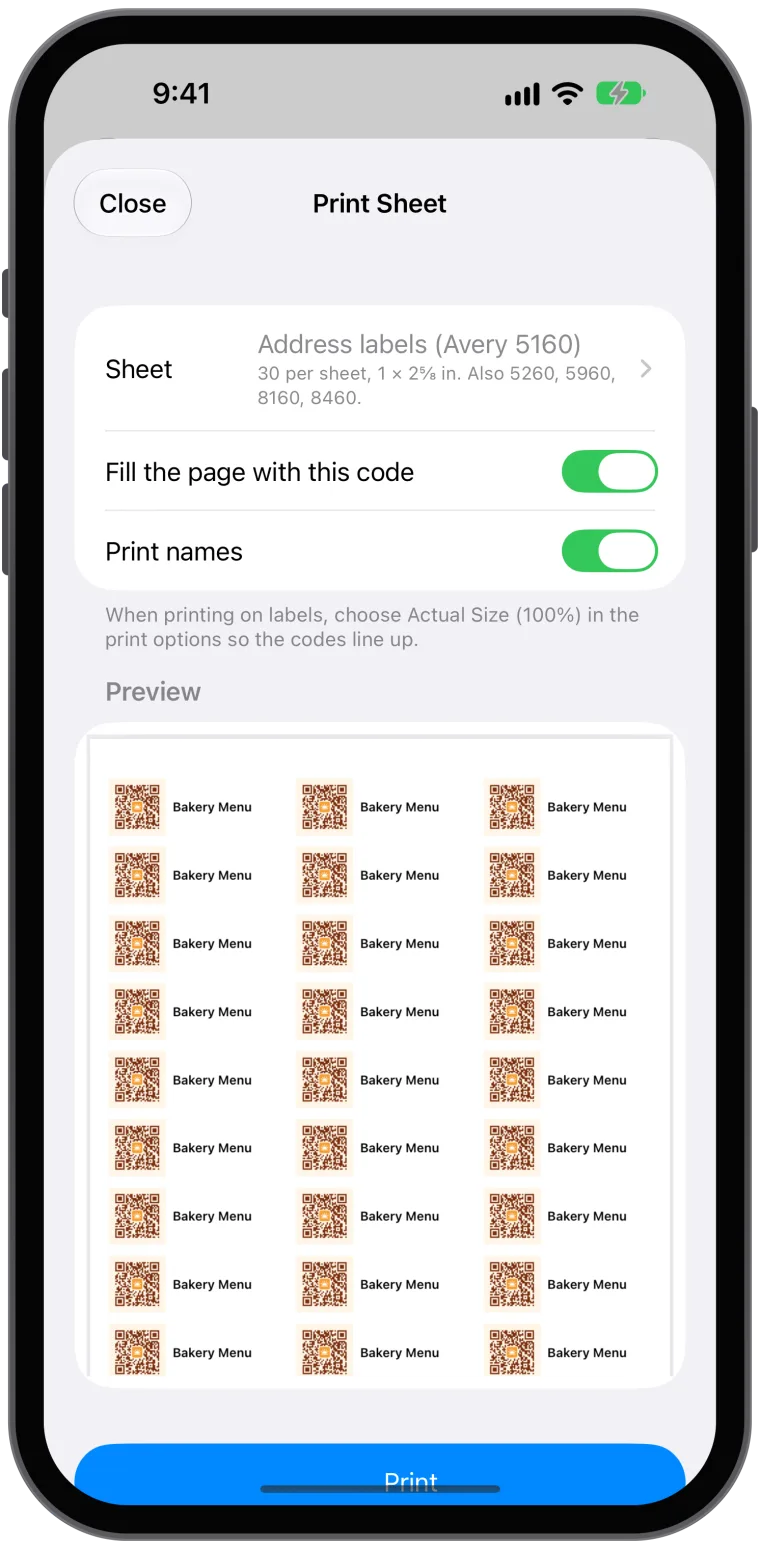
Label sheets, a "Scan me" frame around the code, and print-quality PDF and SVG files for a print shop are all part of Setrik QR Pro, a one-time purchase. Everything up to this point, from making the code to testing and sharing it, works in the free app. The help article on printing a sheet of labels or cards shows how a full sheet comes together.
Sharp at any size.
Print-quality PDF and SVG files, plus large PNGs.
Ask the honest way: Google's review rules
Google is strict about how businesses ask for reviews, and breaking its rules can get reviews removed or a profile restricted. Its fake engagement policy says businesses may not offer incentives, such as discounts or free items, in exchange for a review. It also rules out asking only your happy customers, discouraging bad reviews, pressuring people to review while they're still in the shop, or asking for specific words. So a sign that says "Leave us 5 stars for 10% off" is out, while "Tell us how we did" is fine.
Asking everyone also works in your favor. A mix of honest reviews reads as real to new customers, and a calm reply to a so-so review often says more about your business than another five stars. Put the code out where everyone sees it, say thanks either way, and let it do its work. A QR code for Google reviews keeps working for as long as Google's link does, so one good sign can keep collecting reviews for years.
The bottom line
The short answer on a QR code for Google reviews
Copy your review link from your Google Business Profile, turn it into a plain QR code, test it on a real phone, and put it where customers pause, with a few words saying what it's for. Google's own code works if you're at a computer, and making one on your iPhone gives you a code that's checked before it's printed, with room for a caption. Whichever you use, follow Google's rules: no rewards, no picking only happy customers, no pressure. A clear sign and an honest ask are all a small business really needs.
QR codes that never expire
Make it on your iPhone in seconds, check that it scans, and put it on your flyer, card or sign. No ads, no subscription.
See how it works