Wi-Fi QR code generator
Guests scan once and they’re on your Wi-Fi
No more spelling out a long password or turning the router over to read the sticker. Make a Wi-Fi QR code in Setrik QR, print it or show it on your phone, and guests point their camera at it to join.
Free to make and share.
Works with the camera on iPhone and Android phones.

Free to download · For iPhone · Requires iOS 26 or later
How it works
Make a Wi-Fi QR code
1
Tap Create, then Wi-Fi
“Guests join your network without typing.”
2
Enter your network
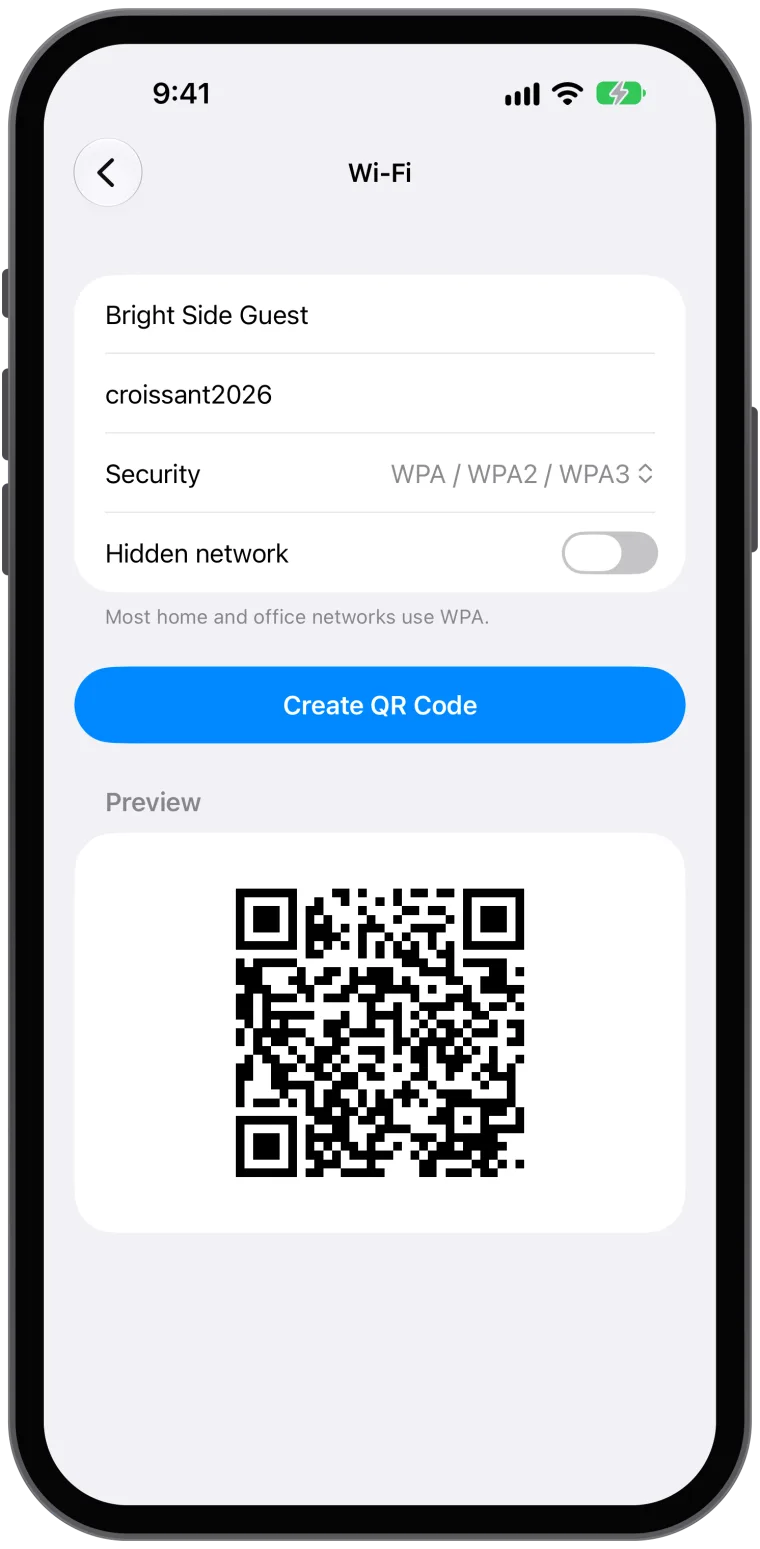
Type the network name and password. Security is usually WPA; most home and office networks use it.
3
Print it or show it
Tap Create QR Code, then print it, frame it, or tap Show Full Screen for a guest at the door.
Every setting your network needs
Name, password, security, and hidden networks
The Wi-Fi form has everything a phone needs to join: the network name, the password, the security type, and a switch for networks that don’t show their name.
Security: WPA / WPA2 / WPA3 (the usual choice), WEP for older routers, or None for an open network (then no password is needed).
Hidden network: turn it on if your network doesn’t broadcast its name.
Tricky characters are fine. Semicolons, commas, colons, and quotes in a name or password are handled for you.
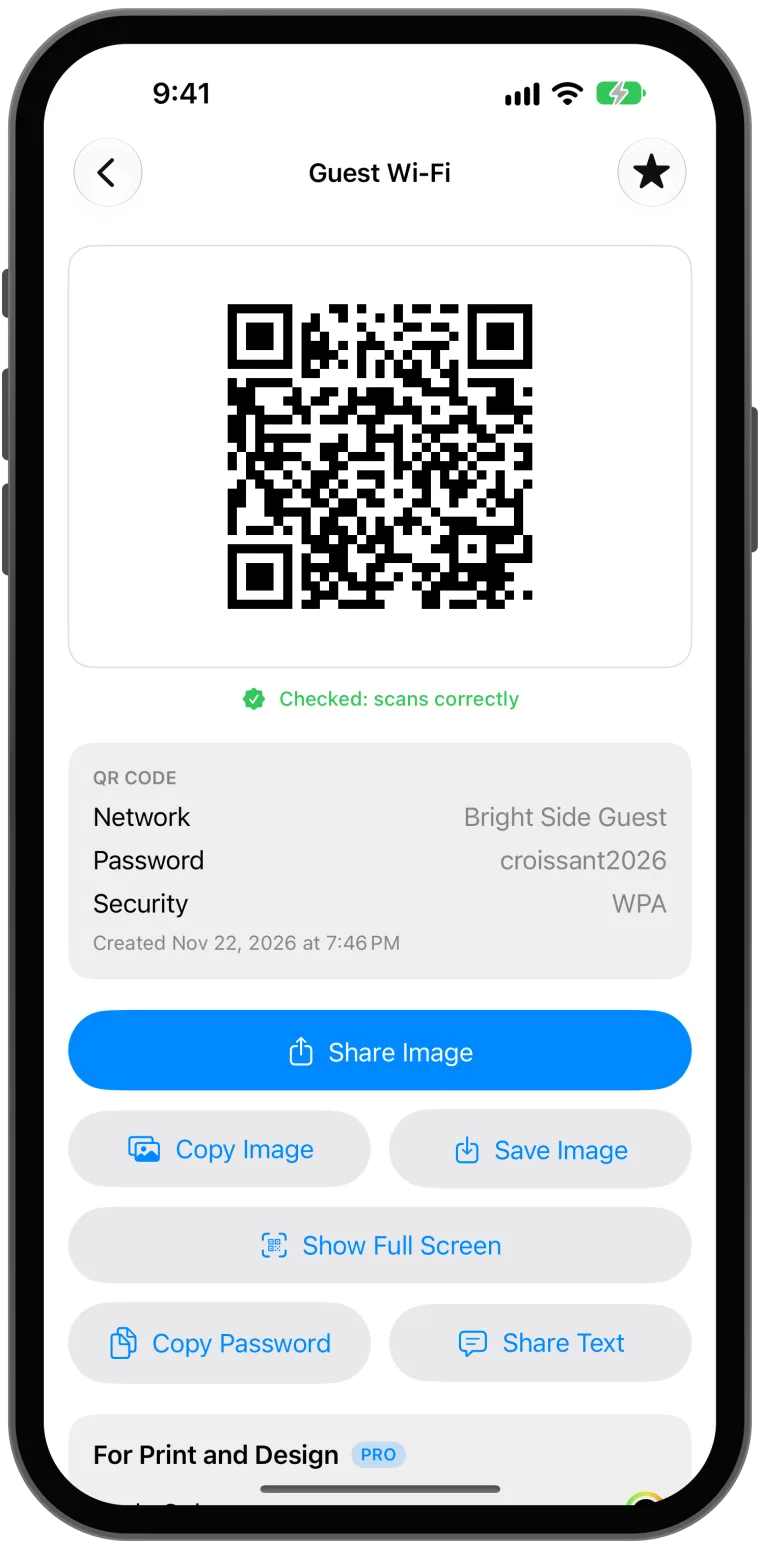
Copy Password: the finished code shows the network, password, and security, with a button to copy the password for a laptop.
Real-life uses
Where a Wi-Fi QR code saves the awkward moment
For homes and small businesses with a simple Wi-Fi password.
Vacation rentals
A framed code by the door or in the welcome book. Guests are online before they unpack, without messaging you for the password.
Cafés and waiting rooms
A small table sign or a sticker on the counter, so staff aren’t reading the password out all day.
Guest rooms
A card on the nightstand for visiting family, with the network for the guest room.
Small offices
A code at reception for visitors and clients, on your guest network.
Parties and events
Show the code full screen at the door, or print it on the place cards.
Your own devices
A new tablet, a friend’s phone, the kids’ school laptop: scan instead of hunting for the router sticker.
Good to know
Which networks it works with
Wi-Fi QR codes are made for networks with a name and a password, like most homes, rentals, cafés, and small offices.
They don’t work with networks where people sign in with their own account or through a sign-in web page, like many hotels and large workplaces.
If you change your Wi-Fi password, make a new code: the code holds the password itself.
A guest Wi-Fi network is a good idea for a printed code anyone can scan.
Keep exploring
More of what Setrik QR does
Or see every Setrik QR feature on one page.
Website QR codes
A link to your site, menu, or review page, for flyers and signs.
See website QR codesContact card QR codes
One scan adds you to someone’s Contacts. Made for business cards.
See contact card QR codesPrint and export
Share or save any code, or print-ready PDF, SVG and large images with Pro.
See printing and exportQuestions about Wi-Fi QR codes
How do guests use a Wi-Fi QR code?
They open the camera on their phone and point it at the code. iPhone and most Android phones offer to join the network; one tap and they’re on.
Which security setting should I pick?
WPA / WPA2 / WPA3, unless you know your network is different. Most home and office networks use it. Pick WEP only for an older router that uses it, and None for an open network.
Is it safe to print my Wi-Fi password as a QR code?
Anyone who scans the code can join, the same as if you told them the password. For a code in a public place, use a guest network.
Does the code still work if I change my password?
No. The code holds the password itself, so make a new code after you change it. It takes a few seconds.
Make your Wi-Fi QR code
Print it once, and nobody has to ask for the password again. Free to download, no ads.