
Contact card or website: which code to put on the card
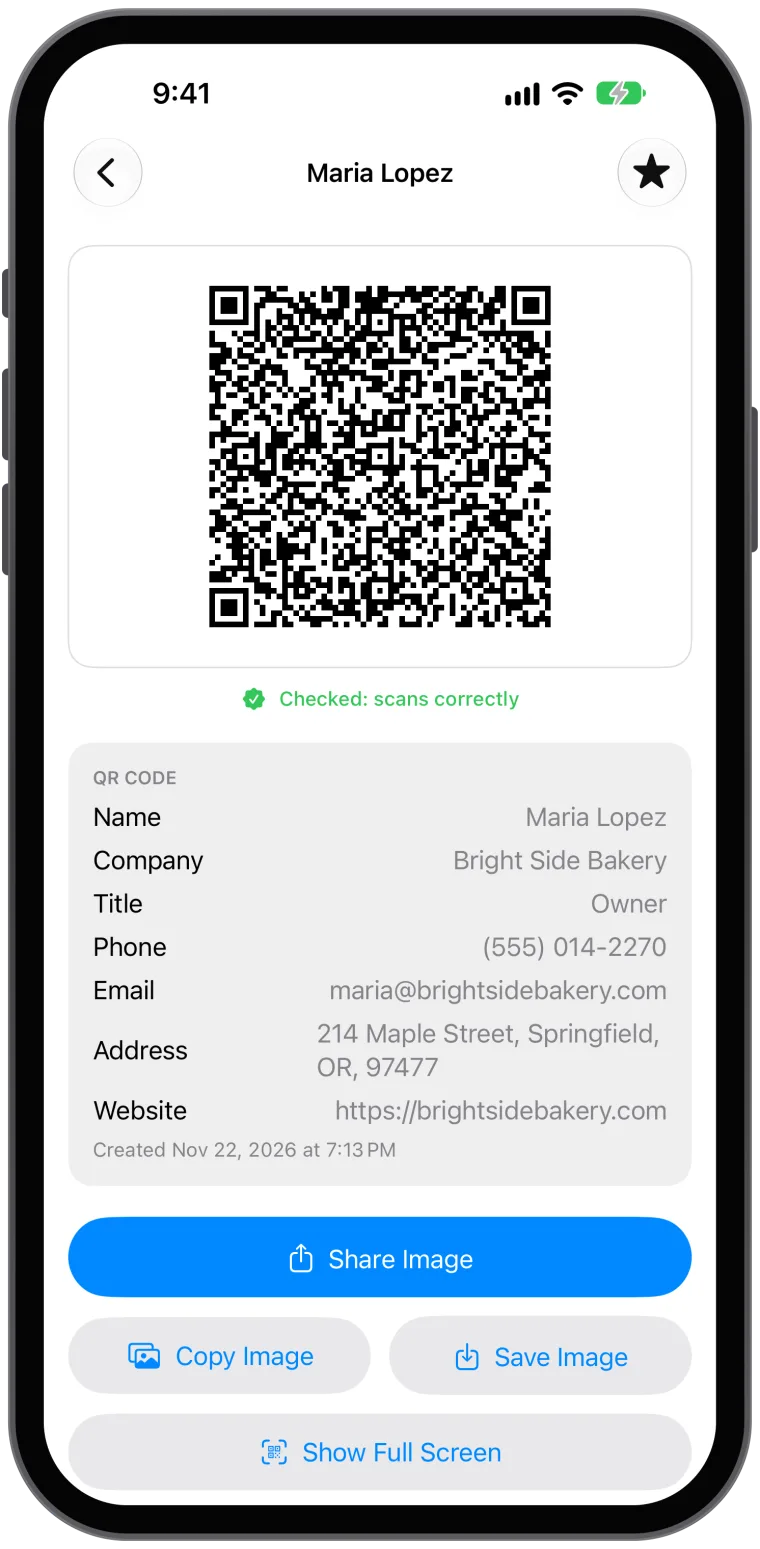
There are two good kinds of code for a business card, and they do different jobs. A contact card code holds your name, company, job title, phone, email, website and, if you like, your address. When someone scans it, their phone offers to add you to Contacts, so nobody has to type your number. It uses a standard format called vCard, described in the vCard 3.0 standard, which iPhones and most Android phones understand. A website code simply opens a web page, such as your site, your portfolio or a booking page.
How to choose between the two
Choose a contact card code
when you want people to call or email you later. Say you're a plumber: the person you hand a card to wants your number saved for the next leak, not a website.
Choose a website code
when your work speaks best on a page. A bakery owner at Bright Side Bakery might send people to the menu and order page instead.
Not sure?
Pick the contact card. It already holds your website, so people can still get to it after saving you.
Both kinds are free to make in Setrik QR. The help article on how to put your business card in a QR code walks through each field, and a QR code for your website takes a pasted link. Either way, the code holds the details themselves, so it never expires and doesn't depend on our servers or anyone else's. The flip side is that a printed code can't be changed, so check every detail before you print.
Front or back: why a QR code on back of business card designs works
The back is where most designers put the code, and for good reason. The front keeps your name, logo and phone number easy to read, while the back has room for a code at a comfortable size. A back that's mostly blank with one code and a short line under it looks clean, not crowded. The front makes sense only when the code is the main point of the card, for example a card that exists mainly to send people to a booking page.
Whichever side you choose, tell people what the code does. A short line under it, like "Scan to save my contact", turns a mystery square into an obvious next step. In Setrik QR that line is a caption: up to 40 characters, printed under the code, and "Scan to save my contact" is one of the ready-made picks. With Setrik QR Pro you can also put the code in a border or a "Scan Me" banner frame.
Your card, in one scan
Name, phone, email, website and address, saved straight to their Contacts.
How big the code should be on a business card
Size is the part of how to add QR code to business card designs that people most often get wrong, because a standard US business card is only 2 by 3.5 inches. A common rule of thumb is about 2 cm (0.8 in) wide at the very least when scanned from a hand's length away, and around 2.5 cm (1 in) is more comfortable, especially on the back. Leave a blank margin around the code as well; DENSO WAVE, the company that invented the QR code, asks for a margin four modules wide, a module being one of the small squares in the pattern. That margin, sometimes called the quiet zone, helps the phone find the edges.
One detail surprises people: the more you put in a contact card code, the more dots it needs, so each dot gets smaller at the same size. If your code looks very busy, leave out the fields people don't need, such as a street address for a business without a shop. Keep the code dark on a light background too. Light codes on dark card stock often fail, and Setrik QR Pro warns you if colors you pick are too close to scan.
Getting the code onto your printed cards
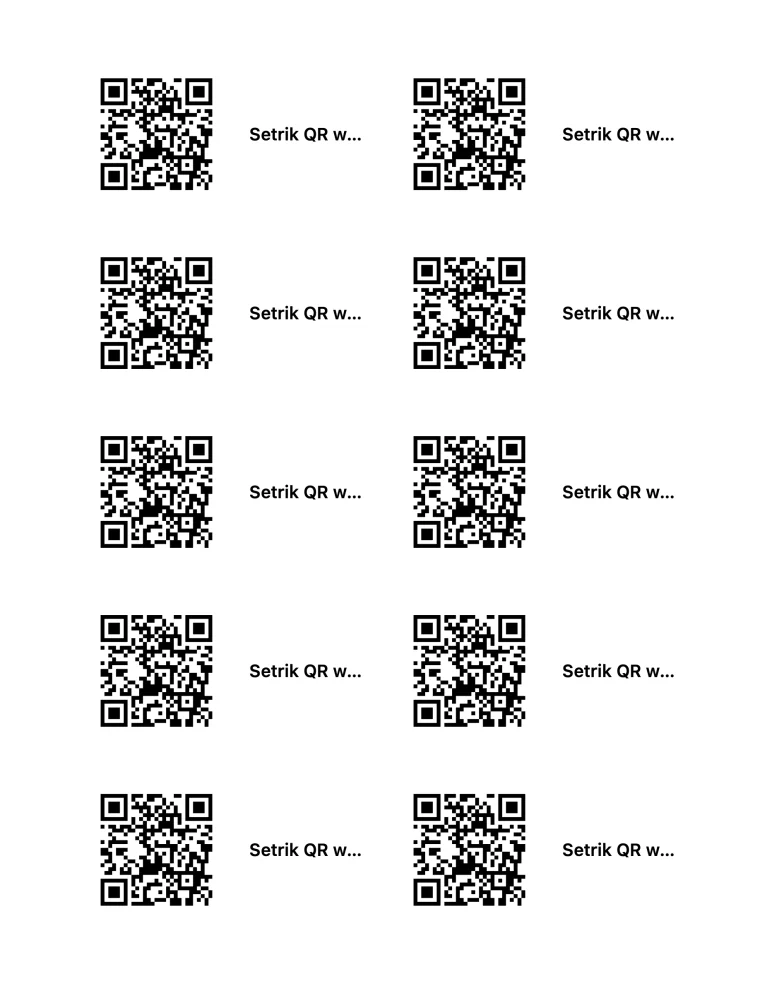
The last step in how to add QR code to business card designs is getting the file to whoever prints them, and a print shop or design app will want a print-quality file. With Setrik QR Pro you can export the QR code as an SVG or PDF, which stays sharp at any size, and drop it into the card design. On the free version, Copy Image and Share Image give you a 1024-pixel picture you can paste into most design apps. If you'd rather print the cards yourself, Pro's Print Sheet fills a sheet of Avery 8371 business cards: 10 cards per sheet, each 2 by 3½ inches.
For example, Maria Lopez could make her contact card code, add the caption, and print a full sheet of cards on her own printer the same afternoon. The help article on how to print a sheet of labels or cards covers the options. Two tips save card stock: choose Actual Size (100%) in the print options so the codes line up, and print one test page on plain paper first. Hold it against a card sheet to check the layout before using the real thing.
How to add QR code to business card designs and test it
Five checks before you print
Right kind of code
A contact card code if you want to be saved in Contacts, a website code if you want people on a page.
Every detail correct
Read your phone number and email twice, because a printed code can't be changed.
Big enough, with a margin
Keep the code at least about 2 cm (0.8 in) wide with blank space around it.
Dark on light
Use a dark code on a light background, and check that the app says it scans.
Tested on paper
Print one copy at real size and scan it with two or three phones before ordering a box of cards.
The bottom line
So, how to add QR code to business card designs the easy way?
Make a contact card code for your details (or a website code for your page), put it on the back at about 2.5 cm (1 in) wide with a clear margin, and add a short line like "Scan to save my contact". Send a print-quality file to your printer, or print your own sheet of cards. Then test a paper copy before you order. The iPhone's Camera app reads QR codes on its own, as Apple's guide to scanning a QR code shows, so most people you meet can scan it without any extra app.
Ten business cards per sheet, printed at home
Make your contact card code, check that it scans, and fill a sheet of Avery business cards. Pay once for the print tools.
See label and card sheets