

Find a code in History
Look back at every code you've made or scanned, filter it and search it.
History keeps every code you make or scan, newest first. You don’t have
to do anything: it fills itself.
Steps
- On the start screen, tap History.
- Choose All, Created or Scanned at the top.
- To search, pull the list down a little and type in Search codes
(name, what’s inside, or type). - Tap a code to open it.
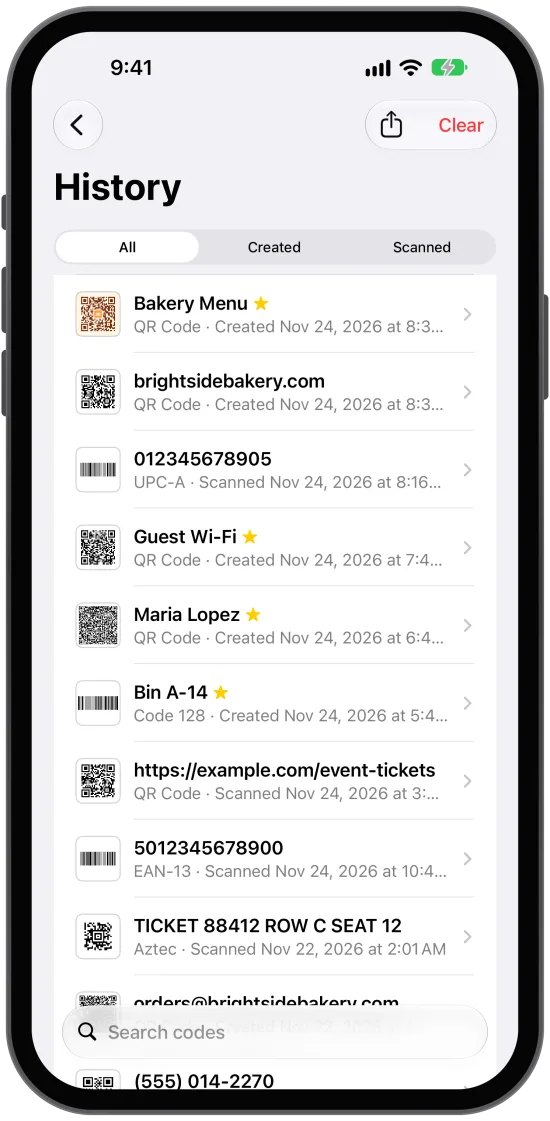
What you’ll see
Each row has a small picture, the name, the type, “Created” or “Scanned”
and the date. Saved codes have a yellow star.
Shortcuts in the list
- Swipe left: Delete (more).
- Touch and hold: Show Full Screen, Edit or Edit a Copy
, Copy Text and Delete.
At the top right: Clear (more) and, from version
1.1, Export (more, Pro).
Nothing shows?
- “No History Yet”: you haven’t made or scanned a code.
- “Nothing here yet.”: the filter (Created or Scanned) has none. Choose
All. - “No codes match” with your search words: try fewer letters.
Free version
The newest 5 codes are shown (and searched). Older ones are kept,
not deleted: “N older codes are kept. Pro shows your full history.” Tap
it to see Pro. After unlocking, they all appear. From version 1.1, while
you search, the list says “Searching your newest 5 codes. Pro searches
your full history.”
Related articles
Still stuck? Email contact@setriksoftware.com with your app version (Settings › About) and what you saw. If something went wrong in the app, sending the error log helps too. You can also browse the Help Center or the messages the app can show.