

Saved Codes and HistorySetrik QR Pro
Export your History
Get your History as a spreadsheet (CSV) or a PDF report for a date range.
Steps
- Tap History, then Export at the top right. Export History
opens. - Set From and To (the last 30 days to start with).
- Under Codes, choose All, Created or Scanned. The line
under it counts them, like “12 codes in this range.” With none it
says “No codes in this date range. Choose other dates or other
codes.” and the two buttons stay grey.
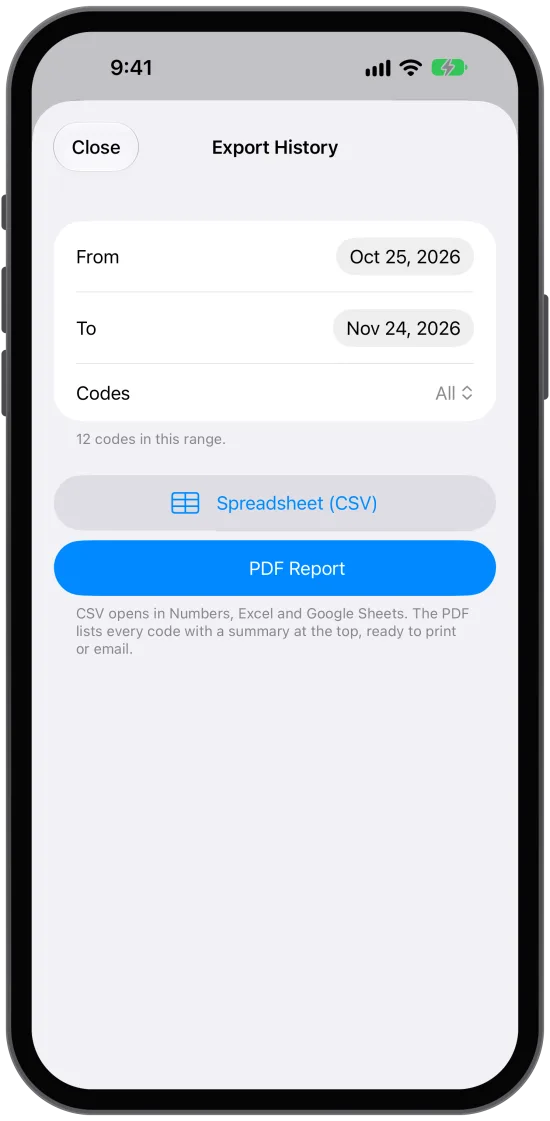
- Tap Spreadsheet (CSV) or PDF Report, and choose where to send
it.
Tap Close when you’re done. Without Pro, Export opens the Pro
screen.
What you’ll see
- CSV: columns Date, Time, Source, Type, Name, Value, Saved. Opens in
Numbers, Excel and Google Sheets. - PDF Report: “History Report” with the date range, a summary (totals,
created and scanned, the top 5 types), then every code in a table
(date, source, type, name with ★ when saved, value), with page
numbers. Ready to print or email.
The file is named like “Setrik QR History 11-01-2026 to 11-24-2026”.
Related articles
Still stuck? Email contact@setriksoftware.com with your app version (Settings › About) and what you saw. If something went wrong in the app, sending the error log helps too. You can also browse the Help Center or the messages the app can show.