

Edit a copy of a code
Make a new code from one in History or one you scanned, leaving the original as it was.
For any code that isn’t in Saved Codes: ones you made, and ones you
scanned (like someone’s Wi-Fi or contact card). Saved codes are edited
in place instead (how).
Steps
- Open the code from History.
- Scroll down a little and tap Edit a Copy (under Show Full
Screen). Or, in History, touch and hold the code and tap Edit a
Copy. - Change what you need. The note at the top says “You’re editing a
copy. The original stays in History as it was.” - Tap Create New Code.
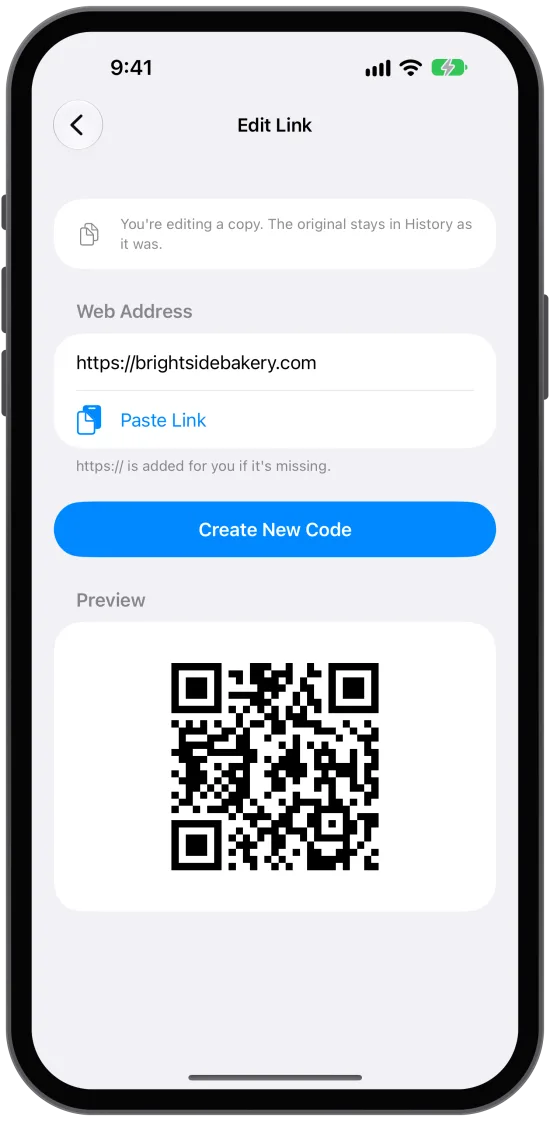
What you’ll see
The new code’s screen, and the new code at the top of History as
Created. It keeps the original’s colors, logo, caption and frame. If the
original had a name you typed, the copy keeps it; otherwise the copy gets
the automatic name (like the website or the person’s name).
Copying a barcode (not a QR code) needs Pro.
Related articles
Still stuck? Email contact@setriksoftware.com with your app version (Settings › About) and what you saw. If something went wrong in the app, sending the error log helps too. You can also browse the Help Center or the messages the app can show.