

Edit a saved code
Change what's inside a saved code, like a new phone number or Wi-Fi password, and keep its name and look.
Your Wi-Fi password changed, or your business card has a new number.
Edit the saved code instead of starting over.
Steps
- Tap Saved Codes and open the code. (Or swipe the code left, or
touch and hold it, and tap Edit.) - Scroll down a little and tap Edit (under Show Full Screen
and Show on Widget). - The form it was made with opens (“Edit Link”, “Edit Wi-Fi” and so
on), every field filled in. Change what you need.
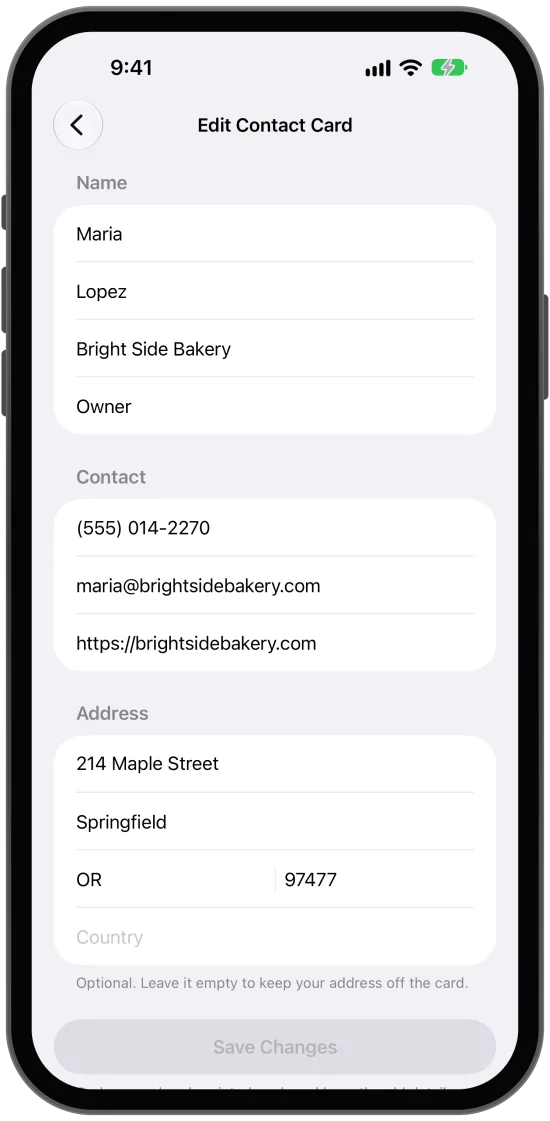
- Tap Save Changes (grey until something changes).
What you’ll see
The code updated, with the scan check run again. It keeps its place in
Saved Codes, its colors, logo, caption and frame. If its name was the
automatic one (like the website or the person’s name), the name updates
too; a name you typed is kept.
Important
“Codes you already printed or shared keep the old details. Share or
print it again after you save.” (For a barcode: “Labels you already
printed keep the old value. Print it again after you save.”) The picture
holds the data, so old printouts don’t change.
Good to know
- Saved codes you scanned are edited the same way.
- Editing a barcode (not a QR code) needs Pro, like making one.
- Codes the app can read but can’t draw (like Data Matrix) can’t be
edited.
Related articles
Still stuck? Email contact@setriksoftware.com with your app version (Settings › About) and what you saw. If something went wrong in the app, sending the error log helps too. You can also browse the Help Center or the messages the app can show.