

Saved Codes and HistorySetrik QR Pro
Show a saved code on your Home Screen
Add the Saved Code widget so a code is one glance away, ready to scan.
Your membership card, Wi-Fi or contact card on your Home Screen. Tap it
to open the code full screen.
Before you start
Save the code first (how).
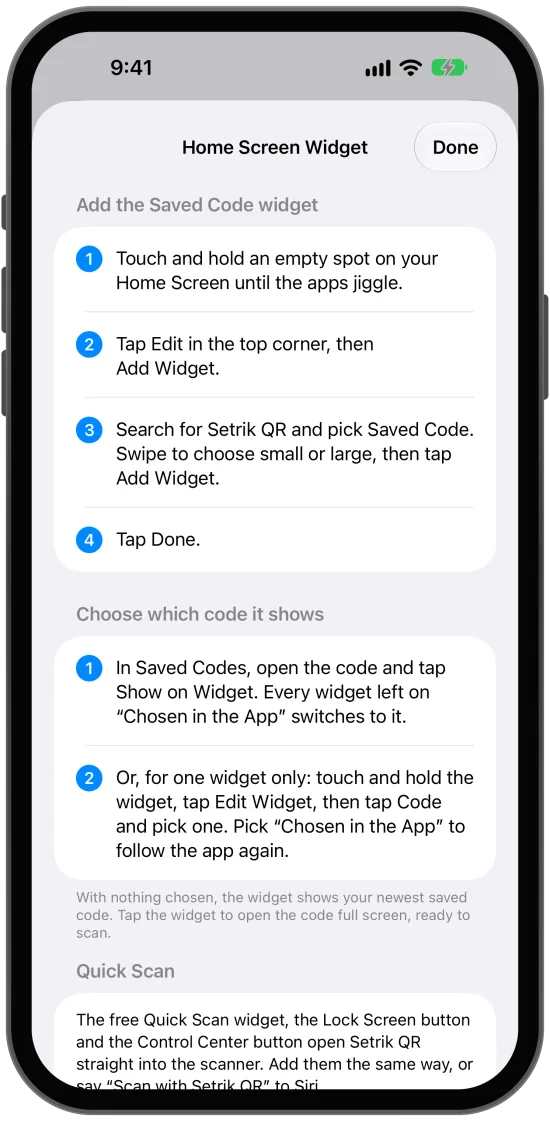
Steps
- Touch and hold an empty spot on your Home Screen until the apps
jiggle. - Tap Edit, then Add Widget.
- Search for Setrik QR, pick Saved Code, swipe to choose small or
large, then tap Add Widget. - Tap Done.
Choose which code it shows
It shows your newest saved code. To pick another: touch and hold the
widget, tap Edit Widget, tap Code, and choose one.
From version 1.1, a widget starts on Chosen in the App: it shows the
code you pick with Show on Widget in the app
(how), or your newest saved code until
you pick one. Chosen in the App is first in the Code list.
What you’ll see
The code in its colors, with its name under it (large size; on the small
size, barcodes show their name). Tap it to open the code full screen. The
widget updates when your Saved Codes change. Only codes the app can draw
can be shown.
If it shows a message
- “Unlock Pro in the app to show a saved code here.”: the widget is part
of Setrik QR Pro. - “No Saved Codes” (“Tap the star on a code in Setrik QR to save it.”):
save a code first.
Related articles
Still stuck? Email contact@setriksoftware.com with your app version (Settings › About) and what you saw. If something went wrong in the app, sending the error log helps too. You can also browse the Help Center or the messages the app can show.