

Other barcodesSetrik QR Pro
Make a UPC or EAN product barcode
Draw a UPC-A, EAN-13, UPC-E or EAN-8 barcode, with the check digit added for you.
Product barcodes carry a number with a check digit at the end. Setrik QR
works the check digit out for you.
Before you start
You need the product number. Real UPC and EAN numbers for products sold in stores come from GS1. Setrik QR draws the barcode; it doesn’t supply
or register numbers. Retailers set their own barcode rules; check with
GS1 and your retailer before printing product barcodes.
Steps
- Tap Create, then Other Barcodes.
- Tap EAN-13 (worldwide) or UPC-A (US and Canada).
For small packages: EAN-8 or UPC-E. - Type the number without its last digit:
– EAN-13: 12 digits
– UPC-A: 11 digits
– EAN-8: 7 digits
– UPC-E: 6 digits, or 7 starting with 0 or 1
The app adds the check digit and says so, for example “Check digit 0
added.”
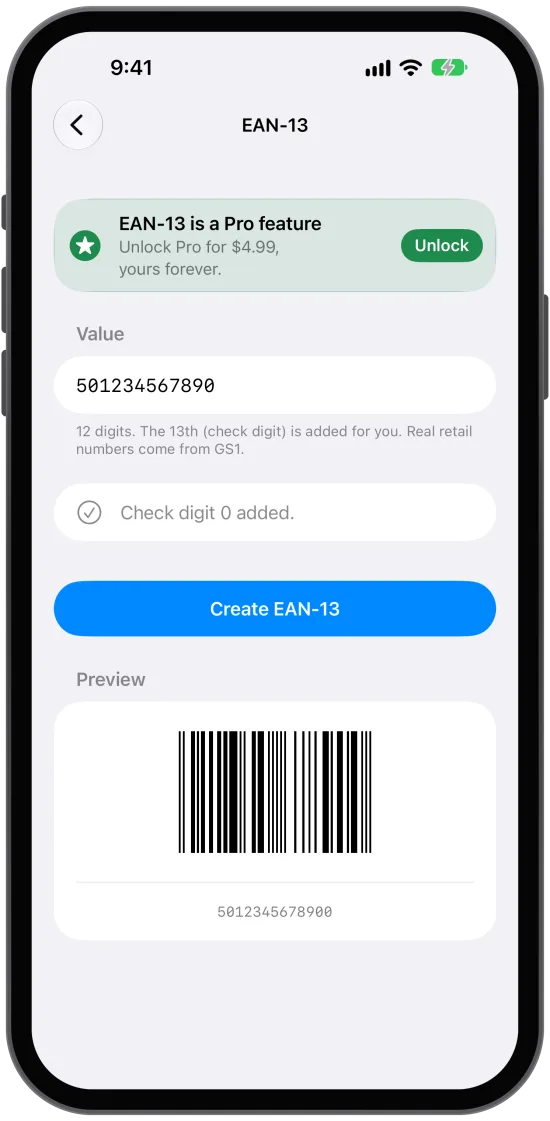
- Tap Create EAN-13 (or the type you chose).
Typed the full number?
That’s fine: the app checks the last digit. If it’s wrong you’ll see “The
last digit should be X. Fix it, or leave it off and it’s added for you.”
Related articles
Still stuck? Email contact@setriksoftware.com with your app version (Settings › About) and what you saw. If something went wrong in the app, sending the error log helps too. You can also browse the Help Center or the messages the app can show.