

Other barcodesSetrik QR Pro
Make a barcode (Code 128, UPC, EAN and more)
Make one of 10 other barcode types, with the value checked as you type.
For inventory bins, asset tags, shipping cartons, tickets and product
labels. QR codes are free; these 10 types are part of Setrik QR Pro.
Steps
- Tap Create, then Other Barcodes (under the QR kinds).
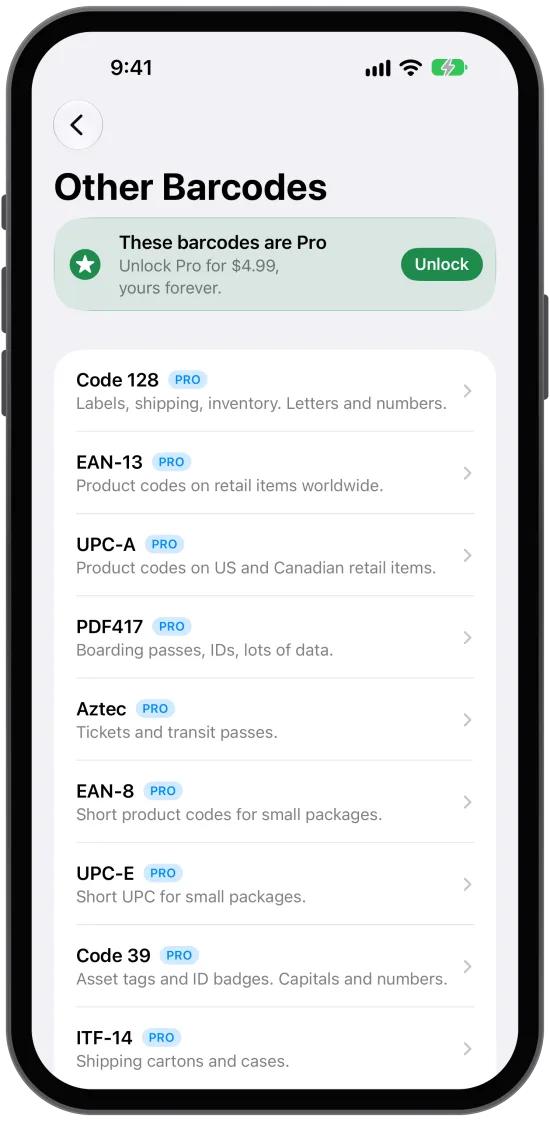
- Tap a type, like Code 128. Not sure which?
See Choose a barcode type. - Type the value in the Value field. The note under it says what
that type accepts. - Watch the notes as you type: an orange note explains a problem; a grey
note with a check mark tells you what was added for you, like “Check
digit 5 added.”
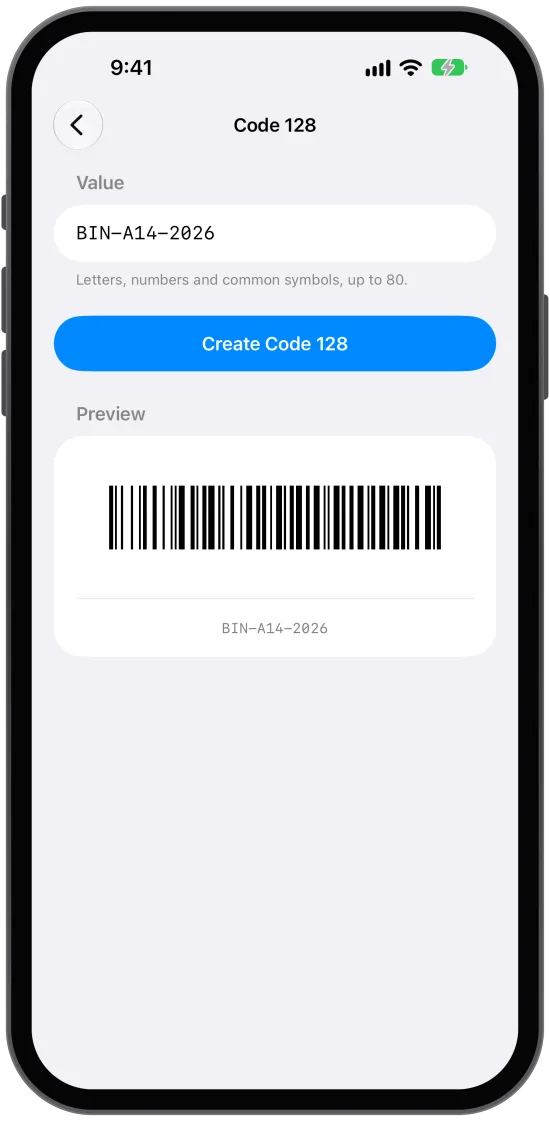
The barcode appears under Preview, with its value under it.
5. Tap Create <type> (for example Create Code 128).
What you’ll see
The barcode, the value it holds (with any check digit added) and
Checked: scans correctly.
Without Pro
You can open the list and the forms and try a value. The list has
PRO badges and a green “These barcodes are Pro” card; each form has
a “<type> is a Pro feature” card. Their Unlock button, or the form’s
Create <type> button, opens the Pro screen.
Tips
- Numbers-only types open the number pad. Spaces at the start or end are
ignored. - Exported images show the bars only; the digits aren’t printed under
them.
Related articles
- Make a UPC or EAN product barcode
- Choose a barcode type
- Export a print-quality PDF, SVG or large PNG
Still stuck? Email contact@setriksoftware.com with your app version (Settings › About) and what you saw. If something went wrong in the app, sending the error log helps too. You can also browse the Help Center or the messages the app can show.