

Make a text QR code
Put any words or numbers in a QR code, like a message, a code or instructions.
For a short message, a serial number, a treasure-hunt clue or anything
that isn’t a link, email, phone number, Wi-Fi or contact card.
Steps
- Tap Create, then Text.
- Type your text. It can be several lines and include emoji and
accents.
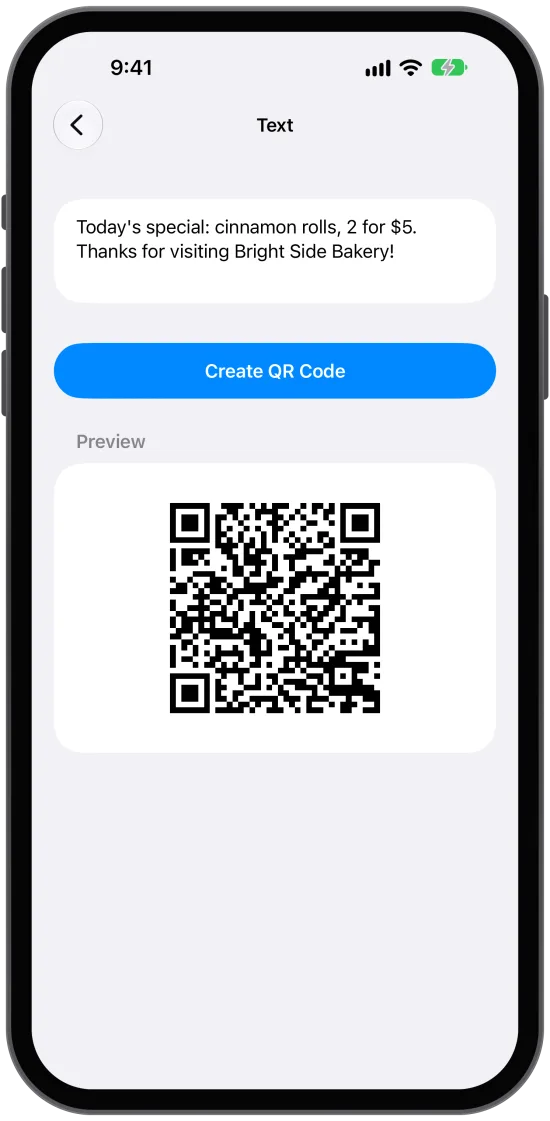
- Tap Create QR Code.
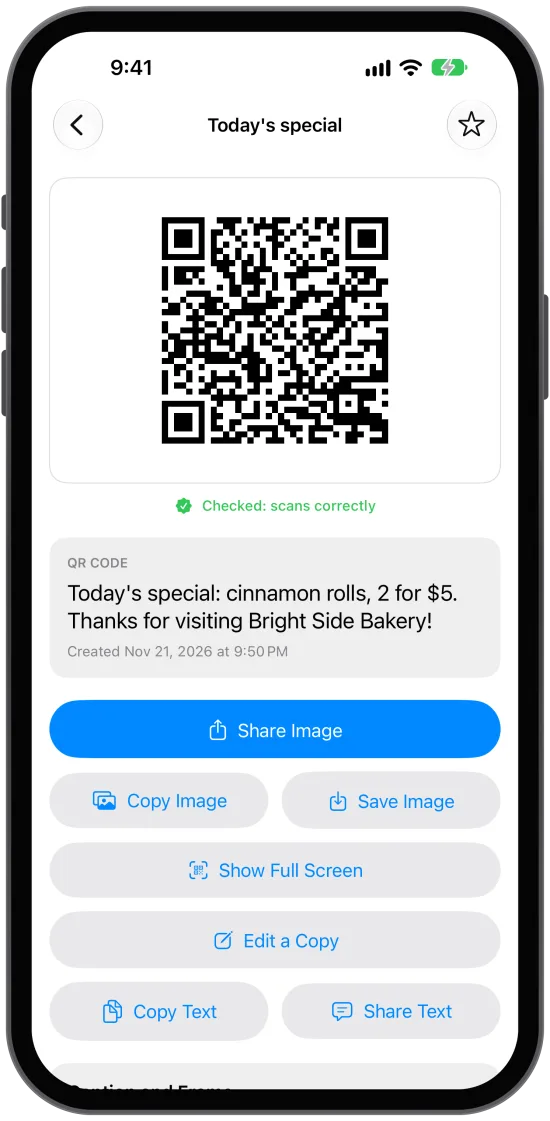
What you’ll see
The code with your text under it. The code’s name is the first line (up
to 40 characters).
Tips
- Want people to open a website? Use Link instead, so phones offer
to open it (how). - Very long text (more than about 2,300 characters of plain text, fewer
with accented letters, other alphabets or emoji, and about 1,270 if
the code has a logo) is too much for one
QR code: the preview doesn’t appear. Shorten the text until the
preview shows before you tap Create QR Code. In version 1.0 the
button still works without a preview, but the code it makes has no
picture to share or print. From version 1.1 the app says “That’s too
much for one QR code. Make it shorter.” and the button stays grey.
Related articles
Still stuck? Email contact@setriksoftware.com with your app version (Settings › About) and what you saw. If something went wrong in the app, sending the error log helps too. You can also browse the Help Center or the messages the app can show.