

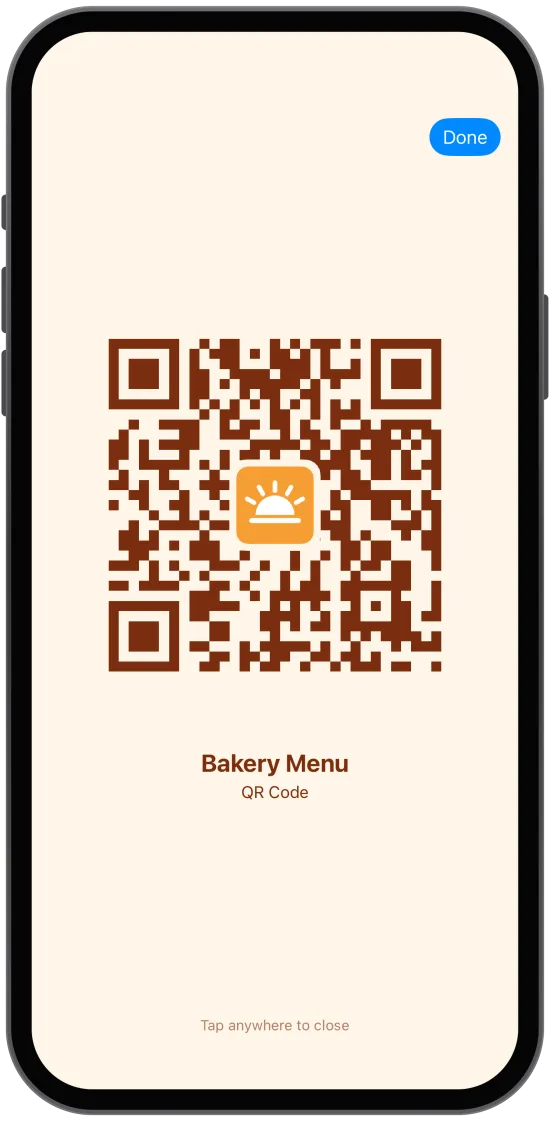
Show a code full screen
Show a code big and bright so a cashier's scanner or another phone can read it.
For a cashier’s scanner, a friend’s phone or a door check-in.
Steps
- Open the code: from Saved Codes, History, or right after you
make it. - Tap Show Full Screen.
- Hold the phone up to the scanner.
- When you’re done, tap anywhere or tap Done.
What you’ll see
The code fills the screen in its own colors (and logo) with its name and
type. The screen goes to full brightness and stays awake; both go back to
normal when you close it. A caption or frame isn’t shown here: only the code, so it’s as big as possible.
Faster ways in
- In Saved Codes, swipe a code to the right and tap Show.
- In Saved Codes or History, touch and hold a code, then tap Show Full Screen.
- With Pro, tap the Saved Code widget on your Home Screen
(how).
Tips
Codes the app can read but can’t draw (like Data Matrix or Code 93) have
no Show Full Screen button.
Related articles
Still stuck? Email contact@setriksoftware.com with your app version (Settings › About) and what you saw. If something went wrong in the app, sending the error log helps too. You can also browse the Help Center or the messages the app can show.