

Put your business card in a QR code
Make a contact card code that adds you to someone's Contacts when they scan it.
Print it on your business card, name badge or email signature. When
someone scans it with an iPhone camera (or most Android phones), they’re
offered Add to Contacts.
Steps
- Tap Create, then Contact Card.
- Under Name, fill in at least one of First name, Last name
or Company. Job title is optional. - Under Contact, add any of Phone, Email and Website
(all optional;https://is added to the website if it’s missing). - Under Address, add your street, city, state, ZIP and country, or
leave it all empty to keep your address off the card.
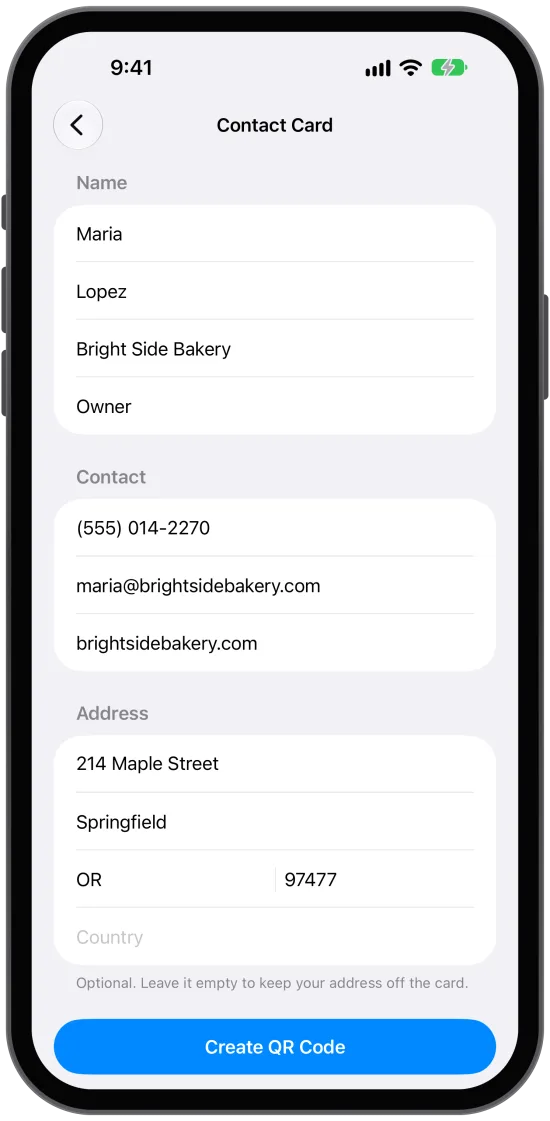
- Tap Create QR Code.
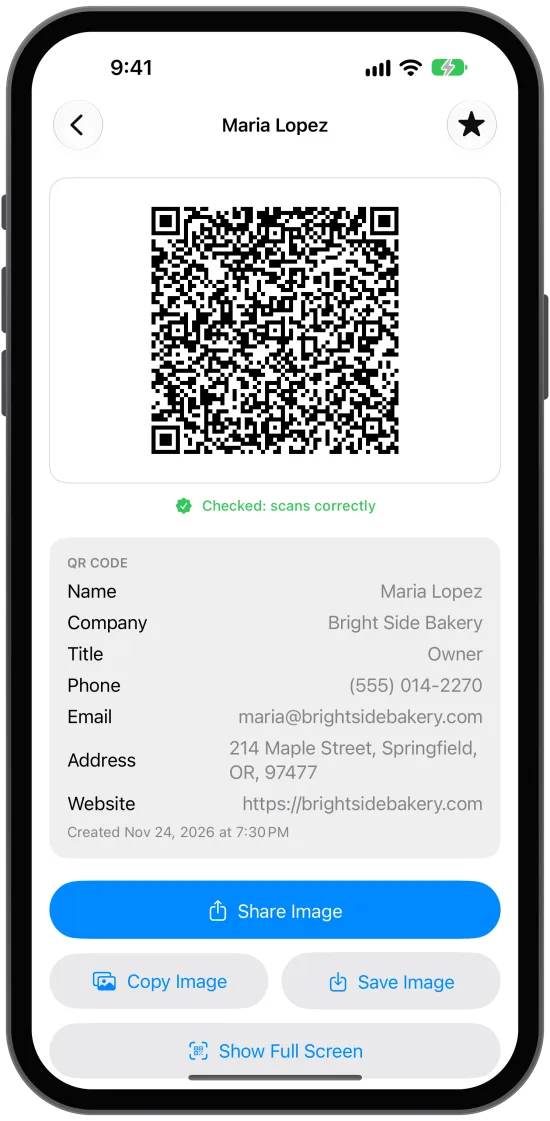
What you’ll see
The code, named with your full name (or the company if there’s no name),
and the details it holds: Name, Company, Title, Phone, Email, Address, Website.
Tips
- The phone number is saved as a mobile number.
- Names with commas or semicolons, like “Lee, Inc.”, work fine.
- The code is a standard vCard (version 3.0), so it works with most
phones’ cameras. - The more you add, the denser the code. For a small business card, keep
it to what people need.
Related articles
Still stuck? Email contact@setriksoftware.com with your app version (Settings › About) and what you saw. If something went wrong in the app, sending the error log helps too. You can also browse the Help Center or the messages the app can show.