

Make a Wi-Fi QR code for guests
Let guests join your Wi-Fi by scanning a code instead of typing the password.
Put the code by the door, on the table or at the counter. Guests point
their phone camera at it and tap to join; nobody types a password.
Before you start
Have your network name and password handy (often on a sticker on the
router).
Steps
- Tap Create, then Wi-Fi.
- Type the Network name exactly as it appears in your Wi-Fi list.
- Type the Password.
- Check Security. Most home and office networks use WPA / WPA2 / WPA3 (the default). Choose WEP (old) only for very old routers,
or None (open) for a network with no password (the Password field
then goes away). - Turn on Hidden network only if your network doesn’t show its name
in the Wi-Fi list.
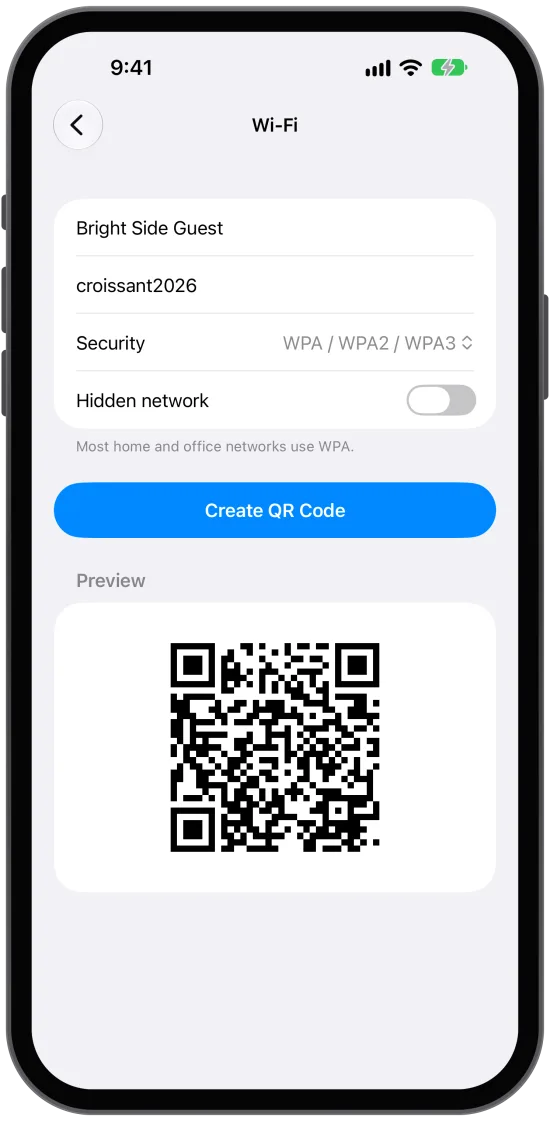
- Tap Create QR Code.
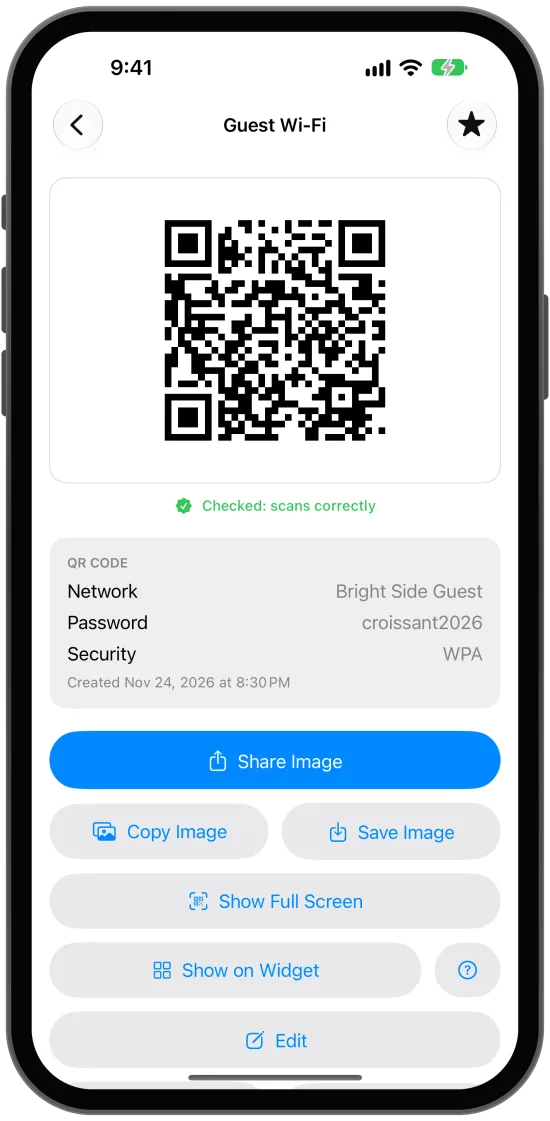
What you’ll see
The code, named “Wi-Fi:
Password and Security listed under it, and Checked: scans correctly. The copy button reads Copy Password, for people who’d
rather type it.
Tips
- iPhone and Android cameras both understand this code (“Join network”).
- Special characters in the name or password (; , : ” ) are handled for
you. - Showing it on your phone? Use Show Full Screen
(how).
If something goes wrong
“Enter the Wi-Fi password, or set Security to None.” means the password
is empty. Guests can’t join? Check the network name and password match
exactly, including capitals.
Related articles
Still stuck? Email contact@setriksoftware.com with your app version (Settings › About) and what you saw. If something went wrong in the app, sending the error log helps too. You can also browse the Help Center or the messages the app can show.