

Print and designSetrik QR Pro
Print a sheet of labels or cards
Print codes on Avery labels, business cards or a plain grid, many per page.
Steps
- Start from one code (For Print and Design › Print Sheet: Labels and Cards) or from Saved Codes › ⋯ › Print Sheet of Codes.
- Tap Sheet and choose (the app remembers your choice):
– Address labels (Avery 5160): 30 per sheet, 1 × 2⅝ in; also
5260, 5960, 8160, 8460
– Shipping labels (Avery 5163): 10 per sheet, 2 × 4 in; also
5263, 5963, 8163
– Business cards (Avery 8371): 10 per sheet, 2 × 3½ in; also
5371, 8471
– Plain grid, US Letter or Plain grid, A4: 12 per page with
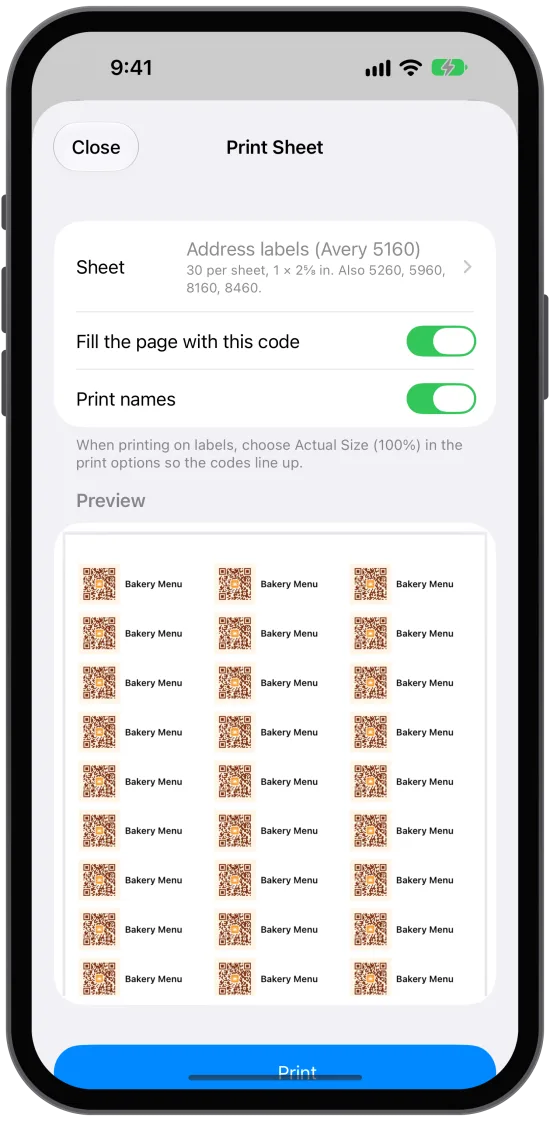
cut lines - From one code, Fill the page with this code repeats it (on to
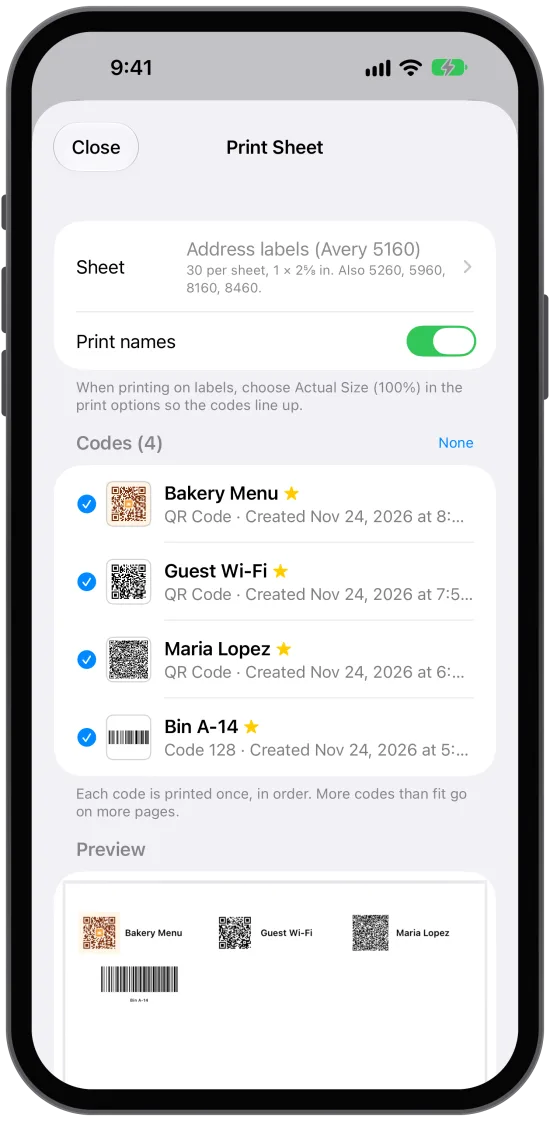
start). From Saved Codes, tick codes under Codes; the first page’s
worth is ticked to start, and All or None ticks every code or
none. “Each code is printed once, in order. More codes than fit go on
more pages.” - Turn Print names on or off. Check the Preview.
- Tap Print, or Share PDF to print elsewhere.
Tap Close to leave without printing.
Without Pro
Both ways in open the Pro screen.
Tip from the app
“When printing on labels, choose Actual Size (100%) in the print options
so the codes line up.”
Related articles
Still stuck? Email contact@setriksoftware.com with your app version (Settings › About) and what you saw. If something went wrong in the app, sending the error log helps too. You can also browse the Help Center or the messages the app can show.