

Print and designSetrik QR Pro
Add your logo to a QR code
Put your logo in the middle of a QR code that still scans.
Before you start
Have your logo in Photos. A square logo on a plain background works best.
Steps
- Open a QR code and scroll down to For Print and Design.
- Tap Add Logo and choose the picture.
- Check the scan result above the code.
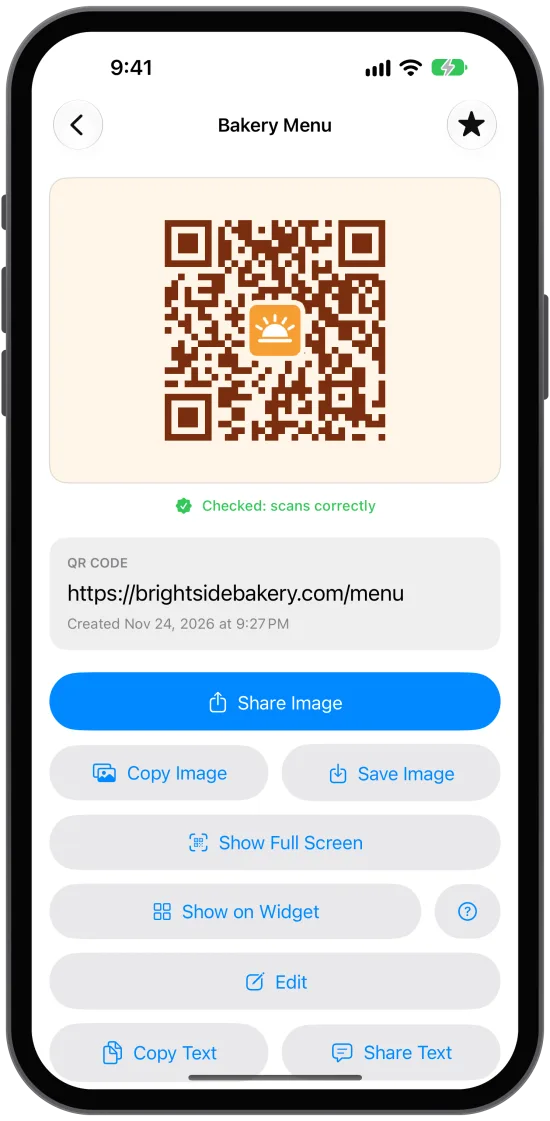
What you’ll see
Your logo in the center of the code on a rounded pad in the background
color. The note “With a logo, the code uses its strongest error
correction so it still scans. Check the scan result above.” explains why
the code gets a bit denser.
Change or remove it
Tap Change Logo to pick another picture, or Remove Logo.
Tips
- The logo is saved with the code (shrunk to at most 512 pixels) and
syncs through iCloud. - It’s included in every image, PDF, SVG and printout, Show Full Screen,
the list pictures and the widget. - If the scan check turns orange, try without the logo, or use darker
code colors. - A logo makes the code use its strongest error correction, so it holds
less: about 1,270 characters of plain text instead of about 2,300.
From version 1.1, Add Logo is grey on a longer code, with the note
“This code holds too much to add a logo. A logo needs room for extra
error correction, about 1,270 characters at most.” (In version 1.0 a
logo on such a code leaves it without a picture; remove the logo.)
Related articles
Still stuck? Email contact@setriksoftware.com with your app version (Settings › About) and what you saw. If something went wrong in the app, sending the error log helps too. You can also browse the Help Center or the messages the app can show.