

Print and designSetrik QR Pro
Change the colors of a QR code
Match a QR code to your brand by picking its code and background colors.
Steps
- Open a QR code and scroll down to For Print and Design.
- Tap Code Color and pick a color.
- Tap Background and pick a color.
- Look at the scan check above the code: it runs again with each change.
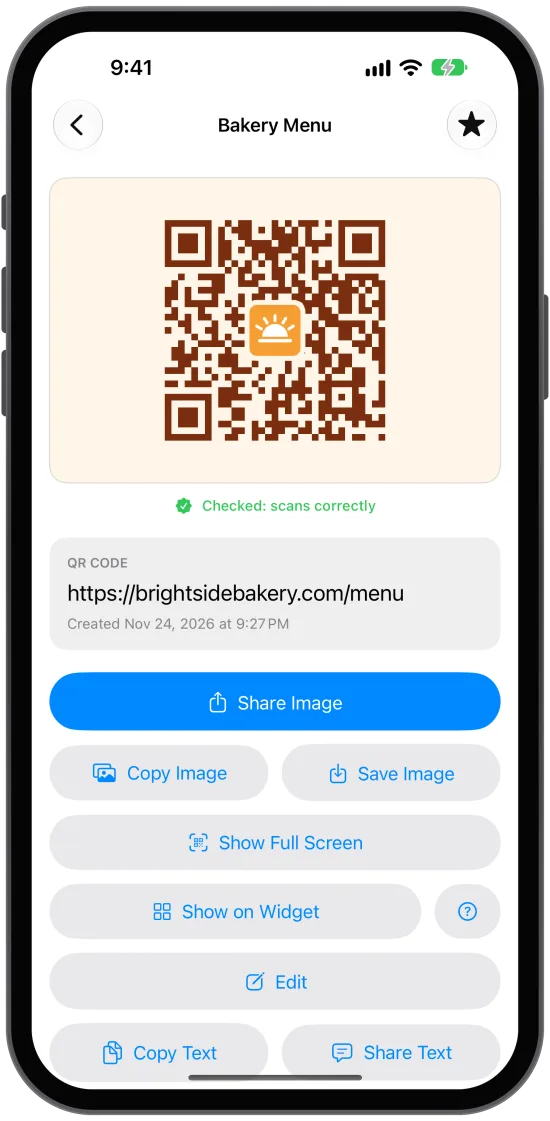
What you’ll see
The code in your colors everywhere: the screen, Share, Copy and Save
Image, PDF, SVG, large PNG, Show Full Screen, the lists and the widget.
The colors are saved with the code and sync through iCloud.
Keep it scannable
- Use a dark code on a light background. The app warns you: “Light
codes on dark backgrounds often don’t scan. Use a darker code color.” - Keep enough contrast. “These colors are too close. The code may not
scan; pick a darker code or lighter background.” - Tap Reset Colors to go back to black on white. (It shows once
you’ve changed a color.)
Tips
Colors are for QR codes. Colors can’t be see-through.
Related articles
Still stuck? Email contact@setriksoftware.com with your app version (Settings › About) and what you saw. If something went wrong in the app, sending the error log helps too. You can also browse the Help Center or the messages the app can show.