

Print and designSetrik QR Pro
Export a print-quality PDF, SVG or large PNG
Get a code as a sharp vector PDF or SVG, or a 4096-pixel PNG, for print shops and design apps.
For banners, signs, packaging, or a file for your printer or designer.
Vector files stay sharp at any size.
Steps
- Open the code (after making it, or from Saved Codes or History).
- Scroll down to For Print and Design.
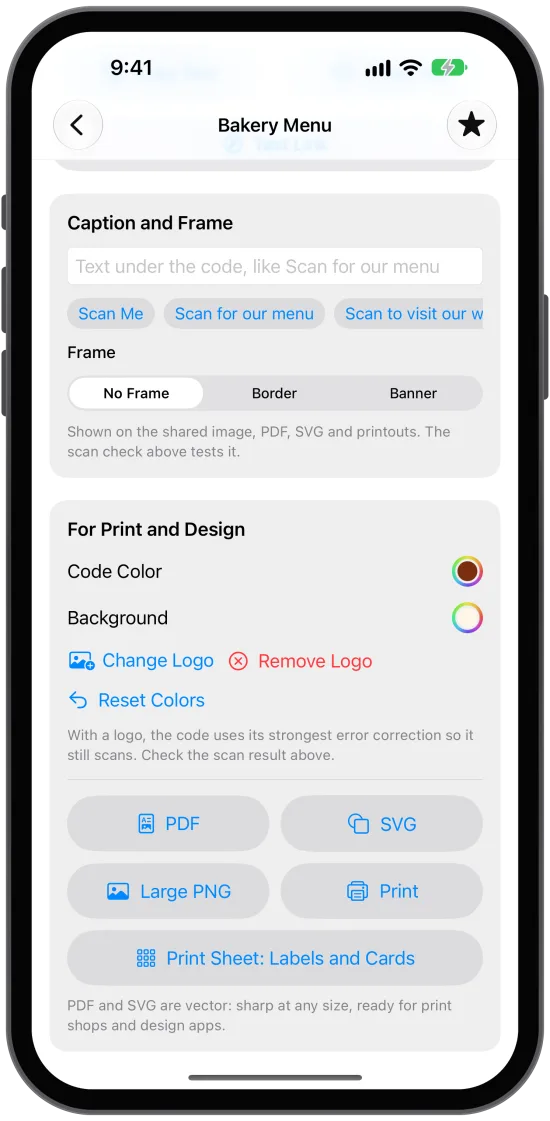
- Tap the format you need:
– PDF: vector, 3 inches wide on a page the size of the code. Scales
to any size without blur. Best for print shops.
– SVG: vector, for design apps like Canva, Illustrator, Affinity or
Figma.
– Large PNG: about 4096 pixels wide, with “(large)” in the file
name. For apps that don’t take PDF or SVG. - Choose where it goes in the share sheet: Save to Files, Mail,
AirDrop, or another app.
The card also has Print (how) and, from version 1.1,
Print Sheet: Labels and Cards (how).
What you’ll see
A file named after the code, like “QR Code – brightsidebakery.com.pdf”,
with the code’s colors and logo included, and its caption and frame
.
Tips
- Works for QR codes and the 10 other barcode types.
- Every export was tested to scan: plain, colored, with a logo, PDF, SVG
and 4096 pixels.
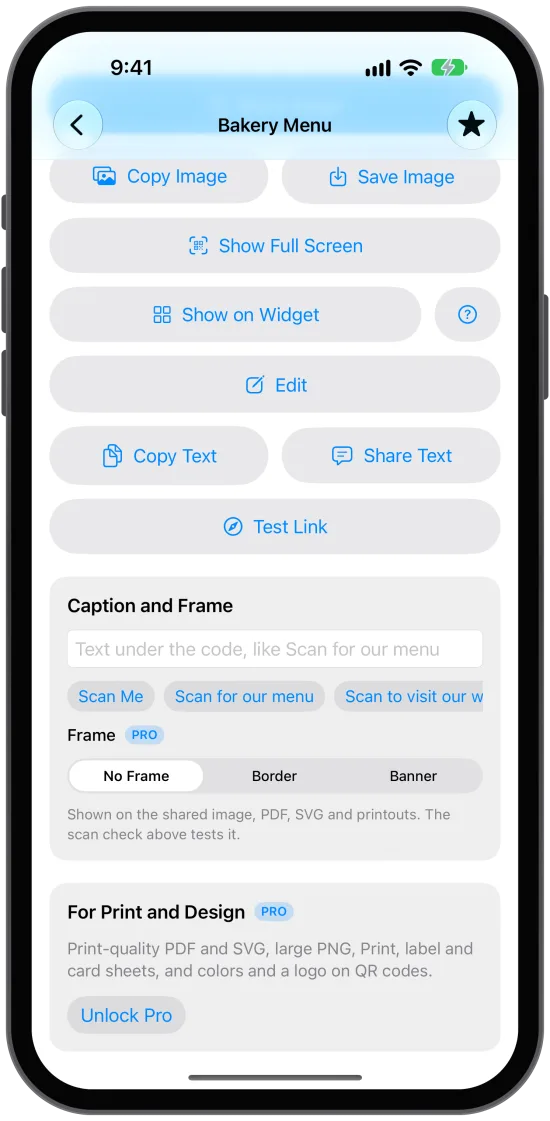
Without Pro
The card shows a short description of what Pro adds and Unlock Pro,
which opens the Pro screen.
Related articles
Still stuck? Email contact@setriksoftware.com with your app version (Settings › About) and what you saw. If something went wrong in the app, sending the error log helps too. You can also browse the Help Center or the messages the app can show.