

Open a link, call or join Wi-Fi from a scanned code
Use the buttons on a scanned code to open it, call, email, copy or share what's inside.
After a scan, Setrik QR recognizes what’s inside and offers the button
that fits.
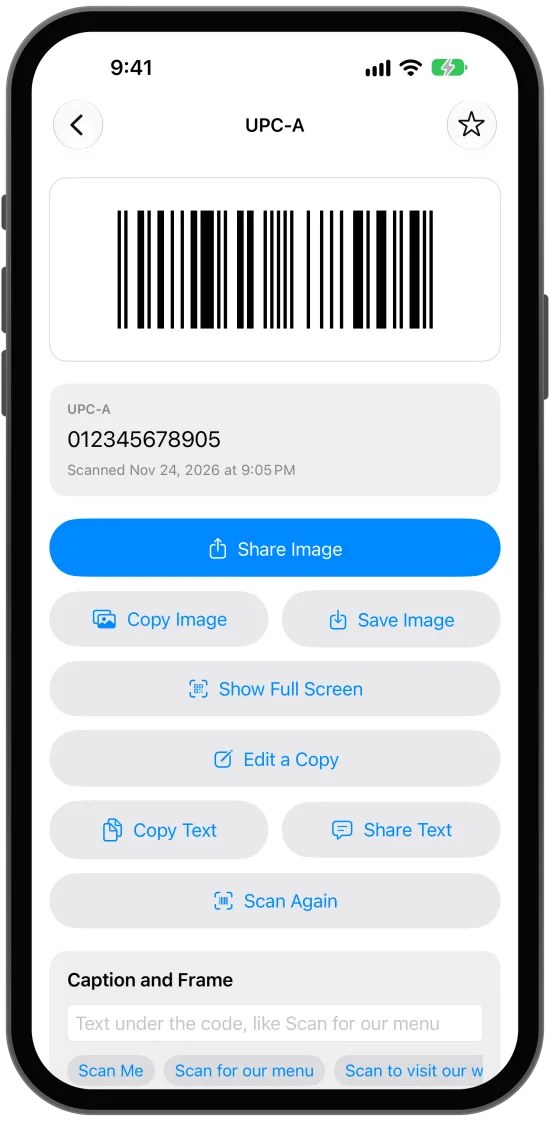
What you can do
| Inside the code | Main button |
|---|---|
| A link (http, https, or starting with www.) | Open Link (opens Safari) |
| A phone number | Call <number> |
| An email address | Email <address> |
| Wi-Fi details | Network, Password and Security are listed; Copy Password copies the password |
| A contact card | Name, Company, Title, Phone, Email, Address and Website are listed; Share Image lets you send it on |
| Anything else | The text, which you can select |
Every scanned code also has Copy Text (Copy Password for Wi-Fi
with a password), Share Text and Scan Again. If the app can draw
that type, you also get Share Image, Copy Image, Save Image
and Show Full Screen, the Caption and Frame card
and the For Print and Design card (Pro).
Tips
- Check a link before you open it: the full address is shown on the
screen. - UPC-A barcodes (which phones read as a 13-digit EAN starting with 0)
are shown correctly as 12-digit UPC-A. - Some types can be read but not drawn (Micro QR, MicroPDF417, Code 93,
Interleaved 2 of 5, GS1 DataBar, MSI Plessey, Data Matrix). They show
“Setrik QR can read <type> codes but can’t draw them.” - Tap the star to keep a scanned code in Saved Codes.
- From version 1.1, tap Edit a Copy (under Show Full Screen) to make your own code
from a scanned one (how).
Related articles
Still stuck? Email contact@setriksoftware.com with your app version (Settings › About) and what you saw. If something went wrong in the app, sending the error log helps too. You can also browse the Help Center or the messages the app can show.