

Check that a code scans
Understand the scan check under every code you make, and what to do when it warns you.
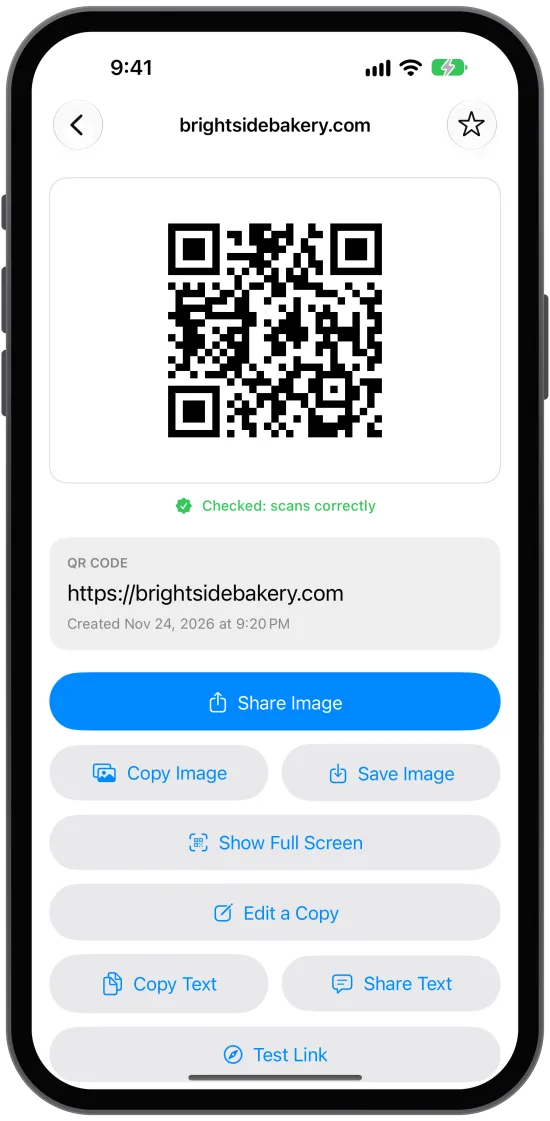
Before you print 500 flyers, you want to know the code works. Setrik QR
reads its own picture back, the way a phone camera would, every time you
make a code or change its colors or logo (and, from version 1.1, its
caption or frame).
What you’ll see
Under the code:
- Checking that it scans… for a moment, then
- Checked: scans correctly (green): the code reads back as exactly
what you typed. You’re good to go. - Couldn’t read this code back. Test it before printing. (orange):
something makes it hard to read.
When it warns you
- If you changed the colors, tap Reset Colors or pick a darker code
color on a lighter background. - If you added a logo, try without it (Remove Logo).
- If you added a frame, try No Frame.
- Scan it yourself with another phone’s camera before printing.
Tips
- Codes you scanned (not made) don’t get the check, unless you change
their colors or logo (or, from version 1.1, add a caption or frame). - The check tests the picture on screen. Print with good contrast, and
not too small.
Related articles
Still stuck? Email contact@setriksoftware.com with your app version (Settings › About) and what you saw. If something went wrong in the app, sending the error log helps too. You can also browse the Help Center or the messages the app can show.