

Make an email QR code
Make a code that opens a new email to you, with the subject and message already filled in.
Good for “Order by email”, feedback cards and sign-up sheets: scanning it
opens the phone’s mail app with your address, subject and message ready.
Steps
- Tap Create, then Email.
- Type the address in the first field (it shows
you@example.comuntil
you type). - Add a Subject (optional) and a Message (optional) if you like.
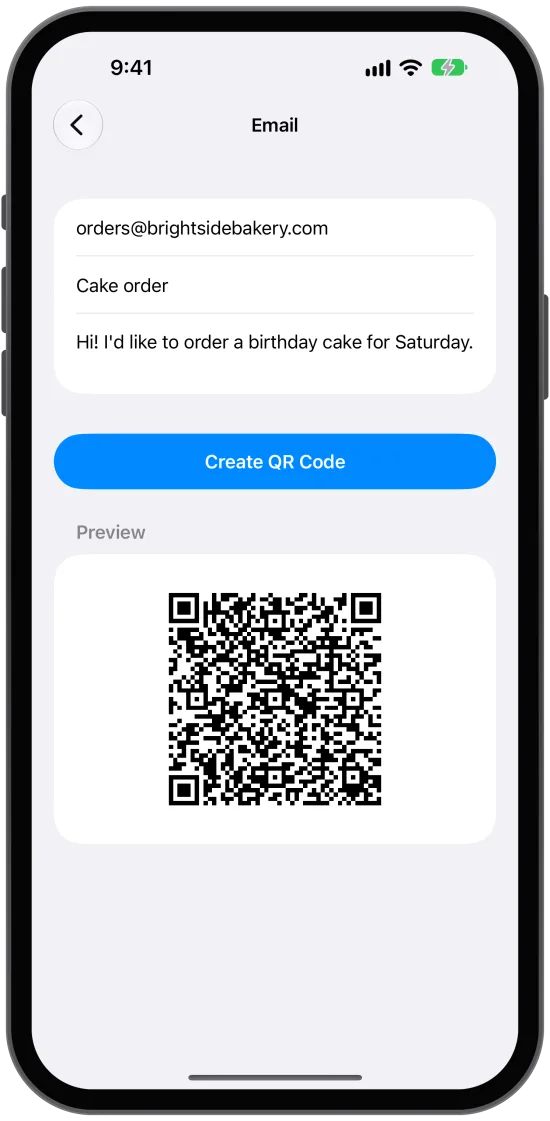
- Tap Create QR Code.
What you’ll see
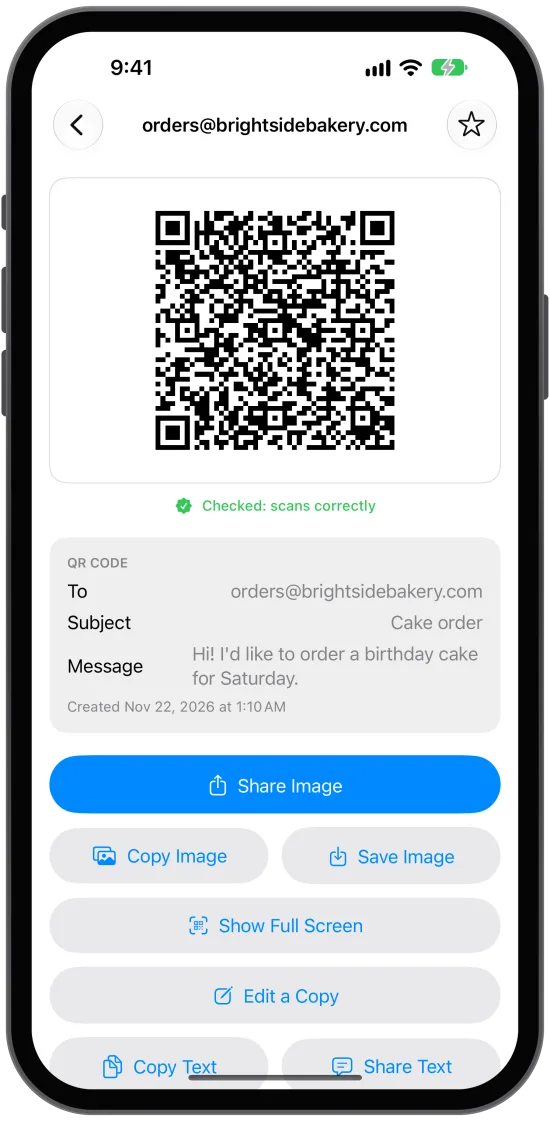
The code with To, Subject and Message listed under it, and an
Email <address> button to try it yourself.
If something goes wrong
“That doesn’t look like an email address.” means the address needs an @
and a dot, with no spaces. “That email address can’t be used.” means it
has characters an email link can’t hold: check it for typing mistakes.
Related articles
Still stuck? Email contact@setriksoftware.com with your app version (Settings › About) and what you saw. If something went wrong in the app, sending the error log helps too. You can also browse the Help Center or the messages the app can show.