

Scan a code
Read a QR code or barcode with your iPhone camera and act on what's in it.
Use it for any QR code or barcode: a menu, a ticket, a product, a Wi-Fi
sign.
Before you start
The first time, the app asks to use the camera (“Setrik QR uses the
camera to scan barcodes and QR codes.”). Tap Allow. Live scanning
needs an iPhone XS or newer.
Steps
- On the start screen, tap Scan. The camera opens straight away.
- Point it at the code. “Point the camera at a barcode or QR code” shows
at the bottom, and the app highlights the code it sees. Pinch to zoom
for small or far-away codes.
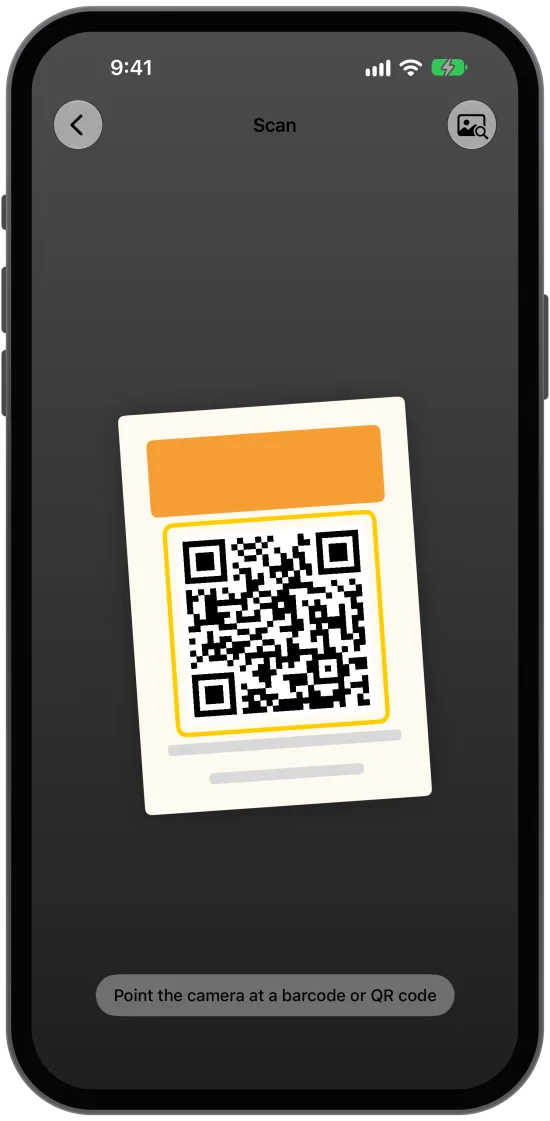
- Hold still. On the first code it finds, the phone vibrates, the
screen flashes green and the result opens.
What you’ll see
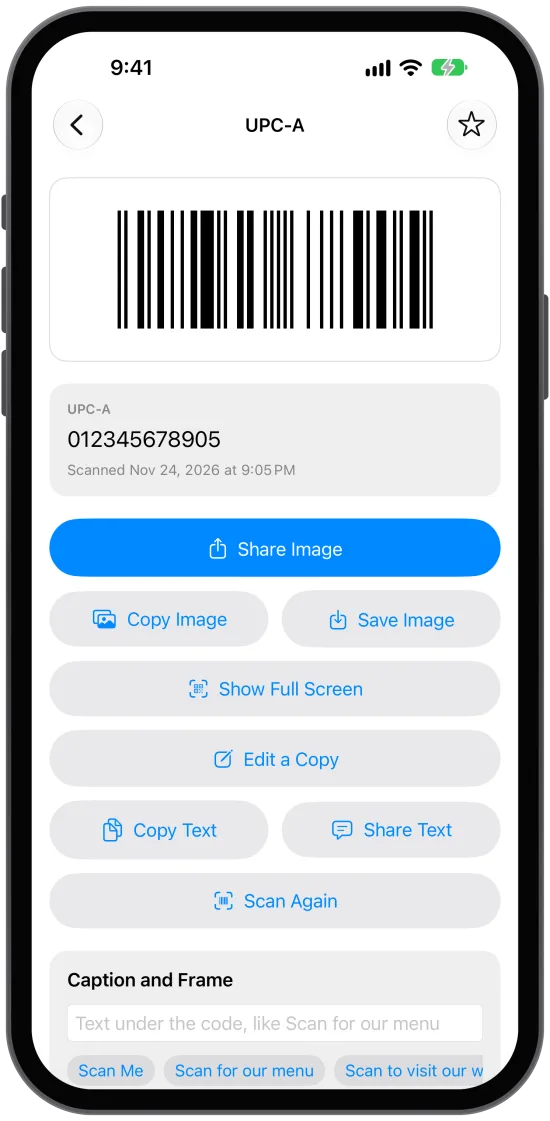
The code’s value, its type (like UPC-A or QR Code), when it was scanned,
and buttons that fit what’s inside: Open Link, Call, Email,
Copy Password for Wi-Fi, and so on. The scan is saved to History by
itself.
Tips
- One code at a time, on purpose: the scanner closes after each code.
Tap Scan Again for the next one. - It reads 20 types: QR, Micro QR, Data Matrix, PDF417, MicroPDF417,
Aztec, EAN-13, EAN-8, UPC-A, UPC-E, Code 128, Code 39, Code 93, ITF-14,
Interleaved 2 of 5, Codabar, GS1 DataBar (and Expanded and Limited) and
MSI Plessey. - The code is in a screenshot or photo instead? See
Scan a code from a photo or file (Pro).
If something goes wrong
“Camera Access Is Off” means the camera was turned off for Setrik QR.
Tap Open Settings and turn Camera on. More in
The camera won’t open.
Related articles
- Open a link, call or join Wi-Fi from a scanned code
- Scan faster from the Home Screen, Control Center or Siri
Still stuck? Email contact@setriksoftware.com with your app version (Settings › About) and what you saw. If something went wrong in the app, sending the error log helps too. You can also browse the Help Center or the messages the app can show.