

ScanningSetrik QR Pro
Scan a code from a photo or file
Read a QR code or barcode in a screenshot, photo or image file, without a second phone.
Someone sent you a QR code, or it’s in an email, a ticket or a
screenshot. You can’t point your own camera at your own screen, so read
it from the picture.
Steps
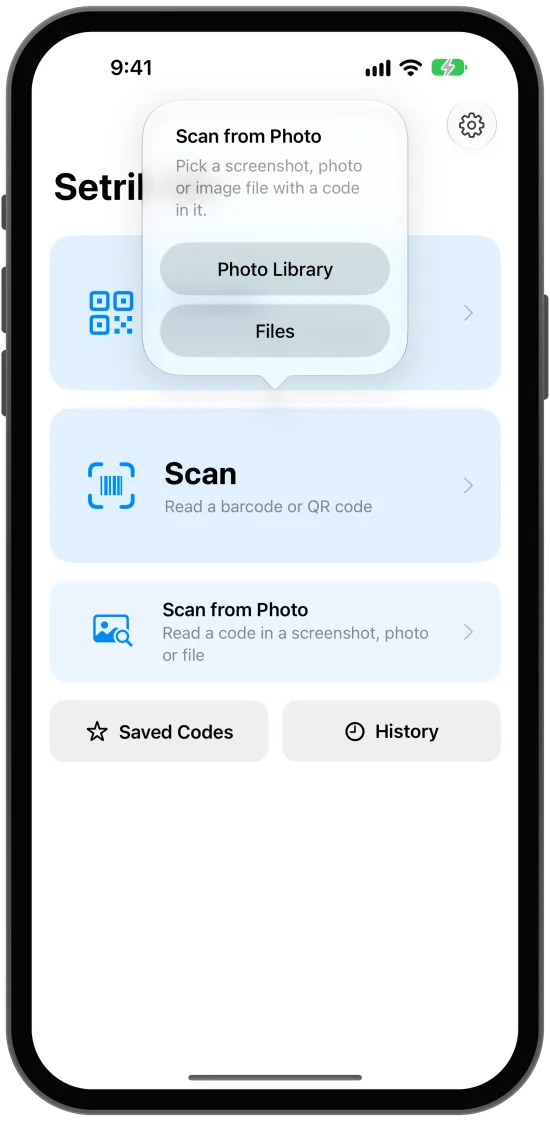
- On the start screen, tap Scan from Photo. (Or, on the Scan screen,
tap From Photo at the top right.) - Choose Photo Library or Files.
- Pick the picture. “Reading…” shows for a moment.
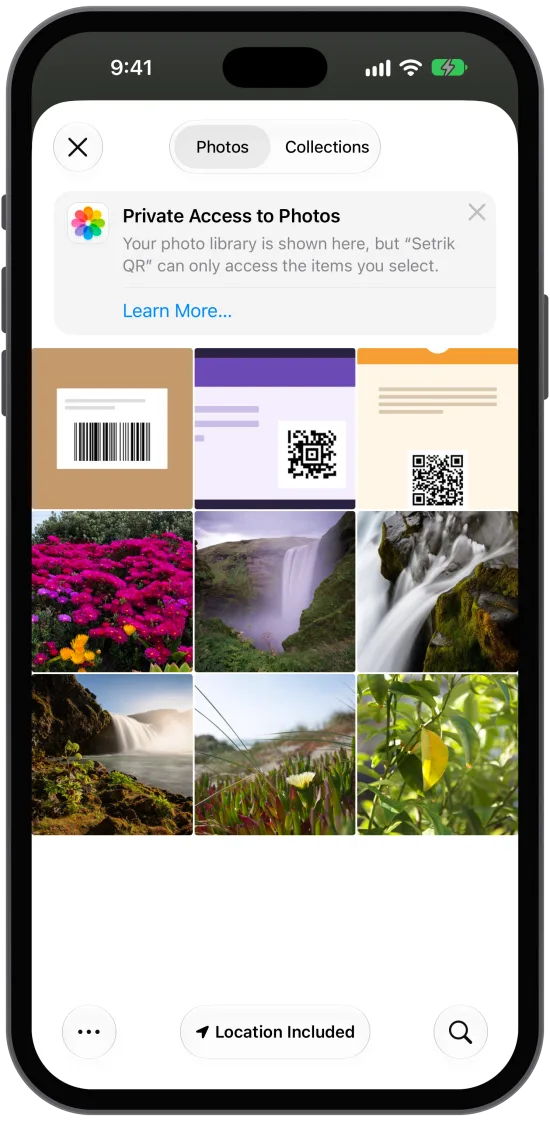
What you’ll see
The code opens straight on the result screen with a short vibration, and
it’s saved to History as Scanned.
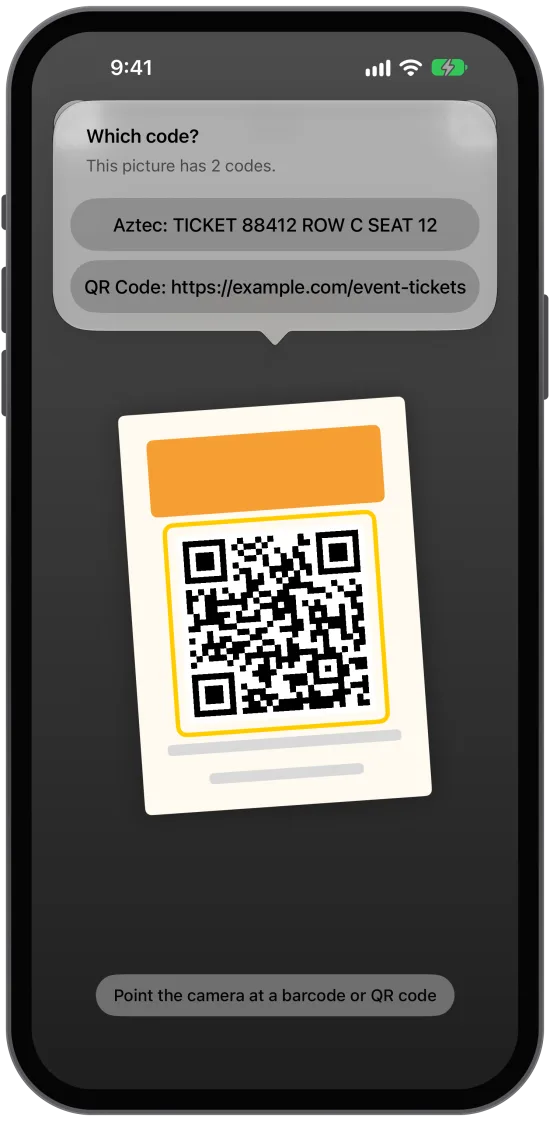
If the picture has more than one code (like a ticket), you’ll see “Which
code?” with “This picture has N codes.” Each choice shows the code’s type
and the start of its value. Tap the one you want.
Tips
- Works with photos, screenshots and image files (JPEG, PNG, HEIC and
others), even sideways ones. - It reads the same 20 types as the camera.
- The picture is read on your iPhone and not kept. Only the code’s value
is saved. The photo picker only shares the picture you choose.
Without Pro
Scan from Photo has a PRO badge, and the Scan screen shows
From Photo (Pro). Tapping either opens the Pro screen.
If something goes wrong
“No Code Found” with “Setrik QR couldn’t find a barcode or QR code in
that picture. Try a sharper or closer picture.” Crop or zoom the
screenshot so the code is bigger, and try again.
Related articles
Still stuck? Email contact@setriksoftware.com with your app version (Settings › About) and what you saw. If something went wrong in the app, sending the error log helps too. You can also browse the Help Center or the messages the app can show.