

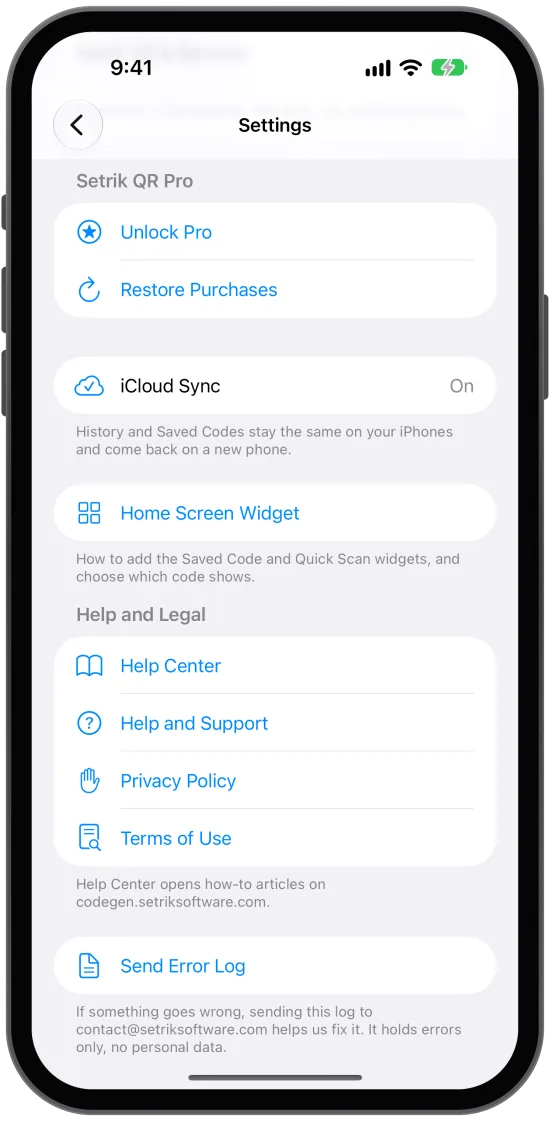
Send an error log
Send the app's error log to Setrik Software support so a problem can be fixed.
If something goes wrong, the log helps us find out why. It holds errors
only: no code values, names or photos.
Steps
- Tap the gear (Settings), then Send Error Log.
- A ready email opens, with the log attached (SetrikQR-error-log.txt) and
the subject “Setrik QR error log (version …, build …)”. - Under “What happened (optional)”, add a line about what you were doing
if you like. The app version, iOS version and iPhone model are already
filled in. - Tap Send. (Apple doesn’t let apps send email without you.)
What you’ll see
Once it’s sent, “Thank You!” with “Your error log was sent. We’ll take a look and use it
to make Setrik QR better.”
No Mail account on your iPhone?
Send Error Log opens the share sheet with the log file instead. Send
it by any app to contact@setriksoftware.com.
Tips
The log stays on your iPhone until you send it, and it trims itself when
it gets big.
Related articles
Still stuck? Email contact@setriksoftware.com with your app version (Settings › About) and what you saw. If something went wrong in the app, sending the error log helps too. You can also browse the Help Center or the messages the app can show.