

Print and designSetrik QR Pro
Print a code
Print a code straight from your iPhone, sharp at any size.
For a Wi-Fi sign, a table card or a label, printed on your own printer.
Steps
- Open the code and scroll down to For Print and Design.
- Tap Print.
- In the print options, choose your printer, the number of copies and
the paper size. - Tap Print.
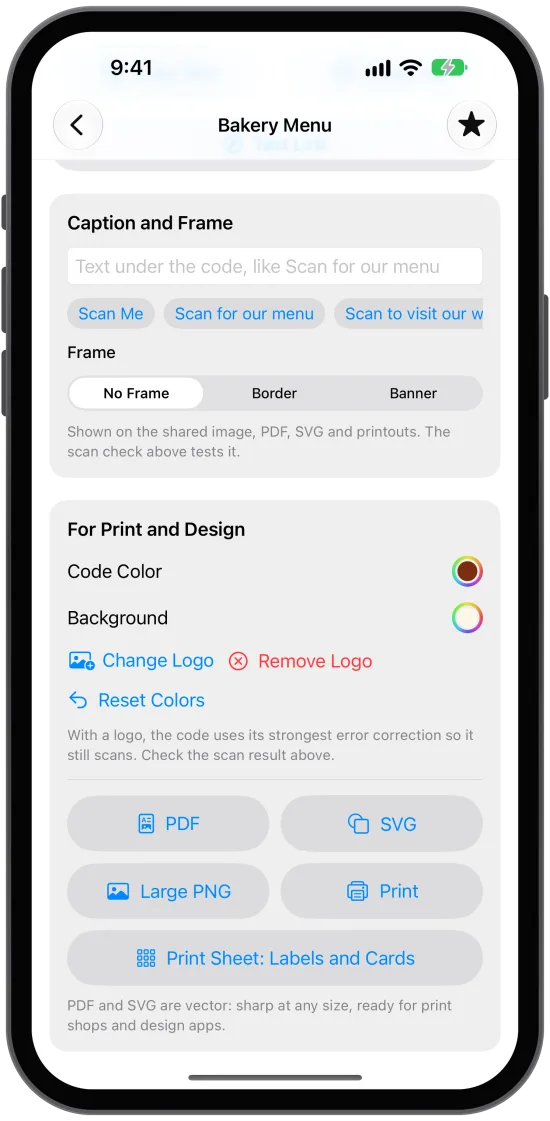
What you’ll see
Apple’s print screen with the code as a vector PDF, so it prints sharp,
in its colors and logo, and its caption and frame.
Tips
- Check for Checked: scans correctly first.
- Printing to a shop or designer? Send a PDF instead
(how).
Related articles
Still stuck? Email contact@setriksoftware.com with your app version (Settings › About) and what you saw. If something went wrong in the app, sending the error log helps too. You can also browse the Help Center or the messages the app can show.